Why Device encryption is missing from Settings, answered by System Information
On a new PC, Device encryption is nowhere to be found in Settings. Or the opposite: the drive turns out to be encrypted although nobody switched anything on. Neither is unusual, and Microsoft publishes a way to find out which is which. Run System Information as an administrator, read the support-state value, and one of four answers tells you whether the prerequisites are met or whether TPM, WinRE or PCR7 binding is missing. This guide was written on 2026-09-21 from that page and covers what the values mean and what can be done after reading one. Finding the recovery key is covered in a separate guide on this site.
Published · Updated · FaultNote editorial policy
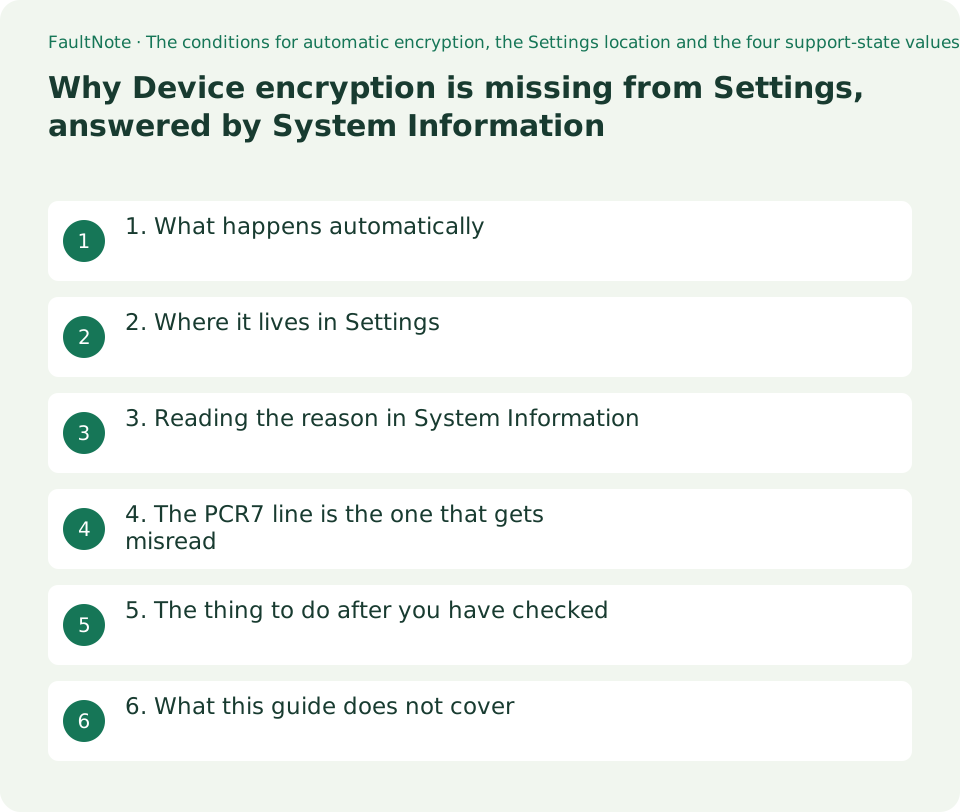
Who this guide is for and what to prepare
- Anyone who cannot find Device encryption in Settings
- Anyone who wants to know why a drive is encrypted when they never turned it on
- Anyone checking whether encryption is available on a Home edition machine
What you need
- Confirm you can sign in with an administrator account; the item may not appear for a standard user
- Know which kind of account you sign in with: Microsoft, work or school, or local
- Read the separate guide on locating the recovery key first
1. What happens automatically
Microsoft's description: Device Encryption is a Windows feature that enables BitLocker encryption automatically for the Operating System drive and fixed drives.
The condition for it turning itself on is stated as well: When you first sign in or set up a device with a Microsoft account, or work or school account, Device Encryption is turned on and a recovery key is attached to that account. If you're using a local account, Device Encryption isn't turned on automatically.
That sentence is usually the answer to why a drive is encrypted when nobody asked for it. It is also what decides where the recovery key lives.
Editions are covered too: Unlike BitLocker Drive Encryption, which is available on Windows Pro, Enterprise, or Education editions, Device Encryption is available on a wider range of devices, including those running Windows Home. Home is not excluded from encryption.
2. Where it lives in Settings
For a device where it did not turn itself on, the page gives the steps: sign in to Windows with an administrator account, open the Settings app and select Privacy security, then Device encryption, and use the toggle to turn it on.
For a missing item there is a note on the same page: If Device encryption doesn't appear, it's either unavailable on your device, or you might be signed in with a standard user account.
So the first thing to separate is a permissions problem from a hardware condition. If signing in as an administrator still does not produce the item, move to the check in the next section.
This guide does not cover setting up BitLocker Drive Encryption, the Pro-and-above feature. It keeps to whether device encryption is available.
03. Reading the reason in System Information
Microsoft's method: from Start, type System Information, right-click System Information in the list of results, and select Run as administrator. Running it elevated matters; started normally it may not show the item you are looking for.
In the System Summary list, look for the value of Automatic Device Encryption Support or Device Encryption Support. That value is the support state.
Four values are enumerated. The table pairs each with the meaning Microsoft gives and with what can be done after reading it. The last column is this site's arrangement, not the source's wording.
What you get here is why it is unavailable, not how to change it. TPM and Secure Boot live in the BIOS or UEFI, where the screens differ by model, so consult your manufacturer's documentation.
Scroll horizontally to see the full table →
| Value shown | The meaning Microsoft gives | What you can do next |
|---|---|---|
| Meets prerequisites | Device Encryption is available on your device | If the Settings item is still missing, check that you are signed in as an administrator |
| TPM is not usable | The device has no Trusted Platform Module, or the TPM is not enabled in the BIOS or UEFI | A BIOS or UEFI matter. This site's guide on TPM implementations is a useful companion |
| WinRE is not configured | The device does not have the Windows Recovery Environment configured | A recovery environment problem, which also bears on recovery when the PC will not boot; read alongside the recovery drive guide |
| PCR7 binding is not supported | Secure Boot is disabled in the BIOS/UEFI, or peripherals were connected during boot (such as specialized network interfaces, docking stations or an external graphics card) | The peripheral half is the part people miss. Boot without the dock or external GPU attached and read the value again |
4. The PCR7 line is the one that gets misread
Of the four values, the one that looks like a hardware defect and often is not is PCR7 binding. Microsoft gives two causes side by side: Secure Boot being disabled, and peripherals being connected during boot.
The second is spelled out with examples: specialized network interfaces, docking stations and an external graphics card. A laptop that always boots sitting in its dock is a candidate for this value.
Nothing was reproduced here, so this guide does not claim that removing them always changes the value. What it states is the fact that the source names connected peripherals as a cause.
On the Secure Boot half, this site covers the 2026 certificate expiry in a separate guide. Whether Secure Boot is enabled is read in the BIOS or UEFI.
05. The thing to do after you have checked
If the prerequisites are met and encryption is on, the next step is fixed: find out where the recovery key is. As the page states, setting the device up with a Microsoft account attaches the recovery key to that account.
That matters when an SSD is swapped, when a motherboard is replaced, and on the day the machine will not start. A separate guide on this site covers where the recovery key can be stored and how to check.
If you use a local account and encryption never turned itself on, the decision is whether to turn it on yourself. If you do, you choose where the recovery key is kept and you record it.
Either way, do the checking before the work. Looking for a recovery key after the drive is already out is the wrong order.
06. What this guide does not cover
No BIOS or UEFI steps. The screens and item names differ by model and no individual model was tested here. Consult the manufacturer.
No setup or management of BitLocker Drive Encryption, the Pro-and-above feature. This guide keeps to whether device encryption is available.
No opinion on whether to disable encryption. The Microsoft page gives steps for enabling it, and this guide stays inside what the source covers.
No claim that the four values listed are the only ones System Information can show. These are the four the source enumerates.
0Limitations and requirements
- Run System Information as an administrator. Started normally it may not show the item you need.
- This guide explains how to read the value. Changing TPM or Secure Boot settings happens in the BIOS or UEFI and differs by model.
- If encryption is on, find the recovery key before you do anything else. After the drive is out is too late.
- Everything quoted here was read on 2026-09-21. Both the English and the Japanese version of the same article were read, so the value names match across languages.
Frequently asked questions
Device encryption is not in my Settings.
Microsoft's note says it is either unavailable on the device or you are signed in with a standard user account. Check with an administrator account first, and if it is still missing, read the support-state value in System Information.
The drive is encrypted and I never turned it on. Why?
The page states that when you first sign in or set up a device with a Microsoft account, or a work or school account, Device Encryption is turned on and a recovery key is attached to that account. With a local account it does not turn on automatically.
Does the Home edition rule encryption out?
No. The page states that unlike BitLocker Drive Encryption, which is available on Pro, Enterprise or Education, Device Encryption is available on a wider range of devices, including those running Windows Home.
It says PCR7 binding is not supported. Is the machine faulty?
Not necessarily. The source names two causes: Secure Boot disabled in the BIOS/UEFI, or peripherals connected during boot, such as specialized network interfaces, docking stations or an external graphics card.
Sources and verification date
Sources checked: . These sources support the specifications, procedures or prices discussed here. Check each source for applicable conditions and current information.
- Microsoft Support: Device Encryption in Windows. States that Device Encryption enables BitLocker encryption automatically for the operating system drive and fixed drives; that signing in or setting up a device with a Microsoft account or work or school account turns it on and attaches a recovery key to that account, while a local account does not turn it on automatically; that unlike BitLocker Drive Encryption on Pro, Enterprise or Education, Device Encryption is available on a wider range of devices including Windows Home; the steps for enabling it (administrator sign-in, Settings under Privacy security and Device encryption, the toggle); the note for when the item does not appear; the method of running System Information as an administrator and reading Automatic Device Encryption Support or Device Encryption Support; and the four values (Meets prerequisites, TPM is not usable, WinRE is not configured, PCR7 binding is not supported) with their stated meanings. Read 2026-09-21 ↗
- Microsoft Support: Device encryption in Windows, the Japanese version of the same article. Read to confirm the Japanese wording of the same four System Information values and of the Settings path, so that the two language versions of this guide describe the same screen. Read 2026-09-21 ↗
Related practical guides
- Before you swap in a new SSD: check whether the drive is encrypted, and where the recovery key lives
- Do you need to buy a TPM module? Discrete, integrated and firmware TPM, and what actually requires one
- A self-encrypting SSD is not automatically an encrypted hard drive for Windows
- Is quick machine recovery enabled on your PC? The defaults, and the network it actually needs
- Windows 11 Home vs Pro: When Is the Upgrade Worth It?
- Three ceilings to check before adding memory: your Windows edition, the board, and what is actually usable