Choosing a Monitor Arm: Minimum and Maximum Weight, VESA Pattern, Curved Monitors and Desk Thickness
With a monitor arm, check not only whether the monitor is too heavy but also whether it is too light. Many arms state capacity as a range, and some do not support monitors below the minimum. Note the monitor's weight without stand, VESA hole pattern and depth from its specifications, then check them one by one against the arm's weight range, its conditions for curved or deep monitors, and the desk thickness it can clamp. Screen size ratings are only a guide; weight is what matters.
Published · Updated · FaultNote editorial policy
Who this guide is for and what to prepare
- People who want to put a gaming or ultrawide monitor on an arm but do not know which weight capacity to choose
- People replacing a monitor or moving to a curved monitor who want to confirm before buying whether their current arm or a candidate arm will still work
What you need
- The monitor's exact model and the maker's specifications (VESA mounting hole pattern, weight without stand, depth without stand and whether it is curved)
- The desk top thickness, whether there is a modesty panel, frame or drawer under the back edge, and whether there is a grommet hole (measured with a ruler)
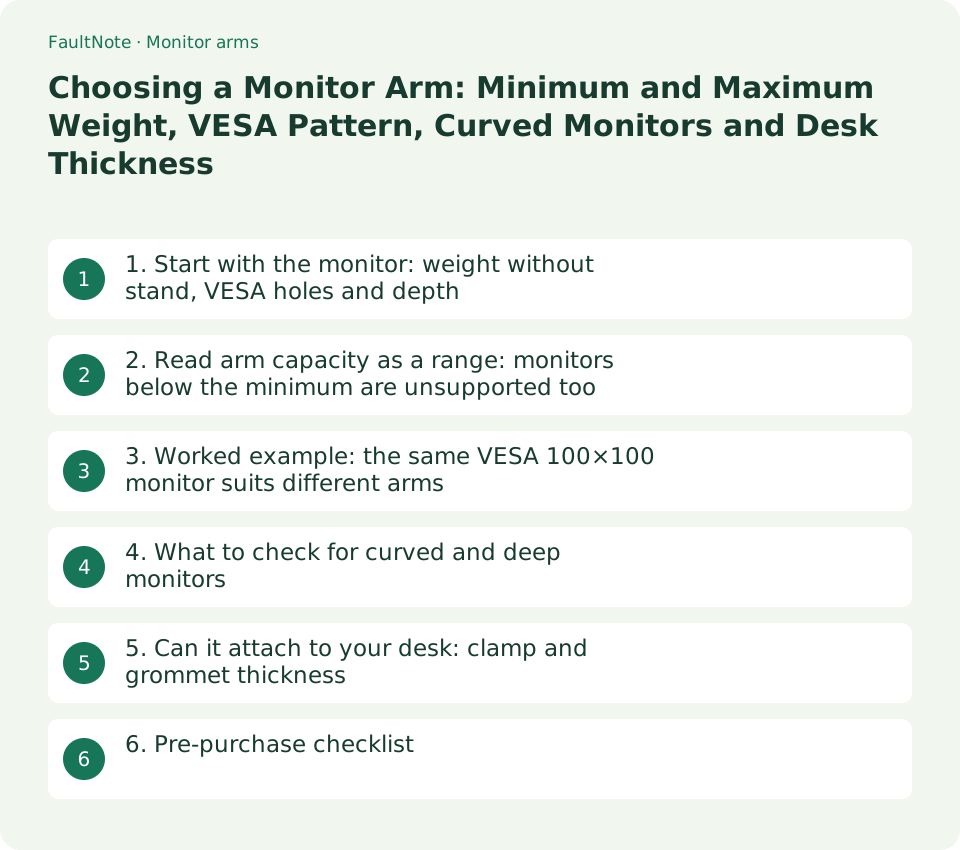
1. Start with the monitor: weight without stand, VESA holes and depth
The arm carries the monitor with its stand removed, so use the "weight without stand" figure from the specifications. Sanwa Supply's 100-LAC008BK product page also states its unsupported condition as "monitor weight (excluding stand) under 1 kg". If you judge by weight with the stand, you will not notice that a monitor falls below an arm's minimum.
The mounting holes on the back follow VESA patterns such as 75×75 mm or 100×100 mm. ASUS lists this under "VESA Wall Mounting" in its specifications. Even when the hole pattern matches the arm, the mounting plate can hit the housing on monitors with a recessed back. Dell says its Gaming and Alienware monitors use a standard VESA 100x100 connection, that arms with a bigger VESA adapter plate might need spacers to push the plate out and avoid interference with the housing, and that you should check with the mount vendor for spacers.
Scroll horizontally to see the full table →
| Monitor (ASUS official specifications) | VESA | Weight without stand (estimated) | Depth without stand | Shape |
|---|---|---|---|---|
| ROG Strix XG27UCS (27-inch) | 100×100 mm | 3.88 kg | 6.01 cm | Flat |
| ROG Strix XG49WCR (49-inch) | 100×100 mm | 11.27 kg | 17.86 cm | Curved (1800R) |
- From the monitor specifications, note the weight without stand, VESA hole pattern, depth without stand and whether it is curved (curvature rating).
- If the weight is marked as estimated or varying by region, as on ASUS specification pages, avoid combinations right at the arm's minimum or maximum.
- For monitors with a recess around the mounting holes, ask the arm maker about the mounting plate size and whether spacers are needed.
2. Read arm capacity as a range: monitors below the minimum are unsupported too
Monitor arm capacity is often given as a range such as "3.2–11.3 kg", and the minimum matters as much as the maximum. Sanwa Supply's CR-LA1304W lists supported display weight as 8.0–20.0 kg and states that displays under 8 kg are not supported. A light monitor on a heavy-duty arm is outside the supported range.
Screen size ratings are a guide. Ergotron says screen size is an approximation and may be exceeded as long as the screen weight does not exceed the mount's maximum weight capacity. Sanwa Supply likewise says its listed inch sizes are a general guide and larger monitors are supported within the weight capacity. Narrow the choice by weight before size.
Scroll horizontally to see the full table →
| Arm (official specifications) | Weight capacity | VESA | Notes on curved or deep monitors | Warranty |
|---|---|---|---|---|
| Ergotron LX Desk Mount (45-241-026 and others) | 3.2–11.3 kg | 100×100 / 75×75 mm | Monitor depth greater than 64 mm may diminish capacity | 10 years |
| Ergotron HX Desk Monitor Arm (45-475-216 and others) | 9.1–19.1 kg | MIS-D / E / F (see website) | A model with HD Pivot (45-647) is offered for wide curved displays 15.2–30.4 cm deep weighing 12.7–19.1 kg | 10 years |
| Sanwa Supply CR-LA1304W | 8.0–20.0 kg (under 8 kg not supported) | 75×75 / 100×100 mm | Capacity for curved monitors is about 14 kg | Not stated on the product page (check when buying) |
| Sanwa Supply 100-LAC008BK | 1–15 kg (under 1 kg without stand not supported) | 75×75 / 100×100 mm (200×200 mm and larger not supported) | Curved monitors not supported in Sanwa's comparison table | 3 years from purchase |
- Note the minimum and maximum capacity from each candidate arm's specifications.
- Check that the monitor's weight without stand falls inside that range.
- Keep only arms whose range includes the monitor, and use size ratings as a reference only.
3. Worked example: the same VESA 100×100 monitor suits different arms
The table below checks the two monitors from section 1 against the four arms from section 2 using official specifications only. The order is: is the weight without stand inside the arm's range, does the monitor meet the arm maker's conditions for curved or deep monitors, and is the VESA pattern supported. If any check fails, drop that arm. This article is not based on hands-on mounting tests.
The XG27UCS (3.88 kg) is inside the Ergotron LX and 100-LAC008BK ranges but too light for the CR-LA1304W (minimum 8 kg) and the Ergotron HX (minimum 9.1 kg). The XG49WCR (11.27 kg, 17.86 cm deep, curved) fits under the Ergotron LX maximum of 11.3 kg, but it is far deeper than the 64 mm beyond which Ergotron says capacity may diminish, so avoid that pairing. It is within the CR-LA1304W's curved-monitor capacity of about 14 kg and within the Ergotron HX weight range, but below the 12.7 kg minimum of the HD Pivot model, so ask Ergotron about using the HX with this curved monitor.
Scroll horizontally to see the full table →
| Arm | XG27UCS (3.88 kg, flat) | XG49WCR (11.27 kg, curved, 17.86 cm deep) |
|---|---|---|
| Ergotron LX (3.2–11.3 kg) | In range. Depth 6.01 cm is under 64 mm | Avoid: weight is under the maximum, but depth exceeds 64 mm and capacity may diminish |
| Ergotron HX (9.1–19.1 kg) | Not supported: lighter than the 9.1 kg minimum | Weight in range. Ask Ergotron about use with a curved monitor |
| Sanwa Supply CR-LA1304W (8.0–20.0 kg) | Not supported: under 8 kg | Candidate: within the about 14 kg curved-monitor capacity |
| Sanwa Supply 100-LAC008BK (1–15 kg) | In range | Not supported: curved monitors not supported |
- Compare the monitor's weight without stand with each candidate arm's minimum and maximum.
- For curved or deep monitors, check the conditions the arm maker gives for curvature and depth.
- If no condition is listed or you cannot decide, contact the arm maker with the monitor model.
4. What to check for curved and deep monitors
Curved and ultrawide monitors put their centre of gravity further forward at the same weight, so makers sometimes set separate conditions. For the CR-LA1304W, Sanwa Supply says curved monitors put more load on an arm than flat monitors, that capacity for curved monitors is about 14 kg, and that you should choose an arm with spare capacity. The Ergotron LX dimensional illustrations state that monitor depth greater than 2.5 inches (64 mm) may diminish capacity.
For wide curved displays 15.2–30.4 cm deep weighing 12.7–19.1 kg, such as the Samsung Odyssey G9, Ergotron offers the HX Desk Monitor Arm with HD Pivot. The LX illustrations also note that the lowest part of the vertical lift range decreases by up to 114 mm when the arm is adjusted to hold over 9 kg. For heavier monitors, check the range of motion as well as capacity.
Scroll horizontally to see the full table →
| Maker's statement | Content | Check before buying |
|---|---|---|
| Sanwa Supply CR-LA1304W | Capacity for curved monitors is about 14 kg; choose an arm with spare capacity | Do not apply a flat-monitor capacity to a curved monitor |
| Sanwa Supply 100-LAC008BK | Curved monitors not supported in Sanwa's comparison table | Choose a different product for a curved monitor |
| Ergotron LX | Depth over 64 mm may diminish capacity; adjusting for over 9 kg reduces the lower lift range by up to 114 mm | Check range of motion for deep or heavy monitors |
| Ergotron HX with HD Pivot | For wide curved displays 15.2–30.4 cm deep weighing 12.7–19.1 kg | Check that the monitor's weight and depth fall in this range |
- Check the curvature rating (such as 1800R) and depth without stand in the monitor specifications.
- Look in the arm maker's specifications and notes for curved-monitor capacity, a depth limit, or whether curved monitors are supported.
- If a curved monitor is close to an arm's maximum, consider an arm one capacity class higher.
5. Can it attach to your desk: clamp and grommet thickness
Desk attachment is usually a clamp that grips the edge of the desk top, or a grommet mount that passes a bolt through a hole in the top. Supported thickness varies by product: Sanwa Supply's CR-LA1304W supports 10–50 mm for both clamp and grommet, and the 100-LAC008BK supports desk tops 1–5 cm thick with the clamp. For the 100-LAC008BK grommet, Sanwa lists at least 6.8 cm of width, at least 3.2 cm from the back and a hole diameter of 1–6 cm.
Besides thickness, a modesty panel, frame or drawer under the desk top can stop a clamp from gripping. Ergotron's LX dimensional illustrations and attachment guide show clamp and grommet dimensions as drawings, so compare them with your desk's measurements. If you are unsure how to read the figures, give the arm maker your desk thickness and construction and ask.
Scroll horizontally to see the full table →
| Arm | Desk thickness for clamp | Grommet conditions |
|---|---|---|
| Sanwa Supply CR-LA1304W | 10–50 mm | 10–50 mm |
| Sanwa Supply 100-LAC008BK | 1–5 cm | At least 6.8 cm wide, at least 3.2 cm from the back, hole diameter 1–6 cm |
| Ergotron LX / HX | Check the dimensional illustrations and attachment guide | Check the dimensional illustrations and attachment guide |
- Measure the desk top thickness where you want to mount the arm, and check for a modesty panel, frame or drawer underneath.
- In the arm specifications, check the supported thickness for clamp and grommet separately, and the grommet hole diameter and position conditions.
- For thin or soft desk tops, check whether the arm maker offers a reinforcement plate or similar option.
6. Pre-purchase checklist
A monitor arm only works when the monitor, arm and desk specifications all line up. The products in this article are examples to show the checking process, not a recommendation ranking. Check prices and stock on the retailer's product page on the day you buy. Also check that the monitor's cables are long enough for the arm's range of movement. For choosing a gaming monitor connection, see the DisplayPort vs HDMI comparison.
Scroll horizontally to see the full table →
| Check | Condition | Where to look |
|---|---|---|
| Weight | Monitor weight without stand is at or above the arm's minimum and at or below its maximum | Monitor and arm specifications |
| VESA | Hole pattern (75×75 / 100×100 mm, etc.) is supported by the arm | Monitor and arm specifications |
| Curvature and depth | Meets the arm maker's curved-monitor conditions and depth notes | Arm specifications, notes and dimensional drawings |
| Back shape | Mounting plate does not hit the housing; use spacers if needed | Monitor maker's guidance, arm maker |
| Desk | Thickness and underside construction meet the clamp or grommet conditions | Arm specifications and drawings, desk measurements |
- Put the monitor's weight without stand, VESA pattern, depth and curvature on one sheet.
- For each candidate arm, fill in its weight range, VESA support, curved and depth conditions, and supported desk thickness from its specifications.
- Among arms that meet every condition, compare range of motion, warranty and price on the day you buy.
Limitations and requirements
- Specifications were checked in public documents from Ergotron, Sanwa Supply, ASUS and Dell on 13 September 2026. Monitor weights are ASUS estimates and may vary by region.
- This article is not based on hands-on mounting or load testing. The worked examples compare official specification figures and do not guarantee a safe installation.
- Sanwa Supply's 100-LAC008BK page gives different size ratings: 35 inches in the product name and comparison table, and up to 32 inches in the supported-models section of the specifications. Treat size as a guide and decide by weight and curvature conditions.
Frequently asked questions
Can I put a light monitor on a heavy-duty arm?
Some arms do not support monitors below their minimum capacity. Sanwa Supply's CR-LA1304W lists 8.0–20.0 kg and states that displays under 8 kg are not supported. Choose an arm whose range includes the monitor's weight without stand.
Can I use a monitor larger than the arm's size rating?
Both Ergotron and Sanwa Supply say screen size is a guide and larger screens are fine as long as the weight capacity is not exceeded. Curved or deep monitors may have separate conditions, so check weight and the curved and depth conditions.
Can I choose an arm for a curved monitor using the flat-monitor capacity?
Not necessarily. Sanwa Supply gives the CR-LA1304W a curved-monitor capacity of about 14 kg (up to 20 kg for flat monitors), and some products do not support curved monitors at all. Ergotron also says capacity may diminish for monitors deeper than 64 mm.
Sources and verification date
Sources checked: . These sources support the specifications, procedures or prices discussed here. Check each source for applicable conditions and current information.
- Ergotron: LX Desk Monitor Arm datasheet (19 June 2023 edition, PDF) ↗
- Ergotron: LX Desk Mount LCD Arm dimensional illustrations (capacity over 64 mm depth, lift range over 9 kg, PDF) ↗
- Ergotron: HX Desk Monitor Arm datasheet (including the HD Pivot model, PDF) ↗
- Sanwa Supply: CR-LA1304W heavy-duty monitor arm (Japanese) ↗
- Sanwa Direct: 100-LAC008BK single monitor arm with slim clamp (Japanese) ↗
- ASUS: ROG Strix XG27UCS specifications ↗
- ASUS: ROG Strix XG49WCR specifications ↗
- Dell: Installing a Third-Party VESA Mount on a Dell Gaming or Alienware Monitor (modified 13 May 2026) ↗
Related practical guides
- Check PC-Part Compatibility Before Buying: CPU, BIOS, RAM, Case and Power
- Air cooler or AIO? Choose by case clearance, noise and maintenance
- PCIe 4.0 or 5.0 SSD for gaming? Check load times, capacity and slot sharing
- DDR4 vs. DDR5: Choose for a New Build, Reused RAM and Upgrade Cost
- DDR5 with Two or Four DIMMs: Compare Upgrade Speed Limits and Kits
- Integrated vs. Discrete Graphics: Check Workloads, CPU Models and Outputs