Windows 11 does not wake from sleep or immediately sleeps again
What to do first
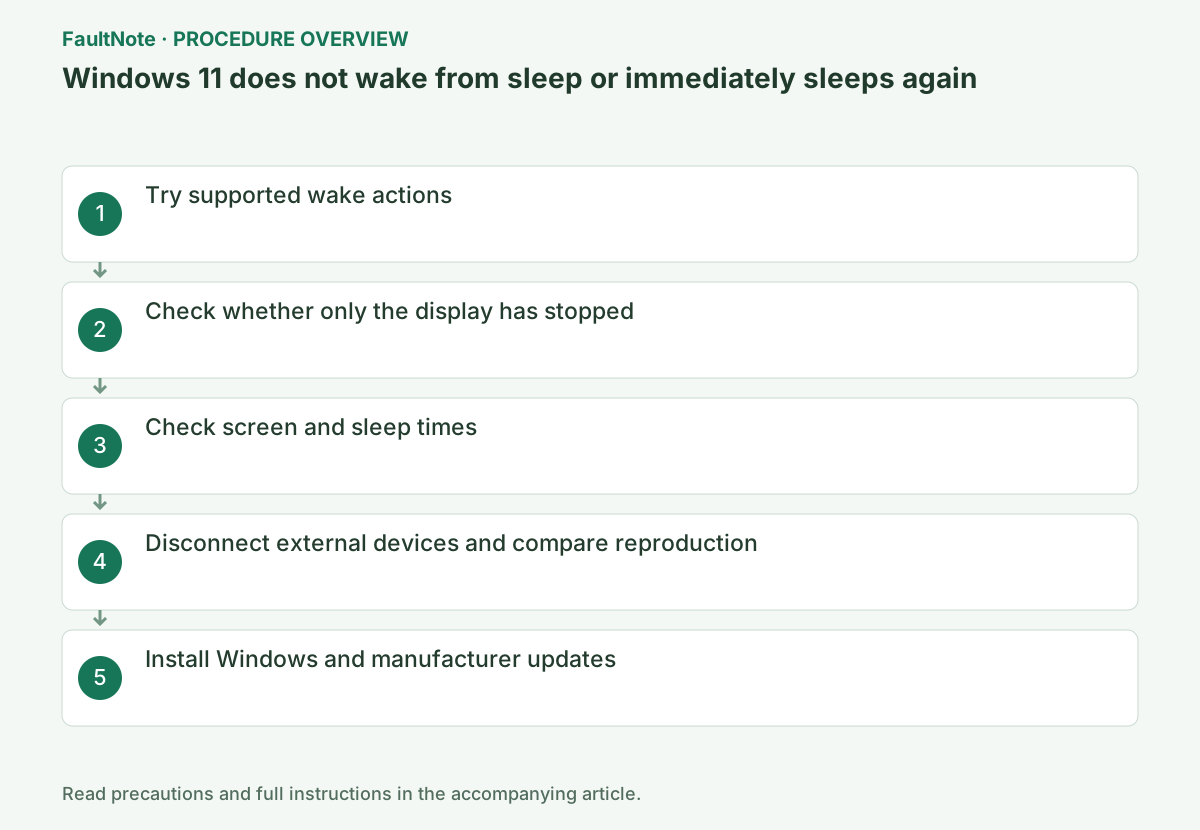
If the PC cannot wake, try supported actions including the power button, then check screen and sleep times, external devices, and Windows and manufacturer updates.
This is a general troubleshooting guide, not an announcement of a current outage.
Affected products and symptoms
- Product
- Windows 11 Power and Sleep
- Versions and conditions
- Windows 11
Symptoms
- Keys or the mouse cannot wake the PC
- The screen is black after waking
- The PC unexpectedly returns to sleep immediately
Causes and conditions
The wake method supported by input devices, screen and sleep timeouts, external devices, pending updates, or display and chipset drivers may be involved.
Before you start
- Check autosave because unsaved data could be lost
- Record whether the issue occurs on battery or while plugged in
- List connected docks and USB devices
Precautions
- Do not use a long power-button press as a normal wake action because it loses unsaved data
- Do not turn off power during a BIOS/UEFI update
- Do not change corporate PC power policies without authorization
Tools and official pages used in this guide
Check the official requirements, screen names, and limitations for this procedure.
Step-by-step instructions
First distinguish a black display, sleep and power-off. Record lights/sound and internal-versus-external display behavior. A power light alone does not prove Windows responsiveness but informs display diagnosis. Separate display timeout from sleep when blackness returns quickly.
Record AC/battery, lid-close, manual sleep and idle-time conditions, plus dock/USB/display connections. Keep successful conditions as well as failures. Save work before one controlled test; do not repeatedly risk data when every attempt requires forced shutdown.
Try a keyboard key, a mouse click, and opening the laptop lid. Some models do not wake from input devices, so briefly press the power button once. Avoid holding it down, which forces a shutdown.
First check whether the USB mouse or keyboard is switched off or has depleted batteries. When using the power button, press it briefly once and wait a few seconds. Distinguish this wake action from holding it down to force a shutdown, which loses unsaved data.
If the PC's lights or sounds are active but the screen alone is black, press Windows key+Ctrl+Shift+B once to reinitialize the display driver. If using an external monitor, also check the projection destination with Windows key+P.
Open Settings > System > Power & battery > Screen, sleep & hibernate timeouts. Check plugged-in and battery settings separately, and use a value longer than a few minutes while testing.
Before changing anything for testing, note both the screen-off and sleep times. Turning off only the screen is different from putting the PC to sleep. If testing while plugged in, change the AC-power setting instead of changing only the battery setting.
Official links for this step
- Shut down, sleep, or hibernate your PC
Check the official requirements, screen names, and limitations for this procedure.
- Shut down, sleep, or hibernate your PC
Record display/sleep timers and whether you are editing AC or battery settings. Use the relevant field for a temporary test. If blackness returns before that time, distinguish display-only from whole-PC sleep again. Lid-close and open-lid tests are different conditions.
An input device may not support wake on that PC. Check documented wake methods and distinguish a brief power-button wake from forced shutdown. For suspected display-only failure, compare graphics reset/projection checks and internal/external displays. Blackness alone does not establish a BIOS fault.
Safely disconnect docks, USB storage, external displays, and unnecessary USB devices, then try reproducing the issue once using Start > Power > Sleep. If it improves, reconnect devices one at a time to identify the one involved.
Save files before trying manual sleep. After waking, reconnect one removed device and test again, recording which device makes the issue return. After testing, restore the normal timeout values changed during the screen and sleep timeout check.
Check pending Windows updates/restarts and compare once under the same conditions afterward. For continued failure, inspect the exact-model manufacturer page for guidance or updates matching this wake symptom. This is not a blanket BIOS/UEFI, chipset and graphics update procedure.
Compare current versions, recent changes, the supported model and documented fix before updating. For a display problem worsening after an update, check available driver rollback. If official guidance establishes a needed firmware update, secure recovery keys and power first and follow that model procedure.
If removing unnecessary peripherals helps, reconnect one at a time under the same manual-sleep test. Safely eject storage and preserve usable input. Display-only failure belongs to display connection diagnosis. Identifying a required accessory does not make permanent removal a complete solution.
After wake, check apps/files and restore test timeouts. For recurrence, provide model, Windows version, AC/battery, peripherals, wake action and black-screen scope, plus a triggering update if known. If forced shutdown is repeatedly needed, distinguish temporary saved-work/normal-shutdown use from manufacturer diagnosis.
Check the result
- The PC sleeps from the Start menu and wakes with a brief power-button press
- It does not unexpectedly sleep before the configured time
- The issue does not recur after reconnecting devices, or the responsible device is identified
If the problem continues
- If every occurrence requires a forced shutdown, temporarily stop using sleep and give the PC manufacturer the model, update version, and reproduction steps
- If only the external monitor fails to return, troubleshoot using the external-monitor connection procedure
Scope of this guide
Troubleshooting guide — Ensure that the PC sleeps at the configured time and wakes using the power button or supported input without losing data.
Frequently asked questions
Does failing to wake with the mouse indicate a fault?
Some models or connection methods do not support mouse wake. First check whether a brief power-button press wakes the PC.
Can I hold the power button every time the screen is black?
Holding it forces a shutdown. First try a brief press, display-driver reinitialization, and the external display's projection destination. If the issue repeats, proceed to manufacturer diagnostics.
Does disabling sleep complete the repair?
It is a temporary way to avoid the trigger, not verification of restored wake. Retain original timers, save work and use normal shutdown. Diagnose the recorded conditions and verify wake after restoring normal settings.
Should I force shutdown when only the external display is black?
Check the PC through the internal screen/sound and inspect external power/input/connection/projection first. External display failure differs from whole-PC wake failure. Forced shutdown affects unsaved data; distinguish it from normal wake and display checks.
Official sources and dates
- Shut down, sleep, or hibernate your PC ↗
- Power settings in Windows 11 ↗
- Troubleshooting blank screens in Windows ↗
Source publication or resolution date: Not specified. Sources checked: 2026-09-05. The check date is not the date the problem first occurred. Interface labels can vary between versions and display languages.
Related troubleshooting guides
Windows errors and troubleshooting →
- The screen brightness changes on its own: telling content-based adjustment apart from ambient-light adjustment
- Laptop is slow only on battery: check the power mode, energy saver and the maker's cooling mode in that order
- A driver can't load on this device: what memory integrity is blocking, and the choices that leaves
- Monitor shows "No Signal" after changing OSD overclock or DisplayPort settings: how to get the picture back