File Explorer does not respond or open in Windows 11
What to do first
If Explorer stops responding, restart its process from Task Manager, then proceed to Windows updates and a restart, display settings, and DISM/SFC only if necessary.
This is a general troubleshooting guide, not an announcement of a current outage.
Affected products and symptoms
- Product
- Windows 11 File Explorer
- Versions and conditions
- Windows 11
Symptoms
- Opening a folder causes a freeze
- The taskbar or desktop does not respond
- File Explorer does not start
Causes and conditions
Possible causes include a temporary Explorer process hang, pending updates, display configuration, or system file problems.
Before you start
- Save work in apps that still allow saving
- Check whether this happens only in a particular folder
- Prepare to temporarily disconnect network drives or external devices
Precautions
- File operations are interrupted while Explorer restarts
- Do not force the power off every time the PC stops responding
- Run system-repair commands as administrator and wait for completion
Tools and official pages used in this guide
Check the official requirements, screen names, and limitations for this procedure.
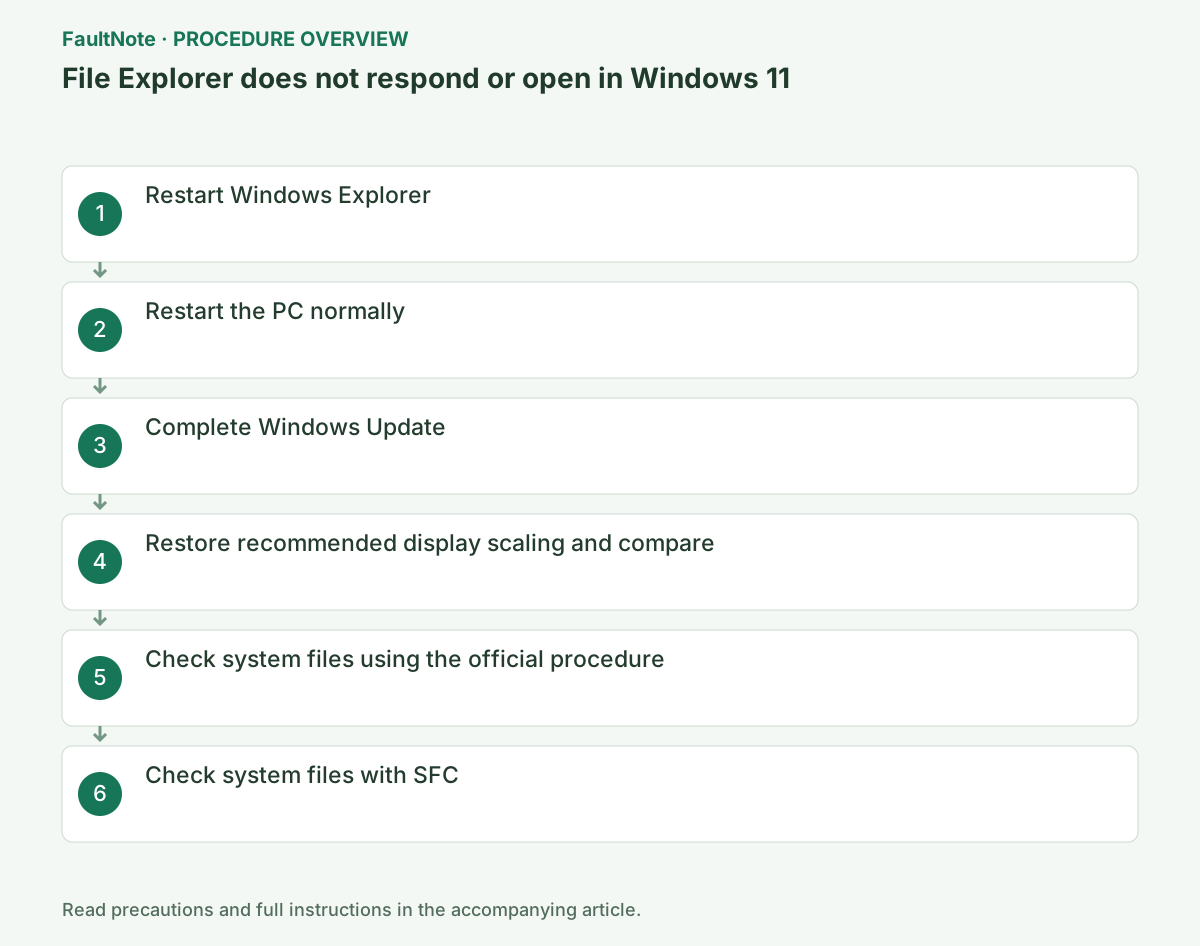
Step-by-step instructions
Compare a small local folder with the troublesome location. If only a share, external drive or cloud location stalls, inspect that location first. Distinguish every-folder failure from one right-click or preview action. Recording location and operation helps avoid unnecessary whole-system repair.
Do not duplicate a stalled copy/move. Record progress, source and destination. A removed or unavailable destination may cause apparent waiting. Compare other folders only without interfering with important ongoing work. Verify stored-data safety separately from restoring the interface.
Press Ctrl+Shift+Esc to open Task Manager. Under Processes, select Windows Explorer and choose Restart task. Wait for the taskbar and desktop to disappear briefly and return.
If a copy or move progress window is open, wait for that operation to finish if possible before restarting Explorer. Windows Explorer appears under Processes. Do not end a different process under Details simply because its name is similar.
If restarting Explorer alone does not restore it, press Ctrl+Alt+Delete and select the power icon > Restart. Reserve holding the power button for a last resort when the screen is completely unusable.
Select Settings > Windows Update > Check for updates and install the offered updates. Once restart requests are cleared, check whether Windows key+E opens Explorer.
Official links for this step
- Fix File Explorer if it won't open or start
Check the official requirements, screen names, and limitations for this procedure.
- Fix File Explorer if it won't open or start
Restarting Explorer affects its windows and taskbar. Review unsaved work and current file-operation state first. Save work before a PC restart too. After recovery, open a small local folder, then repeat the troublesome operation once.
Record changes to history, preview or other settings. Simultaneous changes obscure what helped. Restore ineffective changes before another test. A pattern such as right-click failure after adding an app can support app-specific investigation.
Under Settings > System > Display, set Scale and Display resolution to their Recommended values. If asked to sign out, save your work first and follow the prompt. This helps isolate problems that began only after a display change.
If the issue persists in every folder, complete DISM in Terminal (Admin), then run SFC and restart.
Proceed to SFC only if DISM completes successfully. If an error appears, record the code and check the official instructions for that cause before repeating the same process.
When the command finishes, check for "The operation completed successfully," a restart request, or an error code. If it fails, do not repeat the same operation; save the displayed code and C:\Windows\Logs\DISM\dism.log.
Press Windows key+X, select Terminal (Admin), and choose Yes in User Account Control. Enter the DISM command below, press Enter, and wait until the final result appears. If you do not know the administrator password, ask the administrator to perform this operation.
DISM.exe /Online /Cleanup-image /RestorehealthIn the administrator window where DISM completed successfully, run the following command and wait for verification to reach 100%. Record the repair-result message before restarting.
If the final message says "did not find any integrity violations" or "successfully repaired" corrupt files, save your work and restart. If it reports that repairs could not be made, record the result. After restarting, press Windows key+E to open local Documents and also compare whether the problem affects only network folders.
sfc /scannowA recovered interface does not prove a stalled copy/move finished. Check both locations, open important copies, and verify content before deleting originals. An existing folder or filename does not prove all files copied completely. Compare with backups when needed.
For recurrence, retain location type, operation, format, error and time. Windows repair may not fix an unavailable share or external device. Include the successful local-folder comparison. If reverting a recent setting/app change helps, do not count permanently losing required functionality as completion.
Check the result
- Windows key+E opens File Explorer
- Documents, Downloads, and another local folder can be opened in succession
If the problem continues
- If it freezes only at a particular external or network location, disconnect that location and investigate the device or server
- If there is no improvement, send the reproduction steps through Feedback Hub
Scope of this guide
Troubleshooting guide — Ensure that File Explorer starts normally and remains responsive when opening several local folders in succession.
Frequently asked questions
The taskbar is missing too. How do I restart Explorer?
Press Ctrl+Shift+Esc to open Task Manager. If Windows Explorer is absent, use Run new task to run explorer.exe.
Only a particular USB folder freezes.
The USB device, cable, or file structure may be responsible rather than Windows as a whole. Safely remove it and compare another port or PC.
Does restarting Explorer establish copy success?
Interface recovery and copy completion are separate. Check source/destination and open important copies. If completion was not confirmed, retain originals and compare against backups before cleanup.
Why does only a shared folder hang?
Check share availability and access to other locations on the same connection. Record the share, connection and operation separately from PC-wide symptoms. Local history cleanup may not fix an unavailable remote share.
Official sources and dates
Source publication or resolution date: Not specified. Sources checked: 2026-09-05. The check date is not the date the problem first occurred. Interface labels can vary between versions and display languages.