Windows Installer error 1601: service cannot be accessed
What to do first
Windows Installer error 1601: service cannot be accessed. Windows Installer may be disabled or damaged, Windows may be in Safe Mode, or installer registration may have a problem. Record the current state before changing it, use only the supported Windows path described below, and verify the same operation again after any required restart.
This is a general troubleshooting guide, not an announcement of a current outage.
Affected products and symptoms
- Product
- Windows Installer
- Versions and conditions
- Windows 11 (confirm the edition and hardware requirements for the feature)
- Error codes and identifiers
- 1601
Symptoms
- Windows Installer error 1601: service cannot be accessed.
- The same condition can persist after a retry or restart.
Causes and conditions
Windows Installer may be disabled or damaged, Windows may be in Safe Mode, or installer registration may have a problem.
Before you start
- Save open documents and allow time for a Windows restart if required.
- Run administrative actions only on a personally managed PC or with administrator approval.
- Save the diagnostic command output so the before and after states can be compared.
Precautions
- Do not bulk-delete registry entries, system folders, credentials, or storage metadata.
- Do not run unofficial scripts or unknown drivers with administrator rights.
Tools and official pages used in this guide
Check the official requirements, interface names, and limitations for this step.
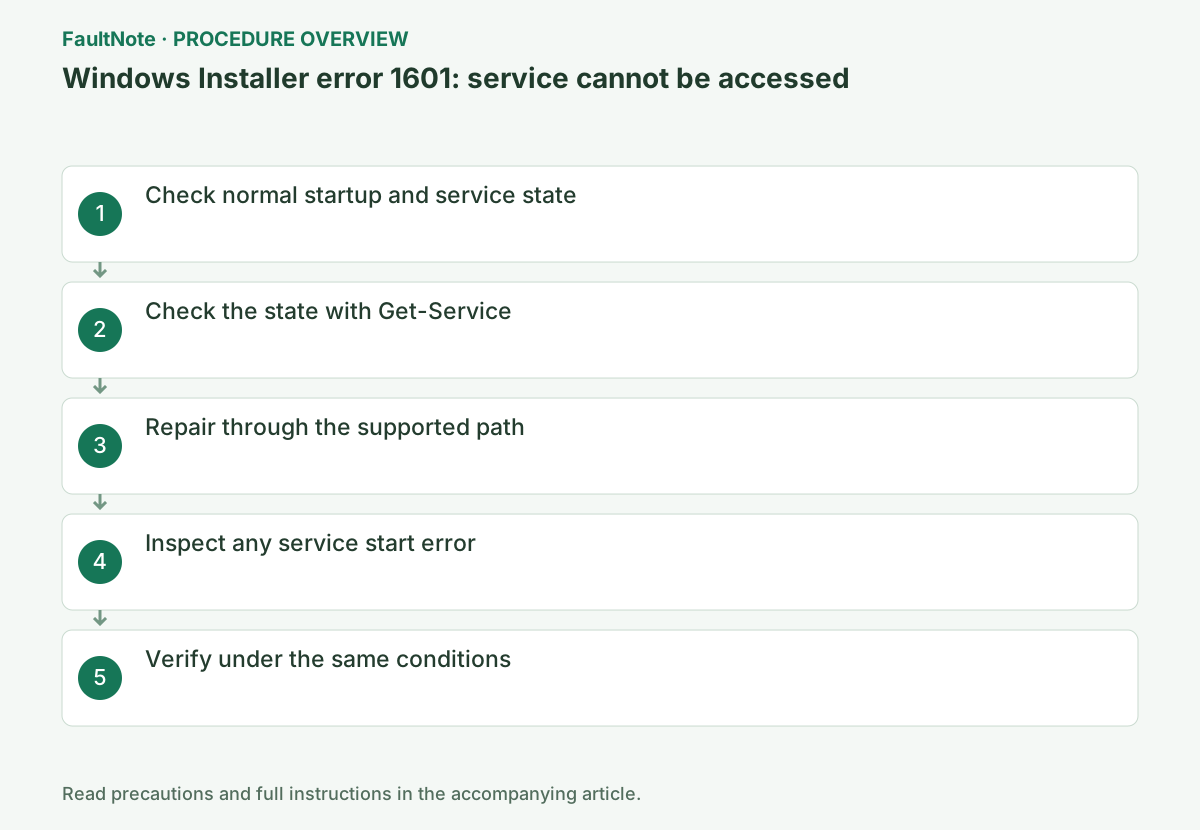
Step-by-step instructions
The standard Windows Installer may be unavailable in Safe Mode. Return to a normal Windows session, search Start for Services and locate Windows Installer. A stopped service can start on demand, so Stopped alone is not evidence of failure.
Identify an MSI versus publisher-specific EXE. Save product, version, source and full message. Separate service-unavailable 1601 from missing-file, permission and concurrent-installation codes. Record changes in updates, Safe Mode, policy and user account and keep test conditions fixed.
Distinguish a stopped Windows Installer service from a disabled one. On-demand startup means a stopped state before installation does not establish failure. Return from Safe Mode to normal boot, and ask the administrator about a service disabled by organizational restrictions.
Confirm Windows is running normally rather than in Safe Mode, then record the Windows Installer service state and startup type.
Status shows Running or Stopped. Stopped alone does not prove failure; check whether it starts on demand or reports a start error.
Right-click Start > Terminal (Admin), open PowerShell, and run Get-Service msiserver. If Status is Running, do not repeat Start-Service; inspect a different code such as 1618 and Event Viewer.
Check service existence as well as Status. Stopped can be normal on-demand behavior and does not require automatic startup. Confirm policy before changing a disabled service and observe an approved MSI in normal boot. Save a manual service-start error separately from installer 1601, since support needs both.
Get-Service msiserverIn services.msc, confirm Windows Installer is not Disabled. If it is stopped, launch the approved MSI and confirm that the service starts on demand.
Use an official MSI with no concurrent setup. Confirm writable log destination and substitute the real file path. Record completion, exit code and log creation. Review explanatory context around Return value 3 rather than declaring one isolated phrase the cause. Limit publicly shared user names, paths and product details.
Start-Service msiserverOfficial links for this step
- MsiExec.exe and InstMsi.exe error messages
Check the official requirements, interface names, and limitations for this step.
- MsiExec.exe and InstMsi.exe error messages
If Windows Installer is Disabled, check organizational policy. On a personal PC, if manual start fails, record its error number and matching Event Viewer entries. Do not recreate service registration or system files with unofficial scripts; retest using an approved installer.
Launch one MSI from the official publisher and record service-start errors separately from installer codes. Non-MSI setup programs may use their own installation mechanism, so do not apply error 1601 guidance to every EXE. Provide logs to product support before attempting registration repairs.
This is an installation command for PowerShell. Replace the MSI path before running it and check the completion screen. If it fails, inspect package-install.log in your temporary folder and remove personal information before sharing the log with support.
This command launches the MSI; it is not read-only. Check the exit result and log, and on failure share the area around Return value 3 after removing personal data.
Another already approved MSI succeeding can help isolate a product problem, without installing unnecessary software merely for diagnosis. For a service that cannot start, give the administrator its error and same-time events. Avoid unofficial registration or registry deletion scripts. Verify the installed application and required function, not just disappearance of the setup window.
msiexec /i "C:\path\package.msi" /L*v "$env:TEMP\package-install.log"
Check the result
- In normal boot, the target MSI starts the service and completes
- The verification command reports the expected enabled, healthy, or connected state.
- The result remains correct after a Windows restart and no new matching critical event appears.
If the problem continues
- Provide the service-start error number and event logs from the same time
- If hardware requirements, organization policy, or server settings are responsible, ask the owner to make the change instead of bypassing it on the client.
Scope of this guide
Troubleshooting guide — Restore the feature so it starts, connects, or completes normally and passes the same verification after a Windows restart.
Frequently asked questions
Must Windows Installer be set to Automatic?
It normally starts on demand. Verify it is not Disabled and follow management policy before changing startup permanently.
Can I run the MSI in Safe Mode?
Windows Installer is normally unavailable there. Return to normal startup unless you are following a specific diagnostic procedure.
Will automatic service startup fix error 1601?
Stopped may be normal on-demand behavior. First distinguish disabled service, startup failure and failure specific to the target MSI. Automatic startup alone may not repair the underlying access problem.
Official sources and dates
Source publication or resolution date: Not specified. Sources checked: 2026-10-13. The check date is not the date the problem first occurred. Interface labels can vary between versions and display languages.
Related troubleshooting guides
Windows errors and troubleshooting →
- Resolve Windows Installer error 1618: another installation is running
- Laptop is slow only on battery: check the power mode, energy saver and the maker's cooling mode in that order
- Remote Desktop NLA rejects credentials
- Troubleshoot Windows Update Error Codes Safely