Remote Desktop NLA rejects credentials
What to do first
Remote Desktop NLA rejects credentials. The destination account may lack permission, saved credentials may be stale, clocks may differ, or the domain/local username format may be wrong. Record the current state before changing it, use only the supported Windows path described below, and verify the same operation again after any required restart.
This is a general troubleshooting guide, not an announcement of a current outage.
Affected products and symptoms
- Product
- Remote Desktop
- Versions and conditions
- Windows 11 (confirm the edition and hardware requirements for the feature)
- Error codes and identifiers
- NLA
Symptoms
- Remote Desktop NLA rejects credentials.
- The same condition can persist after a retry or restart.
Causes and conditions
The destination account may lack permission, saved credentials may be stale, clocks may differ, or the domain/local username format may be wrong.
Before you start
- Save open documents and allow time for a Windows restart if required.
- Run administrative actions only on a personally managed PC or with administrator approval.
- Save the diagnostic command output so the before and after states can be compared.
Precautions
- Do not bulk-delete registry entries, system folders, credentials, or storage metadata.
- Do not run unofficial scripts or unknown drivers with administrator rights.
Tools and official pages used in this guide
Check the official requirements, interface names, and limitations for this step.
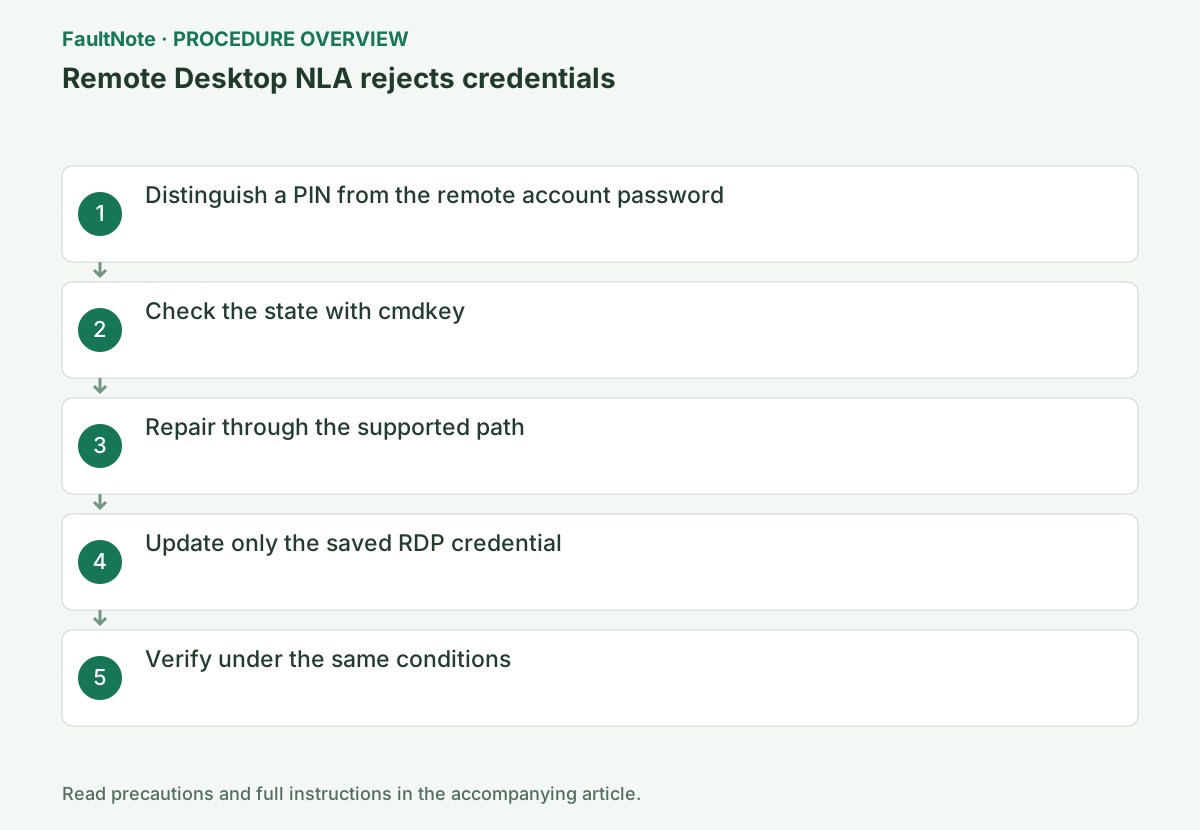
Step-by-step instructions
A Windows Hello PIN is device-specific and is not the ordinary password for an RDP password prompt. Confirm the remote account name, domain and password validity. Work with the remote computer’s administrator or your IT team so account ownership can be verified.
Perform this on the client PC. In Remote Desktop Connection choose Show Options > General, confirm destination computer and username, and use the password for an account recognized by the remote host—not the client PC’s Windows Hello PIN.
Record the host and failure stage. Timeout before credentials suggests connectivity; rejection after input suggests authentication. Verify that saved connection history still points to the intended PC, especially after addressing changes. Confirm the current hostname with the administrator and match it to the error.
Confirm the destination PC and account authority. Local and domain accounts use different identification formats; verify the correct one with the host administrator. A Windows Hello PIN for device sign-in is distinct from the account password requested by RDP.
List saved credentials and identify only the TERMSRV entry for the destination host.
Use the approved username format for the account authority. Confusing local, domain and organizational identities can target a different account despite a correct password. After password changes, inspect stale credentials and remove only the relevant TERMSRV entry. Do not repeatedly substitute a PIN for the requested password.
cmdkey /listReplace HOST_NAME with the actual value for your system before using this example.
On the client, remove the stale TERMSRV/<host> credential. On the destination, confirm the account is allowed under Settings > System > Remote Desktop > Remote Desktop users, then reconnect using the correct domain or local-account format.
Do not disable NLA solely because it reports an error. Lockout, expiry, missing authorization or organizational authentication problems may require host-side administration. Use an existing approved management route to review account status and logs; unsupervised authentication or registry changes can affect other users.
cmdkey /delete:TERMSRV/HOST_NAMEOfficial links for this step
- General Remote Desktop connection troubleshooting
Check the official requirements, interface names, and limitations for this step.
- General Remote Desktop connection troubleshooting
In Remote Desktop Connection, choose Show Options and check the destination and username. If an old credential is saved, remove only that destination’s saved credential and enter the current account details. Keep NLA enabled and work with the administrator to check domain reachability and allowed users.
Credential rejection and a connection timeout require different investigations. Save the full error and time and ask the host administrator to check account status and logs. Do not make disabling NLA the first action; inspect the host using an approved access route.
Replace HOST_NAME with the actual value for your system before using this example.
Run Test-NetConnection <host> -Port 3389 and repeat the original operation once under the same conditions. If it succeeds, verify again after a restart and record the setting that changed.
TcpTestSucceeded=True confirms port reachability. If False, check the host name, VPN, destination listener, and firewall before changing credentials.
Test one authorized account without mass password guesses. After success, verify the session PC and user and reconnect once under the same conditions. Report build, destination, account authority, saved-credential use, full error and time without passwords. Port reachability and authentication success must remain separate results.
Test-NetConnection HOST_NAME -Port 3389
Check the result
- The correct account starts a session while NLA remains enabled
- The verification command reports the expected enabled, healthy, or connected state.
- The result remains correct after a Windows restart and no new matching critical event appears.
If the problem continues
- For lockout or policy errors, stop repeated password attempts and contact the administrator
- If hardware requirements, organization policy, or server settings are responsible, ask the owner to make the change instead of bypassing it on the client.
Scope of this guide
Troubleshooting guide — Restore the feature so it starts, connects, or completes normally and passes the same verification after a Windows restart.
Frequently asked questions
Are my PIN and Microsoft account password the same?
No. A PIN is device-bound. RDP commonly expects the account password or an organization-approved method.
Should I disable NLA to connect?
Do not use that as the first fix because it weakens pre-authentication. Check time, username format, permissions, and saved credentials first.
Why are credentials rejected when port 3389 is reachable?
Port reachability does not guarantee authentication. Check destination identity, account authority, saved credentials and account authorization, and ask the administrator to inspect host logs.
Official sources and dates
Source publication or resolution date: Not specified. Sources checked: 2026-10-13. The check date is not the date the problem first occurred. Interface labels can vary between versions and display languages.
Related troubleshooting guides
Windows errors and troubleshooting →
- Laptop is slow only on battery: check the power mode, energy saver and the maker's cooling mode in that order
- Remote Desktop is not listening on TCP port 3389
- Shared computers do not appear under Network in File Explorer
- An SMB share repeatedly asks for credentials or returns access denied