Roll back the display driver to reverse screen flickering after an update
What to do first
For flickering that began immediately after an update, use administrator rights to restore the preceding display driver and compare the result.
This is a general troubleshooting guide, not an announcement of a current outage.
Affected products and symptoms
- Product
- Windows 10/11 Display Adapter
- Versions and conditions
- Windows 10 / Windows 11, when the previous driver remains in Driver Store
Symptoms
- The screen flickers or displays incorrectly after Windows Update or a GPU-driver update
Causes and conditions
The combination of the environment and the most recently installed display driver may be involved.
Before you start
- Save your work and record the GPU name and current driver version
- Record the update time and symptom before and after it
- Obtain administrator access
Precautions
- Administrator rights are required
- On systems with multiple GPUs, do not select the wrong device
- Do not use unofficial driver-download sites
Tools and official pages used in this guide
Review when Roll Back Driver is available and the restart procedure.
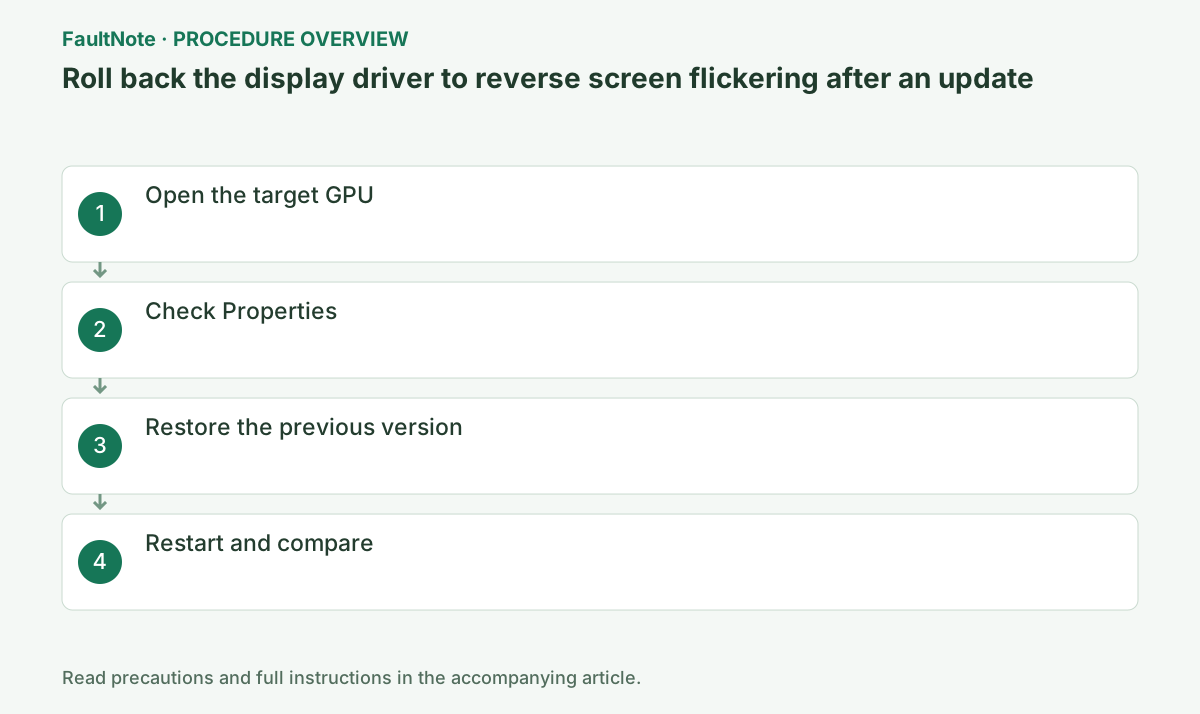
Step-by-step instructions
Open Task Manager with Ctrl+Shift+Esc and observe whether it flickers too. Microsoft uses whole-screen versus stable-Task-Manager behavior to guide driver or app investigation. It directs the next check rather than proving every possible hardware cause.
Confirm onset immediately after the update rather than applying rollback to a longstanding fault. Record working and failing apps and internal/external display differences. If instability prevents recording the version, establish a readable recovery path first.
Right-click Start, open Device Manager, and expand Display adapters.
Before changing anything, record the device name and driver provider, version, and date in Device Manager. If the display is unstable, save your work and prepare a way to recover after restart.
Record all changes around onset, including cables, monitors, HDR, refresh rate, and app updates. On multi-GPU systems, identify integrated and discrete entries and the affected display. Rolling back both at once hides the useful variable. Record provider, version, and date from the intended adapter's Driver tab first.
Right-click the target GPU, choose Properties > Driver, and check the version and date.
Open Start > Device Manager > Display adapters > target GPU > Properties > Driver. Do not confuse an integrated GPU with a discrete GPU.
Record the version as well as the date. A laptop display may pass through the integrated GPU, so the rendering GPU and output GPU can differ. Save work and prepare recovery if the screen is hard to read. On managed systems, ask the administrator when the adapter is unclear; deleting or disabling another device is not a substitute for rollback.
Select Roll Back Driver, choose a reason, and confirm with Yes.
If Roll Back Driver is unavailable, Windows does not retain the earlier version. Do not try to force-enable the button; find the exact older version in the PC or GPU manufacturer's official archive.
An unavailable Roll Back Driver means Windows lacks the retained version. Do not force the control through registry edits; check the PC or GPU maker's compatible official package. Match GPU and Windows support even for older installers. Complete the required restart before treating behavior as a test of the previous driver.
Official links for this step
- Microsoft display-driver rollback guidance
Review when Roll Back Driver is available and the restart procedure.
Check before continuingThe official Microsoft display-driver rollback guidance or signed package opens, and its product, OS, and version requirements match this computer.
- Microsoft display-driver rollback guidance
Restart Windows when requested. Open Settings > System > Display > Advanced display and confirm the intended resolution and refresh rate. Then test the app, video, and external monitor that flickered before, using the same connection and settings.
After restart, check resolution, refresh rate, external monitors, and the original flicker under the same conditions. If the condition worsens, restore the recorded version and proceed to Safe Mode or an administrator.
Use the original monitor, port, cable, resolution, and refresh rate. Check app-only, whole-desktop, and external-display faults separately. Version change and flicker improvement are different checks. If it does not help, use the retained official package for recovery rather than repeating rollback. For an unusable screen, follow official Safe Mode or administrator recovery.
Check before continuingDecision: restart Windows, verify resolution and refresh rate under Settings > System > Display > Advanced display, then test the original app, video, and external monitor under the same conditions. If worse, restore the recorded version and use Safe Mode or contact an administrator.
After restart, verify the installed version and repeat the original action. Retain a repeatably working version and display settings. If the version changed again, label results with that version instead of treating them as the intended rollback test.
Observe intermittent faults over a relevant interval. Give the administrator GPU, before/after versions, display layout, and Task Manager results. If you retain a workaround driver, record what should be retested with a later official update.
Check the result
- The driver version changed to the preceding version
- Flickering stops under the same reproduction conditions
If the problem continues
- If the button is unavailable, obtain a compatible version from official GPU or PC manufacturer support because Windows has no retained driver
- If rollback makes the problem worse, reinstall the latest official release
Scope of this guide
Troubleshooting guide — Microsoft recommends rollback as a diagnostic step when the problem begins immediately after an update.
Frequently asked questions
Why can't I select Roll Back Driver?
Windows has not retained the previous driver. Check the official download from the computer or GPU manufacturer.
Does a changed version establish recovery?
No. Verify the original flicker under the same display conditions; version change or success on another monitor is a separate result.
Official sources and dates
Source publication or resolution date: Not specified. Sources checked: 2026-10-13. The check date is not the date the problem first occurred. Interface labels can vary between versions and display languages.
Related troubleshooting guides
- Troubleshoot 202 in AMD Software: Adrenalin Edition
- Troubleshoot 205 in AMD Software: Adrenalin Edition
- Smart Access Memory becomes disabled after installing Adrenalin 26.8.1
- Intermittent Starfield crashes from Adrenalin 26.8.1 are fixed in 26.9.1