Troubleshoot 205 in AMD Software: Adrenalin Edition
What to do first
Record 205, verify the affected product and environment, correct the confirmed prerequisite, and retry once under the same conditions.
This is a general troubleshooting guide, not an announcement of a current outage.
Affected products and symptoms
- Product
- AMD Software: Adrenalin Edition
- Versions and conditions
- Windows 10 / 11
- Error codes and identifiers
- 205
Symptoms
- The operation fails with 205.
- The same failure is reproducible in AMD Software: Adrenalin Edition.
Causes and conditions
The official article identifies a product, compatibility, storage, update, network, file, or configuration condition that must be resolved before retrying.
Before you start
- Close applications and record the exact PC or GPU model, Windows build, current driver version, and complete error.
- For a laptop or branded PC, check its model support page and obtain a recovery OEM driver before making changes.
Precautions
- Use signed GPU or PC-maker packages, not unofficial drivers, individual DLL downloads, or registry tools.
- Do not open a laptop or bulk-remove a healthy multi-GPU configuration that includes integrated graphics.
Tools and official pages used in this guide
Official page for this step. Confirm the exact product, operating system, and version requirement before continuing.
Step-by-step instructions
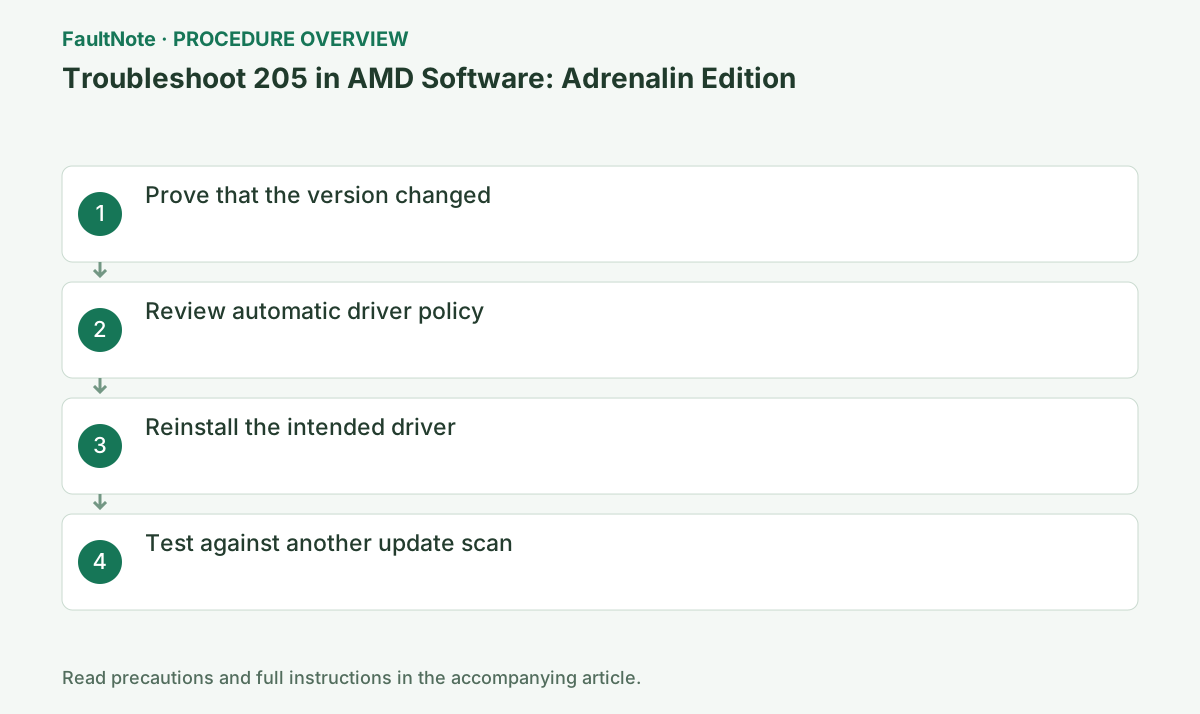
Record the version in AMD Software > Settings > System and Device Manager before and after Windows Update or restart.
Record the complete code, AMD Software version, and GPU name from the same session. If the code changes, stop using this guide and move to the official article for the new code.
Record provider, date and version under Device Manager > target GPU > Properties > Driver after setup and again after restart. Look for a display-driver entry at the same time in Windows Update history.
205 indicates possible replacement by Windows. Check whether the intended driver was installed and then replaced instead of assuming setup failed. AMD Software opening alone does not establish the driver version.
On a personal PC, follow AMD's Device Installation Settings guidance. On a managed PC, give the version comparison to the administrator.
On an OEM PC, check the model support page before choosing AMD's generic package. Switchable graphics, integrated GPUs, and handhelds may require an OEM build, so preserve the current version and recovery package.
Official links for this step
- AMD error 205 guidance
Official page for this step. Confirm the exact product, operating system, and version requirement before continuing.
Check before continuingThe official page or signed package for AMD error 205 guidance opens and its product/version conditions match this device.
- AMD error 205 guidance
Record versions before changes, immediately after AMD setup, after restart and after a normal update check. Pair provider and version rather than inferring age from date alone. If the intended version exists after setup and changes later, retain that transition. If it was never observed, distinguish replacement from incomplete installation.
Update history may not list every relevant event, so absence alone does not rule out replacement. Conversely, an update at the same time does not prove it applied to this GPU. Compare actual versions on the same timeline. Save each adapter separately on multi-GPU PCs.
Finish Windows Update, run the correct AMD package, and restart. Do not permanently operate with updates disabled.
Close games, recording, GPU monitoring, and other installers. Wait for completion or a specific new code; temporary display flicker can occur, so do not power off during setup.
Compare the version after restart and after Check for updates. AMD Software and Device Manager should retain the intended version.
After restart, open Device Manager > Display adapters > target GPU > Properties > Driver and verify provider/version. If it is not the intended state, preserve Install.log instead of repeatedly rerunning setup.
Check before continuingDecision: Compare the version after restart and after Check for updates. AMD Software and Device Manager should retain the intended version. After restart, open Device Manager > Display adapters > target GPU > Properties > Driver and verify provider/version. If it is not the intended state, preserve Install.log instead of repeatedly rerunning setup.
If following AMD guidance to temporarily change Device Installation Settings, record the original value and restore it after supported reinstallation and restart. Do not indefinitely stop Windows Update or security updates.
If the version changes again after restoring settings, give AMD or the OEM the before/after versions and update history. Confirm OEM requirements before trying to hold a generic driver on a managed or customized PC.
Check before continuingIf following AMD guidance to temporarily change Device Installation Settings, record the original value and restore it after supported reinstallation and restart. Do not indefinitely stop Windows Update or security updates.
Record the original selection before changing sysdm.cpl > Hardware > Device Installation Settings. After following the temporary AMD procedure, restarting and reinstalling, verify the intended version and restore the old selection. Ask administrators about managed settings instead of overriding them. Do not describe this as permanently blocking every Windows update route.
If replacement recurs after restoration, check the recommended OEM package. When comparing OEM and generic versions, reproduce the original issue under the same conditions. Clearing 205 alone is insufficient if the selected driver cannot support the intended application. Check displays and AMD Software in the normal configuration.
Check the result
- 205 no longer appears and the operation completes.
- The selected version and settings remain after restart.
- A second test shows no new display, input, save, or synchronization problem.
If the problem continues
- Restore reversible settings from the notes and escalate without deleting user data.
- Prefer the PC maker or administrator procedure for OEM drivers and managed networks.
- Protect account names, tokens, and save contents before sharing logs.
Scope of this guide
Troubleshooting guide — A general diagnostic guide based on official support. It does not claim a current incident or a version-specific fix.
Frequently asked questions
Does error 205 mean installation failed?
No. AMD installation completed, but Windows Update may have replaced the driver during the process.
May I block device updates on a work PC?
Do not change managed policy yourself; report before/after versions and update history.
Does 205 after a success screen mean that reinstallation failed?
Windows may have replaced the driver after setup completed. Compare actual versions before and after restart with update history.
Is an older driver date proof that Windows reverted it?
Date alone is insufficient. Compare provider and version immediately after setup and after restart, alongside update history and setup result.
Official sources and dates
Source publication or resolution date: Not specified. Sources checked: 2026-10-13. The check date is not the date the problem first occurred. Interface labels can vary between versions and display languages.
Related troubleshooting guides
AMD Radeon / Adrenalin errors and troubleshooting →
- Troubleshoot 202 in AMD Software: Adrenalin Edition
- Smart Access Memory becomes disabled after installing Adrenalin 26.8.1
- Clean and reinstall the graphics driver with AMD Cleanup Utility
- Troubleshoot 173 in AMD Software: Adrenalin Edition
AMD, Intel and NVIDIA driver installation errors →