Troubleshoot Manual install in Intel Graphics
What to do first
Record Manual install, verify the affected product and environment, correct the confirmed prerequisite, and retry once under the same conditions.
This is a general troubleshooting guide, not an announcement of a current outage.
Affected products and symptoms
- Product
- Intel Graphics
- Versions and conditions
- Windows 10 / 11
- Error codes and identifiers
- Manual install
Symptoms
- The operation fails with Manual install.
- The same failure is reproducible in Intel Graphics.
Causes and conditions
The official article identifies a product, compatibility, storage, update, network, file, or configuration condition that must be resolved before retrying.
Before you start
- Close applications and record the exact PC or GPU model, Windows build, current driver version, and complete error.
- For a laptop or branded PC, check its model support page and obtain a recovery OEM driver before making changes.
Precautions
- Use signed GPU or PC-maker packages, not unofficial drivers, individual DLL downloads, or registry tools.
- Do not open a laptop or bulk-remove a healthy multi-GPU configuration that includes integrated graphics.
Tools and official pages used in this guide
Select the official EXE matching the CPU/GPU and Windows; check the PC maker first on OEM systems.
Step-by-step instructions
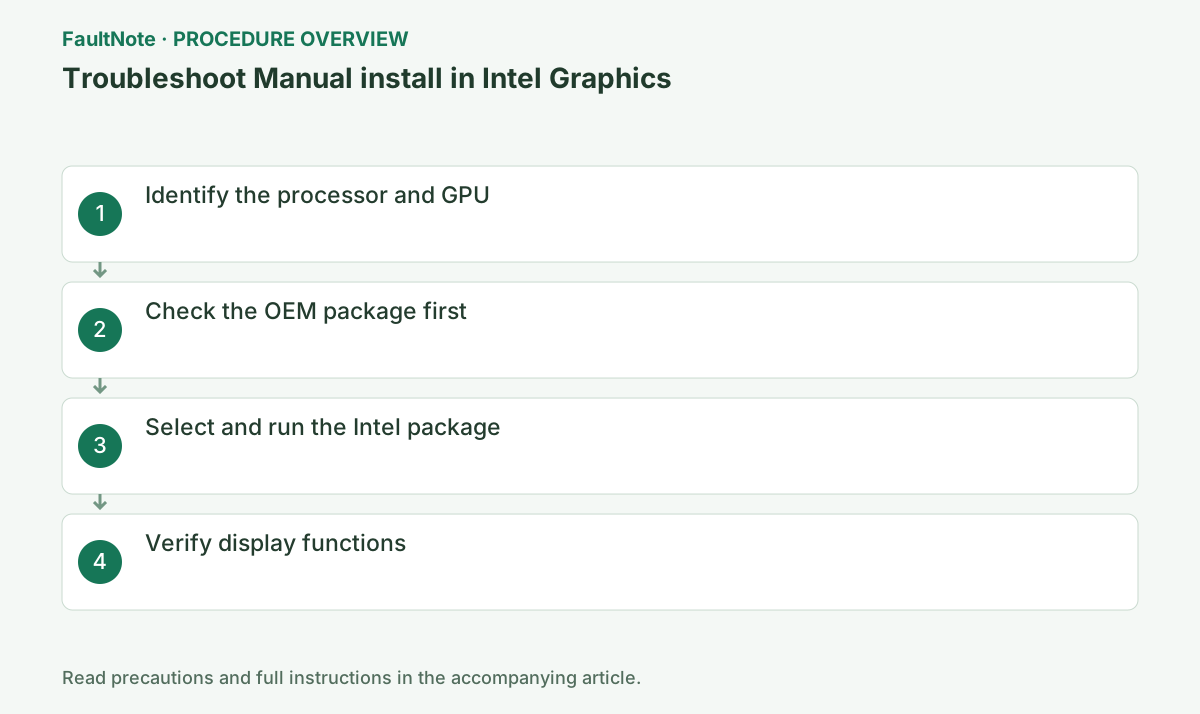
Record the processor under Settings > System > About and the Intel adapter name in Device Manager.
Record the current version under Device Manager > Display adapters > Intel GPU > Properties > Driver and preserve Hardware Ids from Details.
Record GPU name, PC model and Windows version, then compare the supported-product list. A failed DSA check does not prevent manually checking an identified product. An older Intel GPU is not necessarily supported by the newest Arc package.
For laptops, check the exact OEM model page first. Record why a generic Intel driver is needed and save the OEM recovery package, plus current brightness, display and sleep behavior.
For a laptop or branded PC, check its model support page because power, display switching, and docks may rely on customization.
Check the PC maker's model page first. Save the OEM installer and record brightness, external display, sleep, and switchable-GPU behavior before testing a generic Intel build.
Determine whether the download is an Intel executable or an OEM setup and follow that page guidance. Manual installation means selecting a supported package, not forcing an INF onto unsupported hardware. Save supported products, Windows version and package version. Intel CPU branding alone is not a reason to proceed when the GPU is absent.
Wait for download completion and close graphics applications. Setup may flicker the display; wait for its result without powering off. Record the complete error and distinguish unsupported products, OEM restrictions and other installation failures. Insufficient privileges and incompatibility are separate problems.
In Intel Download Center match processor or GPU and Windows version, close graphics applications, run the EXE, and restart.
In Intel setup review the license and choose Begin Installation or the documented clean-install option. Do not power off while the display is reconfigured.
Official links for this step
- Intel Download Center
Select the official EXE matching the CPU/GPU and Windows; check the PC maker first on OEM systems.
Check before continuingThe official page or signed package for Intel Download Center opens and its product/version conditions match this device.
- Intel Download Center
Check driver date/version, resolution, brightness, external display, and sleep resume. Return to the OEM package if machine-specific functions regress.
After restart verify driver version plus internal/external displays, brightness, and sleep resume. Roll back or reinstall the saved OEM package if model-specific functions regress.
Check before continuingDecision: Check driver date/version, resolution, brightness, external display, and sleep resume. Return to the OEM package if machine-specific functions regress. After restart verify driver version plus internal/external displays, brightness, and sleep resume. Roll back or reinstall the saved OEM package if model-specific functions regress.
After restart, inspect the target GPU driver version and test internal display, external display, brightness and sleep resume separately. Another GPU version is not evidence that Intel installation succeeded.
If new problems appear, check whether Device Manager rollback is available; otherwise reinstall the saved OEM package. Downloading a file and confirming it works on the PC are separate outcomes.
Check before continuingAfter restart, inspect the target GPU driver version and test internal display, external display, brightness and sleep resume separately. Another GPU version is not evidence that Intel installation succeeded.
Check laptop brightness keys and sleep resume before updating. For external monitors, record cable, port, resolution and refresh rate. For video or games, compare the same file or scene. An updated version is not evidence that every use improved.
If restoring the OEM package removes the issue, report the original function and generic-driver failure together. Save recovery setup in advance in case rollback is unavailable. Reinstalling Intel again is not the only recovery route. If DSA later offers another version, compare that proposal with current compatibility.
Check the result
- Manual install no longer appears and the operation completes.
- The selected version and settings remain after restart.
- A second test shows no new display, input, save, or synchronization problem.
If the problem continues
- Restore reversible settings from the notes and escalate without deleting user data.
- Prefer the PC maker or administrator procedure for OEM drivers and managed networks.
- Protect account names, tokens, and save contents before sharing logs.
Scope of this guide
Troubleshooting guide — A general diagnostic guide based on official support. It does not claim a current incident or a version-specific fix.
Frequently asked questions
Is the processor number enough to choose a driver?
It is useful, but also match the actual GPU and the PC maker's support information.
Must I use the ZIP package?
Prefer the EXE normally. Use manual INF installation only when Intel or the manufacturer specifically directs it.
Does an Intel CPU mean that the newest Intel graphics package is suitable?
No. Match the GPU model, Windows version and supported-product list.
Can selecting an INF make an unsupported GPU work?
Forced installation does not create support. Use an official package for a verified supported GPU and OS and follow the manufacturer installation route.
Official sources and dates
Source publication or resolution date: Not specified. Sources checked: 2026-10-13. The check date is not the date the problem first occurred. Interface labels can vary between versions and display languages.
Related troubleshooting guides
Intel Graphics / DSA errors and troubleshooting →
- Troubleshoot Clean installation in Intel Graphics
- Troubleshoot DSA install failure in Intel Driver & Support Assistant
- Troubleshoot OEM warning in Intel Driver & Support Assistant / Intel Graphics
- Smart Access Memory becomes disabled after installing Adrenalin 26.8.1