Troubleshoot DSA install failure in Intel Driver & Support Assistant
What to do first
Separate DSA scanning, downloading and individual package setup; match the product and OEM package. Judge recovery from installed version and functions rather than notifications.
This is a general troubleshooting guide, not an announcement of a current outage.
Affected products and symptoms
- Product
- Intel Driver & Support Assistant
- Versions and conditions
- Windows 10 / 11
- Error codes and identifiers
- DSA install failure
Symptoms
- The operation fails with DSA install failure.
- The same failure is reproducible in Intel Driver & Support Assistant.
Causes and conditions
Possible causes include DSA itself, download-folder access, cache or a mismatched target product.
Before you start
- Close applications and record the exact PC or GPU model, Windows build, current driver version, and complete error.
- For a laptop or branded PC, check its model support page and obtain a recovery OEM driver before making changes.
Precautions
- Do not confuse removing DSA with removing the GPU driver
- Hiding a notification does not establish installation success
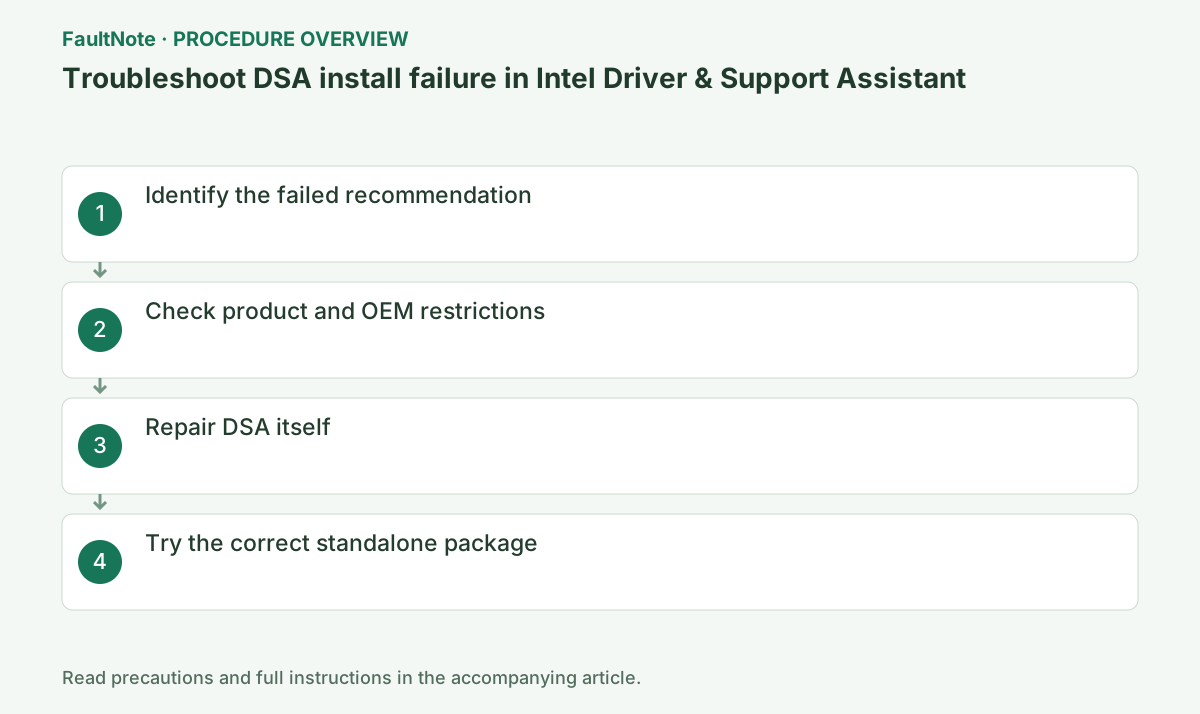
Step-by-step instructions
Distinguish dashboard opening, scanning, downloading and installing. Record proposed product/version, full error and current device version. Failure to list updates differs from a driver-package failure. Reinstalling DSA alone does not establish GPU-driver repair.
Match the device and PC model with Intel/OEM products and OS. DSA does not support every Intel product. On OEM PCs, find the customized and recovery packages first. If other wireless or chipset updates are listed, select the affected update instead of combining them all with the graphics investigation.
Check the DSA download location; the default is C:\ProgramData\Intel\DSA\Downloads. A changed folder must be writable. Intel documents that it must not contain hard links, junctions or symbolic links. For space/access failures, resolve destination and complete download before considering any driver removal.
For failure installing/removing DSA itself, try its normal app uninstall route. If unsuccessful, use the official DSA Uninstaller guidance, reinstall and rescan. This cleans up DSA, not the same operation as removing the GPU driver. Save screens and logs beforehand and compare results after reinstalling.
If DSA works but one update fails, obtain a supported individual Intel/OEM package. Record URL and version and note any difference from the failed DSA proposal. Do not force an unsupported INF. Close affected apps, save completion or error and finish requested restarts.
Check the actual device version. For graphics, compare internal/external display, brightness, sleep and the intended app. DSA Install History covers DSA updates, not necessarily manual or Windows Update installations. Missing history or a repeated proposal alone does not establish failure; inspect the installed version and support.
For regressions, use available rollback or the saved OEM package and retain versions and reproduction. Hiding a notification is not installation repair. Report the failing scan/download/install stage, proposed and actual versions, logs and destination to Intel. Do not remove a working GPU driver for a dashboard browser problem.
Check the result
- The actual version of the target update is confirmed
- Required functions work without a new regression
- DSA and individual-driver results are recorded separately
If the problem continues
- Give Intel the failing scan/download/setup stage and logs. Restore driver regressions with the saved OEM package.
Scope of this guide
Troubleshooting guide — A general diagnostic guide based on official support. It does not claim a current incident or a version-specific fix.
Frequently asked questions
Does missing manual setup in Install History mean failure?
DSA history covers updates installed through DSA. Check the actual device version and behavior.
Is DSA Uninstaller a GPU-driver removal tool?
It addresses DSA installation/removal. Distinguish that from a clean GPU-driver installation and identify which operation fails.
Does hiding an update repair installation failure?
Notification visibility and installation results differ. Check version, needed fixes and OEM support before deciding about notifications.
Should I install all updates together?
For diagnosis, inspect updates individually. Changing several devices together obscures improvements and regressions.
Official sources and dates
Source publication or resolution date: Not specified. Sources checked: 2026-10-13. The check date is not the date the problem first occurred. Interface labels can vary between versions and display languages.