Troubleshoot Clean installation in Intel Graphics
What to do first
Record Clean installation, verify the affected product and environment, correct the confirmed prerequisite, and retry once under the same conditions.
This is a general troubleshooting guide, not an announcement of a current outage.
Affected products and symptoms
- Product
- Intel Graphics
- Versions and conditions
- Windows 10 / 11
- Error codes and identifiers
- Clean installation
Symptoms
- The operation fails with Clean installation.
- The same failure is reproducible in Intel Graphics.
Causes and conditions
The official article identifies a product, compatibility, storage, update, network, file, or configuration condition that must be resolved before retrying.
Before you start
- Close applications and record the exact PC or GPU model, Windows build, current driver version, and complete error.
- For a laptop or branded PC, check its model support page and obtain a recovery OEM driver before making changes.
Precautions
- Use signed GPU or PC-maker packages, not unofficial drivers, individual DLL downloads, or registry tools.
- Do not open a laptop or bulk-remove a healthy multi-GPU configuration that includes integrated graphics.
Tools and official pages used in this guide
Official page for this step. Confirm the exact product, operating system, and version requirement before continuing.
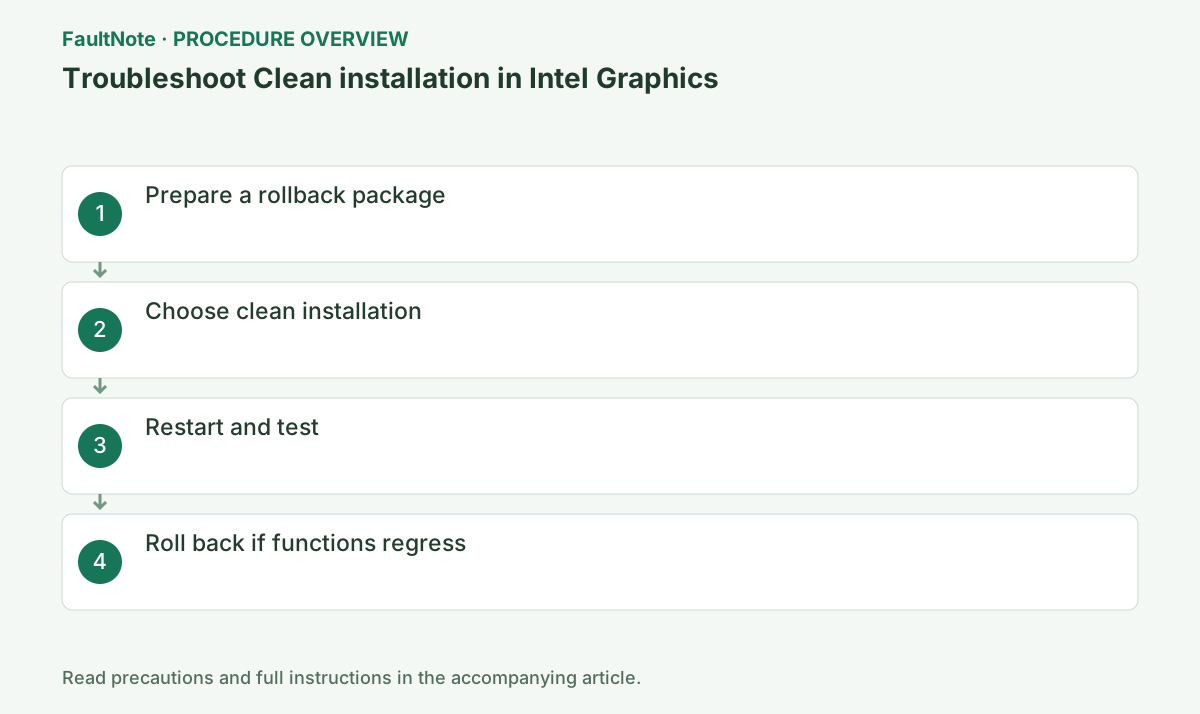
Step-by-step instructions
Save the OEM-recommended or current Intel package and record the current version before changing it.
Record the current version under Device Manager > Display adapters > Intel GPU > Properties > Driver and preserve Hardware Ids from Details.
Intel documents removal of old drivers, reset of Intel settings and clearing the shader cache. Record resolution, refresh rate, color and per-application settings and obtain the OEM recovery package first. Separate first-run cache rebuilding from a persistent failure.
Consider a clean install when a normal supported installation has not helped. Use the official checkbox if available; otherwise consult the manual method. DDU is not a required first step.
Run Intel Graphics Driver Installer and select Execute a clean installation when offered; note custom display settings because they may reset.
Check the PC maker's model page first. Save the OEM installer and record brightness, external display, sleep, and switchable-GPU behavior before testing a generic Intel build.
Official links for this step
- Intel clean-install guidance
Official page for this step. Confirm the exact product, operating system, and version requirement before continuing.
Check before continuingThe official page or signed package for Intel clean-install guidance opens and its product/version conditions match this device.
- Intel clean-install guidance
Record original version, normal-install result, clean-install result and lost settings. Check the supported package and OEM guidance before a normal install if it has not been tried. Clean setup resets settings and caches; do not describe its impact as identical to normal setup. Save changed color and application settings.
If the checkbox is absent, consult the package procedure rather than forcing instructions from another version. For manual removal, identify the Intel adapter and do not remove other vendors together. Save installers and the OEM package locally before disconnecting so recovery does not depend on unavailable downloads.
After restart, verify version, resolution, internal and external displays, and sleep resume.
In Intel setup review the license and choose Begin Installation or the documented clean-install option. Do not power off while the display is reconfigured.
Use the saved OEM package or Device Manager's Roll Back Driver instead of repeatedly bulk-removing drivers.
After restart verify driver version plus internal/external displays, brightness, and sleep resume. Roll back or reinstall the saved OEM package if model-specific functions regress.
Check before continuingDecision: Use the saved OEM package or Device Manager's Roll Back Driver instead of repeatedly bulk-removing drivers. After restart verify driver version plus internal/external displays, brightness, and sleep resume. Roll back or reinstall the saved OEM package if model-specific functions regress.
Check device warnings and the actual driver version before restoring display settings. Compare the same game scene on the first and subsequent runs, distinguishing temporary shader work from a reproducible crash.
If behavior worsens, restore the OEM driver before stacking more changes. If the official manual method required temporarily disconnecting the network, reconnect after the matching driver installation and restart.
Check before continuingCheck device warnings and the actual driver version before restoring display settings. Compare the same game scene on the first and subsequent runs, distinguishing temporary shader work from a reproducible crash.
If only the first run of a scene takes longer, close normally and compare the next run. Do not blame repeated crashes or corrupted output on caches without evidence. Keep resolution, graphics settings and mods unchanged during the comparison. Preserve equivalent conditions for the old version; average FPS alone cannot establish resolution of a launch failure.
If output becomes unstable, inspect actual version and GPU warnings before restoring many settings. Record an OEM rollback as one change. Repeated clean installation clears caches and settings again, so retain the failure stage instead of repeating blindly. Consider further removal tools only according to relevant official guidance.
Check the result
- Clean installation no longer appears and the operation completes.
- The selected version and settings remain after restart.
- A second test shows no new display, input, save, or synchronization problem.
If the problem continues
- Restore reversible settings from the notes and escalate without deleting user data.
- Prefer the PC maker or administrator procedure for OEM drivers and managed networks.
- Protect account names, tokens, and save contents before sharing logs.
Scope of this guide
Troubleshooting guide — A general diagnostic guide based on official support. It does not claim a current incident or a version-specific fix.
Frequently asked questions
Will clean installation erase personal files?
It normally targets graphics driver files and settings, but display profiles can reset.
Why is the option missing?
Some packages do not offer it. Use Intel's documented alternative uninstall flow or the OEM procedure.
Does one stutter immediately after a clean installation mean failure?
The shader cache is cleared, so compare subsequent runs. Record recurring crashes, display faults or lost features separately and consider restoring a supported package.
Does clean installation delete game saves?
Intel describes removal of drivers, Intel settings and shader cache. Check and back up game-specific saves separately and avoid combining game reinstallation with this procedure.
Official sources and dates
Source publication or resolution date: Not specified. Sources checked: 2026-10-13. The check date is not the date the problem first occurred. Interface labels can vary between versions and display languages.
Related troubleshooting guides
Intel Graphics / DSA errors and troubleshooting →
- Troubleshoot Manual install in Intel Graphics
- Troubleshoot DSA install failure in Intel Driver & Support Assistant
- Troubleshoot OEM warning in Intel Driver & Support Assistant / Intel Graphics
- Smart Access Memory becomes disabled after installing Adrenalin 26.8.1