Windows 11: Record Part of Your Screen with Snipping Tool
Record a screen region with Snipping Tool, save an MP4, and check the saved file. Review audio controls before recording and make a short trial. Automatic saving may be enabled, so check the destination rather than assuming that closing the app discards a recording.
Published · Updated · FaultNote editorial policy
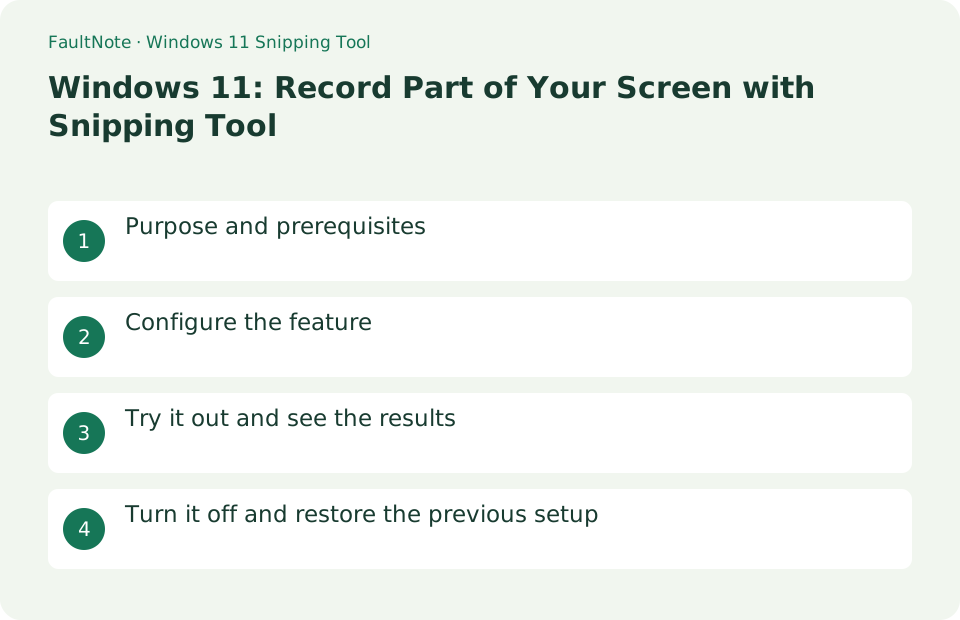
Who this guide is for and what to prepare
- People recording a short Windows 11 demonstration
- People who want to verify both the video and its audio
What you need
- Decide which action to show and hide notifications and personal information.
- Open Snipping Tool and inspect recording controls and settings. Check Microsoft Store updates if the expected controls are absent.
Choose a practical workflow
When explaining a setting, include the menu opening and final result in one clip. A region that is too small can exclude a moved dialog, while full-screen recording can reveal notifications or unrelated work. Trial the area needed for the operation first. Keep text readable even if explanatory captions will be added later.
2. Select a region and record briefly
- Press Windows + Shift + R, or select recording → New in Snipping Tool.
- Select the rectangular region, choose Start, and perform the action.
- Select Stop, then inspect the beginning and end in the preview.
Worked example: show the start and result of an operation
- Open Snipping Tool, select video recording and start a new capture. Bring the intended application forward and select the recording rectangle.
- Inspect available audio controls and enable only needed system audio or microphone input. Use a short first recording to check that the saved result reflects those choices.
- Start and wait for the countdown. Briefly show the initial state, open menus slowly and leave time to read the completed state before stopping.
- Inspect the preview and save with a chosen location and filename. Open the saved video from File Explorer and replay the actual distribution file through its ending.
3. Save an MP4 to a known location
A working preview is separate from having a saved file ready to send. Save to a location you can identify before sharing it.
4. Check automatic saving too
Snipping Tool can automatically save recordings depending on its settings. Closing without choosing Save does not establish that no copy exists.
- Inspect the app settings for recording autosave and its destination, and note the current state.
- After the trial, inspect that destination and distinguish any automatic copy from your manually saved file.
Plan a short demonstration
Decide which application and actions to show and close unnecessary windows. Select a region that excludes notifications and private filenames. Save and replay a short trial. Leave enough time after each action for the result to be read.
Keep a clip focused on one purpose: open the setting, select the target and show the result. Rerecord confusing actions or excessive waiting. A short checklist prepared beforehand reduces searching inside the demonstration. Include app names and prerequisites in the sharing text when procedures differ by environment.
Check video and both audio sources separately
Correct video does not prove audio was recorded. Review system audio and microphone choices available in the recording interface and test playback sound and your voice separately. If audio controls are absent, check app updates and the official availability information.
Check microphone input before recording, including a headset physical mute and selected device. Replay a saved trial to verify your voice. When including playback audio and narration, confirm neither overwhelms the other. Investigate recording choices rather than assuming an inaudible clip is only a player-volume problem.
Replay the actual saved distribution file
Watch the saved video from start to finish and check the region, readable text, sound and ending. Record again if unnecessary information appears. Add prerequisites in the accompanying text if the selected screen region does not explain the context.
Separate source-recording and submission filenames to avoid sharing an obsolete take. Use a descriptive purpose and date, copy the finished file into a sharing folder and replay it. After compression or editing, verify text readability and audio again. A successful trial does not replace checking a main clip recorded under different settings.
Decide when to record again
Scroll horizontally to see the full table →
| Observed result | First check | Next action |
|---|---|---|
| A dialog opens outside the area | Review the maximum area used during the operation | Expand the recording region and rerecord, considering whether explanation can reasonably fill the gap. |
| Video exists but required sound is missing | Check audio choices and the input device | Save a short trial before recording the main clip. |
| Private names or notifications appear | Pause distribution and inspect the file | Close unnecessary displays and rerecord before sharing a link. |
5. Play the saved file before sharing
Opening the output in another player checks the actual saved file. Inspect text readability and whether the intended audio is present.
- Open the MP4 and play it from beginning to end.
- Check text, framing, microphone audio, and system audio; rerecord if unwanted information appears.
- Share the verified MP4 and identify which trial recordings or extra copies you still need.
Limitations and requirements
- Audio controls and destinations can change with app updates. Do not rely on a historical default.
- Do not bypass restrictions on protected video or screens where recording is prohibited.
Frequently asked questions
Does closing the app discard the recording?
A file may remain if automatic saving is enabled. Check the destination shown in the settings.
Why does my recording have no sound?
Check the system-audio and microphone selections and the intended input device. Save and play a short trial to verify the result.
Does stopping a recording mean it has been saved?
Check stopping, previewing and saving as separate stages. Find the distribution file in File Explorer and confirm playback to avoid a missed save.
Should I use this for recording an entire meeting?
Treat this workflow as short screen-operation documentation. Meetings have additional needs such as long recording, participant notice and storage management; compare the meeting application recording feature too.
Sources and verification date
Sources checked: . These sources support the specifications, procedures or prices discussed here. Check each source for applicable conditions and current information.
Related practical guides
- OBS Studio vs Snipping Tool: Choosing a Screen Recorder
- MP4 vs MKV: Playback Compatibility and Multiple Tracks
- How to record your screen for the first time in OBS Studio
- Select the required audio track and convert video with HandBrake
- Record one game in OBS with a specific Game Capture window
- Control OBS Window Capture matching when application titles change