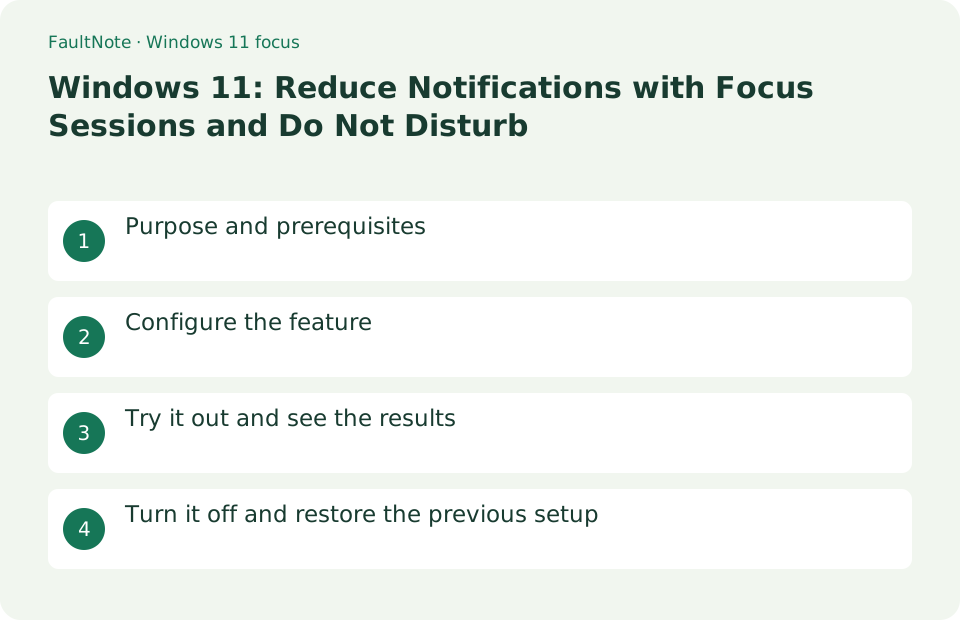
Windows 11: Reduce Notifications with Focus Sessions and Do Not Disturb
Suppress notifications with Do Not Disturb Mode and Focus Sessions. Open [Settings] > [System] > [Focus] and select the time, clock display, taskbar blinking, and Do Not Disturb settings. While the app is running, the notification banner and taskbar badge will be suppressed and the time remaining will be displayed on the timer.
Published · Updated · FaultNote editorial policy
Who this guide is for and what to prepare
- Users who want to streamline daily operations with Windows 11
- Users who want to try out the feature in a way that allows them to restore the settings.
What you need
- Save the file you are working on and try it with test data that does not include personal information.
- Check in advance how alarms and priority notifications will be handled. Do not unconditionally turn off all notifications during work hours that require emergency communication.
Choose a practical workflow
Set a duration through Clock or Focus settings and choose the document before starting. On the first trial, use a period when you are not awaiting urgent contact and inspect the start and finish states. Evaluate both the reading completed and the notification review afterward, rather than only finishing a timer. Plan how to avoid forgetting postponed notices.
Configure the feature
- Open [Settings] > [System] > [Focus] and select the time, clock display, taskbar blinking, and Do Not Disturb settings.
Worked example: a reading session followed by message review
- Open Settings, System, Focus and review the duration and available options. If the session enables Do not disturb, observe its state when the session starts.
- Start a manageable session such as 25 minutes. Bring the reference forward and review in-app settings for meeting or music notifications that remain distracting.
- Record the heading reached in one line. If a call needs attention, stop instead of forcing the session to continue and split the remaining work.
- Afterward open Notification Center and review deferred notices. Inspect the current Do not disturb state and decide whether to keep it or return to normal.
Try it out and see the results
Select Start Focus Session, or start by setting a time and break in Focus Session in the Clock app. While the app is running, the notification banner and taskbar badge will be suppressed and the time remaining will be displayed on the timer.
Start a 15 minute session with Win+N and check the timer, do not disturb, badge and blink suppression. Test notifications will be held in the Notification Center. If it was unresponsive before the start, it will be turned on again after the end so you can manually turn it back on.
If you want to work in a short amount of time without taking a break, select 15 minutes from the notification center to start and see how long it will take to finish. The notification itself hasn't disappeared, so after it's finished, open Notification Center with Win+N and check the notifications that arrived while you were working. If you need to be contacted, check the priority notification settings in [Notifications] to check which apps and calls you want to allow first.
Define the deliverable as well as the duration
Start a short session with one reference document open. Compare notifications before and after starting, then review Notification Center after the session. Hiding notification banners does not stop messages or email from arriving.
Define a small deliverable before starting: read three headings and write two questions, rather than simply study. Split unfinished work into another session or adjust task scope. Extending the timer alone may not reduce distraction or repeated searching, so briefly record where time went.
Review contact exceptions and app notifications
Review priority notifications for Do not disturb if some contacts must reach you. Check meeting applications for their own sounds as well; Windows notification settings may not control every sound. Reserve time after the session to review delayed notices.
Make notification exceptions concrete: decide which person and channel needs immediate attention. Urgent calls and chat review after a session can use different routines. Priority behavior depends on application and notification conditions. For important contact, trial it at a convenient time instead of assuming configuration alone proves delivery visibility.
Separate missing preparation from distraction
Focus helps divide work into timed sessions. It should not be treated as a block on opening browsers or games. Reduce open tabs yourself when useful. Record the work completed at the end and adjust the next session length.
Separate technical obstacles from concentration problems. A document that will not open or a missing login needs preparation, not more timer time. Stop, resolve prerequisites and restart with a smaller remaining task. Distinguish checking notices from resting; reserve separate notification time if unread messages consume every break.
Check unexpected notification behavior
Scroll horizontally to see the full table →
| Observed result | First check | Next action |
|---|---|---|
| No banner appears but messages arrive | Review Notification Center afterward | This is display suppression rather than delivery prevention. Reserve time to review unread notices. |
| One application still makes sounds | Inspect its own notification preferences | Separate Windows notifications from independent sounds or call alerts. |
| Important contacts become hard to notice | Review priority notification settings | Arrange contact methods and exceptions before continuing focused work. |
Turn it off and restore the previous setup
[End session] on the notification center or focus screen. Permanent settings can be restored using [System] > [Notifications] > [Do Not Disturb].
Limitations and requirements
- Check in advance how alarms and priority notifications will be handled. Do not unconditionally turn off all notifications during work hours that require emergency communication.
- If the settings are fixed on an organization-managed PC, check with the administrator instead of using unofficial methods to circumvent the policy.
Frequently asked questions
Will notifications received while in focus disappear?
You can view notifications with Do Not Disturb banners suppressed in Notification Center. The display will vary depending on the app and priority notification settings.
What if there is no notification even after the end?
If you were unavailable before starting the session, that setting will remain. Check the status in [System] → [Notifications] in [Settings].
Does starting Focus prevent using other applications?
It does not universally block access to other apps. Combine the timer with closing distracting tabs or applications yourself.
Can session counts measure work completed?
Counts alone cannot establish progress. Record pages read, paragraphs completed or the next task and use that record to adjust the time allotted.
Sources and verification date
Sources checked: . These sources support the specifications, procedures or prices discussed here. Check each source for applicable conditions and current information.
Related practical guides
- When Smart App Control blocks an app: there is no per-app exception to find
- Windows has three startup modes: what Fast Startup actually loads
- Is quick machine recovery enabled on your PC? The defaults, and the network it actually needs
- Windows now drives the keyboard backlight: native control and autobrightness in 25H2
- Why Device encryption is missing from Settings, answered by System Information
- Point-in-time restore and the 200 GB OS volume: a new line in the storage capacity decision