Point-in-time restore and the 200 GB OS volume: a new line in the storage capacity decision
Choosing the storage in a PC used to be about the size of your apps and your files. There is now another line in that decision: Microsoft states that point-in-time restore is on by default only on devices whose OS volume is 200 GB or larger, so the capacity you choose changes the default state of a recovery feature. This guide was written on 2026-09-21 from that document and covers what the feature does, its defaults, the capacity conditions, how it differs from System Restore, and the limitations and risks the page states outright. The source marks restoration as In preview, and this guide does not reach past that.
Published · Updated · FaultNote editorial policy
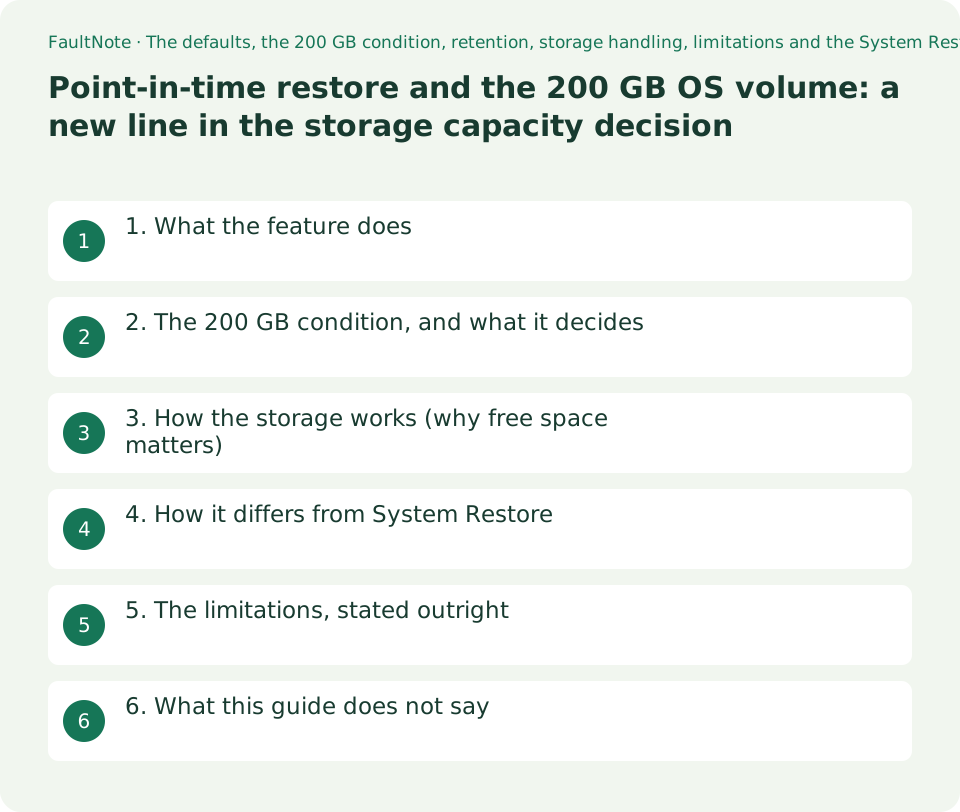
Who this guide is for and what to prepare
- Anyone choosing the capacity of a new PC or SSD who wants the full set of considerations
- Anyone who has found Point-in-time restore in Settings and wants to know what it is
- Anyone who wants the difference from System Restore from the source rather than from hearsay
What you need
- Check the size of your OS volume (This PC in File Explorer, or Storage in Settings)
- Check the current free space; the behaviour of this feature depends on it
- Check whether BitLocker or device encryption is on, and where the recovery key is
1. What the feature does
Microsoft's description: Point-in-time restore enables users to restore a Windows PC to the exact state in which it was at an earlier point in time. It happens in minutes using restore points. Restore points are stored locally on the device and are captured using Volume Shadow Copy Service (VSS) .
What a restore point holds is stated plainly: Restore points are comprehensive and include the OS, apps, settings, and local files (no user data is scoped out of the restore point). That is the sharpest difference from System Restore, compared in a table below.
The capture interval and retention have published defaults: Restore points are captured automatically at a frequency configurable by administrators. The default is approximately every 24 hours . Restore points are removed automatically once they become older than 72 hours.
One caveat governs the whole article. The page states: In preview, you can start restoration from Windows Recovery Environment (WinRE) only. It is documented as a preview, and this guide does not treat it as a finished feature present on everyone's machine.
2. The 200 GB condition, and what it decides
The default is conditional. On systems not under enterprise management, meaning Windows Home devices and Pro devices that are neither domain joined nor enrolled in enterprise endpoint management, the feature is on by default.
A note then adds the capacity condition: Only devices with an OS volume size of 200 GB or greater will have the feature On by default. For devices with OS volume size below 200 GB, you can still turn On the feature if desired.
What follows is narrow but concrete. A 256 GB SSD used as a single volume clears the condition; a 128 GB eMMC or a small OS partition does not get the feature by default. Note the wording: not unavailable, simply not on by default, with turning it on left open.
You do not have to let this line decide the capacity on its own. But as the next section shows, the feature removes restore points under storage pressure, so the less headroom a machine has, the less this preparation is worth. That is the structure the document describes.
03. How the storage works (why free space matters)
On where restore points live: Restore points are included in the system reserved storage*. Reserved storage is only used if the device is low on available disk space.
The deletion conditions are enumerated: when a restore point becomes older than 72 hours, when VSS storage exceeds its maximum configuration, and when Free disk space reaches or drops below 20 GB. In each case the oldest go first.
The maximum has a default too. The maximum usage limit defaults to 2% of disk, configurable as a percentage of disk space with a minimum of 2 GB and a maximum of 50 GB equivalent. The page adds: The configured maximum space is not pre-allocated . It is an upper bound, and unused capacity remains available to the system.
The condition for restoring is easy to miss: To complete restoration, the device must have at least as much free space as the total size of all restore points. On a machine with little headroom, the preparation can exist and still not be usable.
4. How it differs from System Restore
The document treats both as VSS mechanisms and then compares them. The table below takes the rows that bear on a personal machine; the values are the source's.
The difference that matters most in practice is the target scope. Point-in-time restore reverts the full system state, which also means files created after the restore point are gone. The page warns of exactly that: Any changes made after the restore point will be lost. It adds that data stored in cloud services such as OneDrive is not affected.
The second is retention. Point-in-time restore keeps a restore point for a maximum of 72 hours, where System Restore is described as indefinite, subject to disk space and cleanup. Going back to a state from months ago is not what this is for.
Scroll horizontally to see the full table →
| Capability | Point-in-time restore | System Restore |
|---|---|---|
| Configuration method | System Settings | Control Panel |
| Restore point trigger | Scheduled frequency (automatic only) | Event-triggered or manual |
| Retention | Maximum 72 hours per restore point | Indefinite (subject to disk space usage and cleanup) |
| Target scope | Full system state | System files and settings (app and user data coverage varies) |
| System storage impact | Mitigated storage impact due to reserved storage (lower) | Unmitigated storage impact (higher) |
5. The limitations, stated outright
There is one route to a restore: Access : You can only start the restore process locally in WinRE. It is not something run from the Settings app.
Encrypted volumes need the key: BitLocker : BitLocker recovery key is required for local restore on encrypted volumes. The steps include entering it. Without knowing where that key is, the feature is out of reach, and this site covers finding it separately.
Editions do not mix: It’s not possible to use a restore point taken under a different Windows edition/SKU than the one currently installed. The example given is upgrading from Home to Pro, after which restore points created on Home are no longer available.
The page also lists that the use of EFS-encrypted files prevents restoration, that on a device with several volumes only the volume holding the OS is restored, that restore points cannot be exported or mounted as independent images, and the conditions under which capture or restoration can fail: insufficient disk space, heavy I/O load, powering off during restoration, a corrupted file system.
6. What this guide does not say
It does not tell you how many gigabytes to buy. The 200 GB condition is one line in a decision where your applications and files weigh more, and this site does not know your use.
It does not assert that the feature is already running on your machine. The document says only Applies to: Windows 11 and marks restoration as In preview. Look for the item under Settings, System, Recovery yourself. Microsoft's recovery options page lists point-in-time restore with an availability of Windows 11, version 24H2 or later.
It does not present the feature as a substitute for a backup. Restore points are stated to be stored locally on the device, so losing the device loses them. Protecting personal files needs something else.
It does not cover enterprise configuration through CSP or policy. The table states that restore point frequency and retention are configurable on Enterprise only.
Limitations and requirements
- The source marks starting a restore as In preview. This guide does not treat the feature as finished.
- A restore reverts the whole system. The document warns that changes made after the restore point will be lost.
- Restoring an encrypted volume requires the BitLocker recovery key. Find it before you need it.
- Restore points do not survive an edition change. After an upgrade from Home to Pro, points created on Home are stated to be no longer available.
- Everything quoted here was read on 2026-09-21.
Frequently asked questions
With an OS volume under 200 GB, is the feature unavailable?
That is not what the page says. It is on by default only on devices of 200 GB or greater, and for devices below that you can still turn it on if you want to.
Should I use this or System Restore?
The document does not rank them. It records that point-in-time restore reverts the full system state with a maximum retention of 72 hours, while System Restore targets system files and settings with indefinite retention.
How much space do restore points take?
The maximum usage limit defaults to 2% of disk, configurable with a minimum of 2 GB and a maximum of 50 GB equivalent. The page adds that the configured maximum is not pre-allocated and that unused capacity remains available to the system.
Is it any use on a machine with little free space?
Less. Restore points are removed oldest first once free disk space reaches or drops below 20 GB, and completing a restoration requires at least as much free space as the total size of all restore points.
Sources and verification date
Sources checked: . These sources support the specifications, procedures or prices discussed here. Check each source for applicable conditions and current information.
- Microsoft Learn: Point-in-time restore for Windows. States that restore points are captured with VSS and stored locally; that they are comprehensive, covering the OS, apps, settings and local files, restoring the full system state from the last 72 hours; that the default capture frequency is approximately every 24 hours; that the feature is on by default on systems not under enterprise management (Windows Home devices, and Pro devices neither domain joined nor enrolled in enterprise endpoint management); that only devices with an OS volume of 200 GB or greater have it on by default while smaller devices can still turn it on; the reserved storage handling and the deletion conditions (older than 72 hours, VSS maximum exceeded, free disk space at or below 20 GB, and other limiting conditions); the maximum usage default of 2% of disk with a minimum of 2 GB and a maximum of 50 GB equivalent, and that the maximum is not pre-allocated; that completing a restoration requires at least as much free space as the total size of all restore points; configuration from Settings under System, Recovery, Point-in-time restore; that In preview, restoration can be started from WinRE only, with BitLocker recovery key entry in the steps; the stated risks of data loss, capture failure, restore failure, boot failure and reverted updates or policies; the limitations (WinRE only, BitLocker recovery key, no guarantee of timing, no restore across a different edition or SKU, EFS-encrypted files, only the OS volume on multi-volume devices, no export or mount of restore points); and the comparison table with System Restore. Read 2026-09-21 ↗
- Microsoft Support: Recovery options in Windows. Lists point-in-time restore among the recovery options with an availability of Windows 11, version 24H2 or later, describes checking for an available restore point under System and Recovery before booting into WinRE, describes reaching it in WinRE through Troubleshoot, and states that only changes made after the selected restore point will be lost. Read 2026-09-21 ↗
Related practical guides
- The recovery drive to make on day one: what it holds, what it does not, and which USB stick to use
- Is quick machine recovery enabled on your PC? The defaults, and the network it actually needs
- PCIe 4.0 or 5.0 SSD for gaming? Check load times, capacity and slot sharing
- How much SSD does a gaming PC need? Windows requirements, published game sizes, library placement
- Before you swap in a new SSD: check whether the drive is encrypted, and where the recovery key lives
- When Smart App Control blocks an app: there is no per-app exception to find