WSL alone cannot resolve names while a VPN is connected
What to do first
WSL alone cannot resolve names while a VPN is connected. VPN NRPT rules, enterprise firewall policy, or an older NAT DNS proxy configuration may conflict with WSL DNS requests. Record the current state before changing it, use only the supported Windows path described below, and verify the same operation again after any required restart.
This is a general troubleshooting guide, not an announcement of a current outage.
Affected products and symptoms
- Product
- WSL 2
- Versions and conditions
- Windows 11 (confirm the edition and hardware requirements for the feature)
- Error codes and identifiers
- DNS
Symptoms
- WSL alone cannot resolve names while a VPN is connected.
- The same condition can persist after a retry or restart.
Causes and conditions
VPN NRPT rules, enterprise firewall policy, or an older NAT DNS proxy configuration may conflict with WSL DNS requests.
Before you start
- Save open documents and allow time for a Windows restart if required.
- Run administrative actions only on a personally managed PC or with administrator approval.
- Save the diagnostic command output so the before and after states can be compared.
Precautions
- Do not bulk-delete registry entries, system folders, credentials, or storage metadata.
- Do not run unofficial scripts or unknown drivers with administrator rights.
Tools and official pages used in this guide
Check the official requirements, interface names, and limitations for this step.
Step-by-step instructions
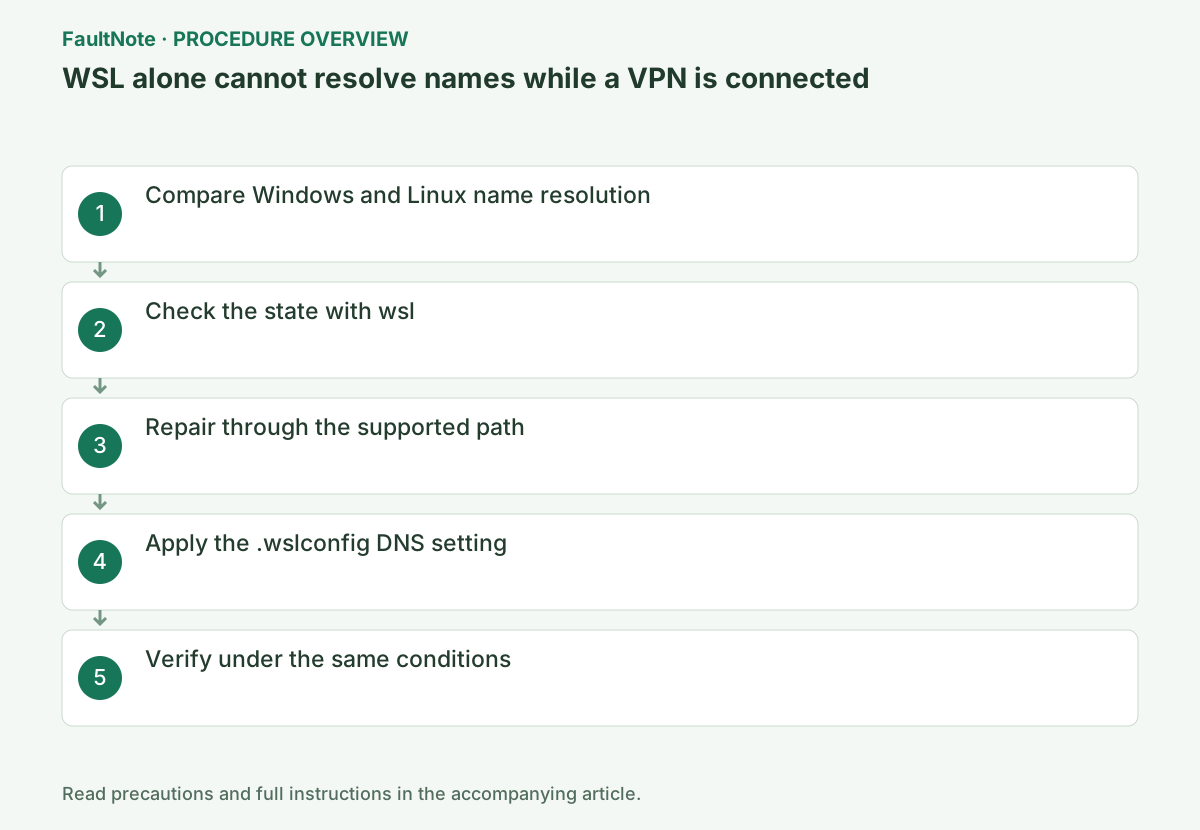
Check whether Windows can open the target site and run getent hosts microsoft.com inside WSL. If only an internal hostname fails, include it in the report to your administrator. Compare without the VPN only when your organization permits it.
Test an internal hostname separately from a normal public hostname; public success does not establish internal recovery. Compare the same names with Windows Resolve-DnsName and WSL getent hosts. Record resolution, expected address range and VPN dependence. Redact internal names and addresses in public reports while giving administrators accurate details privately.
Compare the same hostname on Windows and WSL before and after connecting the VPN. Windows-only success points toward the WSL DNS path; failure on both points toward the VPN or organization DNS. If resolution succeeds but the application fails, investigate its port and proxy separately.
Update the Store-delivered WSL package and, on Windows 11 22H2 or later, determine whether DNS tunneling is available.
Confirm that the distribution, WSL release, or default version is displayed. If the command is not recognized, check WSL installation without resetting the distribution.
Use four branches: both systems fail, Windows alone succeeds, resolution succeeds but the application fails, or failure occurs only with VPN connected. These point toward organization DNS, the WSL DNS path, application ports/proxy, or VPN routing/policy respectively. Compare disconnection only when permitted. Global firewall disablement or permanent public DNS substitution does not replace these tests.
wsl --versionCheck and save work in every running WSL distribution. Because wsl --shutdown stops all distributions and the WSL 2 VM, run it only when other WSL work and containers may also stop.
Save existing .wslconfig and /etc/resolv.conf settings and identify manual changes. Check requirements before copying configuration from another environment. If stopping WSL is needed, save Linux work and arrange service downtime first. Keep organization-approved VPN versions. Apply one change, retest both names and restore the previous configuration if it does not help.
Official links for this step
- Accessing network applications with WSL
Check the official requirements, interface names, and limitations for this step.
- Accessing network applications with WSL
Confirm that you use a compatible WSL release on Windows 11 22H2 or later. Open %UserProfile% in File Explorer and back up an existing .wslconfig. Set dnsTunneling=true under [wsl2], without creating a duplicate section. Save your Linux work, run wsl --shutdown in Windows, and reopen the distribution.
If /etc/wsl.conf inside Linux contains generateResolvConf=false, DNS tunneling may not work. Back up previously changed configuration, review it with the administrator, and do not combine DNS tunneling with a custom fixed-DNS setup.
.wslconfig is not a Linux shell command. On Windows, run notepad.exe %UserProfile%\.wslconfig, save the documented DNS tunneling setting under the [wsl2] section, then run wsl --shutdown in a terminal.
On supported Windows 11 and WSL versions, DNS tunneling can help VPN compatibility. Check requirements and the installed WSL version first. Save any manually maintained /etc/resolv.conf before changes; replacing corporate DNS with public DNS can break internal name resolution or conflict with policy.
Run getent hosts microsoft.com and repeat the original operation once under the same conditions. If it succeeds, verify again after a restart and record the setting that changed.
Verify both internal resolution and the actual internal application. An external browser page does not prove WSL can reach an internal API. Record whether failure occurs immediately after VPN connection or after resume. Give support product versions, manual DNS state and matching-name results, and confirm the intended corporate DNS design before retaining a workaround.
getent hosts microsoft.com
Check the result
- Required internal names resolve with the VPN connected and the target application connects
- The verification command reports the expected enabled, healthy, or connected state.
- The result remains correct after a Windows restart and no new matching critical event appears.
If the problem continues
- Provide the VPN product, WSL version and Windows/WSL results for the same hostname
- If hardware requirements, organization policy, or server settings are responsible, ask the owner to make the change instead of bypassing it on the client.
Scope of this guide
Troubleshooting guide — Restore the feature so it starts, connects, or completes normally and passes the same verification after a Windows restart.
Frequently asked questions
Should I hard-code a DNS server in resolv.conf?
A corporate VPN can change DNS servers and search suffixes, so a fixed value is brittle. Prefer DNS tunneling and follow VPN administrator policy.
Why does old DNS state remain after the change?
Run `wsl --shutdown` to stop every distribution, restart WSL, and test with `getent hosts`.
Does resolving microsoft.com prove the issue is fixed?
It helps test public DNS, but internal names may depend on VPN DNS and search domains. Verify the original internal name and application and confirm both resolution and connectivity.
Official sources and dates
Source publication or resolution date: Not specified. Sources checked: 2026-10-13. The check date is not the date the problem first occurred. Interface labels can vary between versions and display languages.
Related troubleshooting guides
Windows errors and troubleshooting →
- WSL 2 or Hyper-V cannot run inside a Hyper-V virtual machine
- Hyper-V is missing from Windows Features or cannot be enabled
- Disable networking and clipboard sharing in Windows Sandbox
- Windows Sandbox is missing or cannot start