Restore the WSL optional component when error 0x8007019e appears
What to do first
Restore the WSL optional component when error 0x8007019e appears. The Windows Subsystem for Linux feature may be disabled, or Windows may still need the restart requested after enabling it. Record the current state before changing it, use only the supported Windows path described below, and verify the same operation again after any required restart.
This is a general troubleshooting guide, not an announcement of a current outage.
Affected products and symptoms
- Product
- Windows Subsystem for Linux
- Versions and conditions
- Windows 11 (confirm the edition and hardware requirements for the feature)
- Error codes and identifiers
- 0x8007019e
Symptoms
- Restore the WSL optional component when error 0x8007019e appears.
- The same condition can persist after a retry or restart.
Causes and conditions
The Windows Subsystem for Linux feature may be disabled, or Windows may still need the restart requested after enabling it.
Before you start
- Save open documents and allow time for a Windows restart if required.
- Run administrative actions only on a personally managed PC or with administrator approval.
- Save the diagnostic command output so the before and after states can be compared.
Precautions
- Do not bulk-delete registry entries, system folders, credentials, or storage metadata.
- Do not run unofficial scripts or unknown drivers with administrator rights.
Tools and official pages used in this guide
Check the official requirements, interface names, and limitations for this step.
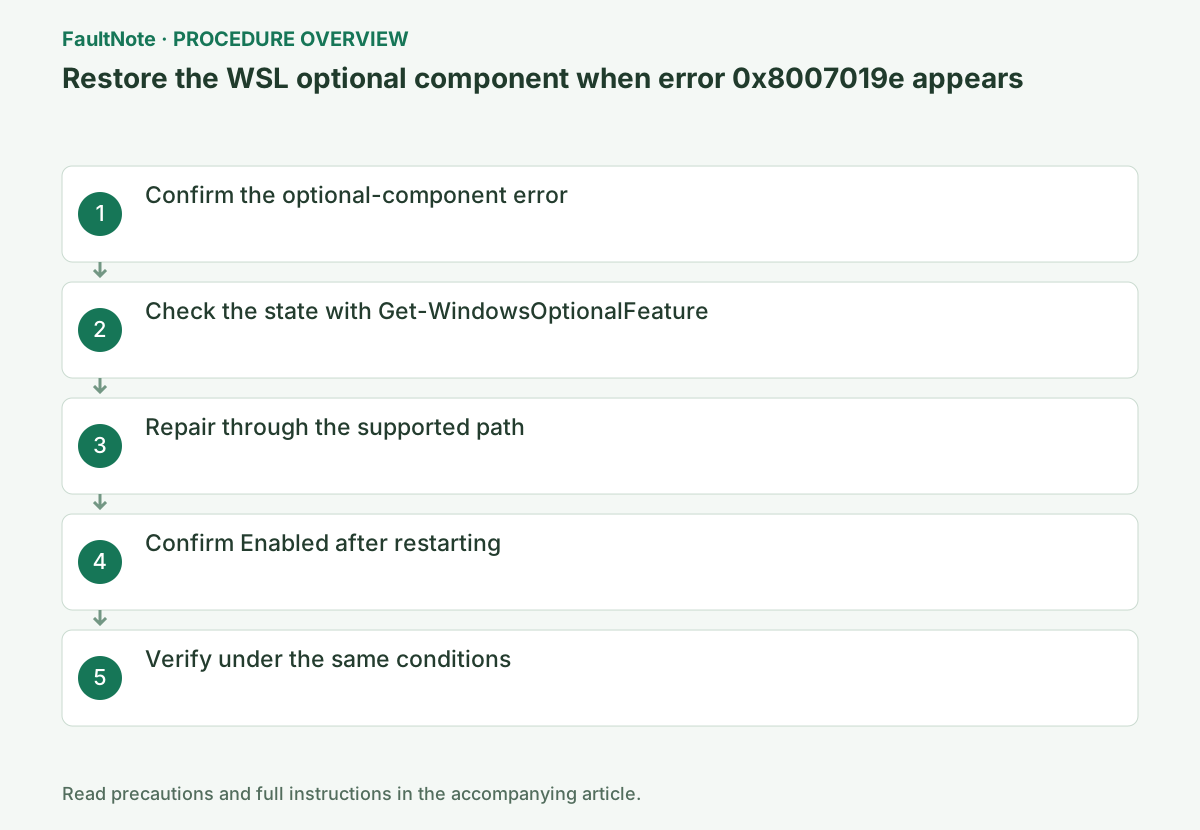
Step-by-step instructions
Record the Linux distribution name and the full 0x8007019e message. Resetting the distribution in Windows app settings can remove Linux data, so check the Windows optional component first.
Fix the reproduction first: identify whether 0x8007019e occurs on first launch, existing distribution startup or installation. Compare the current Windows account and launch method with the last successful use. Elevation can use the same account, but a different administrator account can have a different distribution inventory.
Use 0x8007019e to investigate the WSL optional component. A separate message about no installed distributions requires checking the Windows user account first. Do not delete the current Linux environment to repair another user account registration.
Check whether State is Enabled; if it is Disabled, enable the component from an elevated session.
State=Enabled confirms the feature is active; Disabled means it is off. If enablement or a restart is pending, restart Windows and rerun the same check.
Run Get-WindowsOptionalFeature in an elevated PowerShell. If State is Disabled, enable it next; if Enabled, do not assume 0x8007019e is only a disabled component—check wsl --status and pending restart.
Read both FeatureName and State. Disabled leads to enablement; Enabled calls for a different branch rather than repeated installation. Resolve a pending restart after saving work. An access-denied command requires checking administrative privileges and organization authorization, rather than assuming the optional component is missing.
Get-WindowsOptionalFeature -Online -FeatureName Microsoft-Windows-Subsystem-LinuxEnable the Windows Subsystem for Linux feature, save pending work, and restart Windows.
At completion, check for “The operation completed successfully,” a restart request, or an error code. On failure, preserve the code and C:\Windows\Logs\DISM\dism.log instead of repeating the command.
After success, list distributions under the same user and launch the original target. A missing entry leads to user/registration checks; a different startup error should be recorded separately. If WSL 2 virtualization requirements become relevant, keep them separate from the successful component enablement. Avoid chains of unrelated repair commands.
dism.exe /online /enable-feature /featurename:Microsoft-Windows-Subsystem-Linux /all /norestartOfficial links for this step
- Troubleshooting Windows Subsystem for Linux
Check the official requirements, interface names, and limitations for this step.
- Troubleshooting Windows Subsystem for Linux
Use Start > Power > Restart, then repeat the step 2 command in an elevated PowerShell window. Confirm that State is Enabled before opening the same distribution.
After successful feature enablement requests a restart, save work and reboot. Open the affected application once using the same user afterward. If enabling the feature fails, investigate the DISM error before reinstalling a distribution.
Run wsl --list --verbose and repeat the original operation once under the same conditions. If it succeeds, verify again after a restart and record the setting that changed.
Confirm that the distribution, WSL release, or default version is displayed. If the command is not recognized, check WSL installation without resetting the distribution.
Collect before/after State, Windows build, completion output, restart result and distribution inventory. Share only necessary account information. A DISM failure belongs to Windows feature processing; do not delete Linux files. Avoid uninstalling or unregistering as initial diagnosis and discuss dependent workloads before reversing feature changes.
wsl --list --verbose
Check the result
- The same Windows user can list and launch the distribution
- The verification command reports the expected enabled, healthy, or connected state.
- The result remains correct after a Windows restart and no new matching critical event appears.
If the problem continues
- For enablement failure, record the DISM log and whether the requested restart occurred
- If hardware requirements, organization policy, or server settings are responsible, ask the owner to make the change instead of bypassing it on the client.
Scope of this guide
Troubleshooting guide — Restore the feature so it starts, connects, or completes normally and passes the same verification after a Windows restart.
Frequently asked questions
Why is the feature not active immediately after enabling it?
Optional feature changes can remain pending until restart. Restart Windows, then check State and `wsl --list --verbose`.
Must I delete the Linux distribution?
Usually no. Unregistering can delete Linux data, so enable the feature and restart first.
Should I disable the feature when it is Enabled but the list is empty?
Check the Windows user and initial application launch first. Feature state and per-user distribution registration are separate. Preserve existing data and identify its owning account before deleting or resetting anything.
Official sources and dates
Source publication or resolution date: Not specified. Sources checked: 2026-10-13. The check date is not the date the problem first occurred. Interface labels can vary between versions and display languages.