Remote Desktop is not listening on TCP port 3389
What to do first
Remote Desktop is not listening on TCP port 3389. Remote Desktop may be disabled, TermService stopped, built-in inbound rules disabled, or an upstream network may block traffic. Record the current state before changing it, use only the supported Windows path described below, and verify the same operation again after any required restart.
This is a general troubleshooting guide, not an announcement of a current outage.
Affected products and symptoms
- Product
- Remote Desktop
- Versions and conditions
- Windows 11 (confirm the edition and hardware requirements for the feature)
- Error codes and identifiers
- 0x204
Symptoms
- Remote Desktop is not listening on TCP port 3389.
- The same condition can persist after a retry or restart.
Causes and conditions
Remote Desktop may be disabled, TermService stopped, built-in inbound rules disabled, or an upstream network may block traffic.
Before you start
- Save open documents and allow time for a Windows restart if required.
- Run administrative actions only on a personally managed PC or with administrator approval.
- Save the diagnostic command output so the before and after states can be compared.
Precautions
- Do not bulk-delete registry entries, system folders, credentials, or storage metadata.
- Do not run unofficial scripts or unknown drivers with administrator rights.
Tools and official pages used in this guide
Check the official requirements, interface names, and limitations for this step.
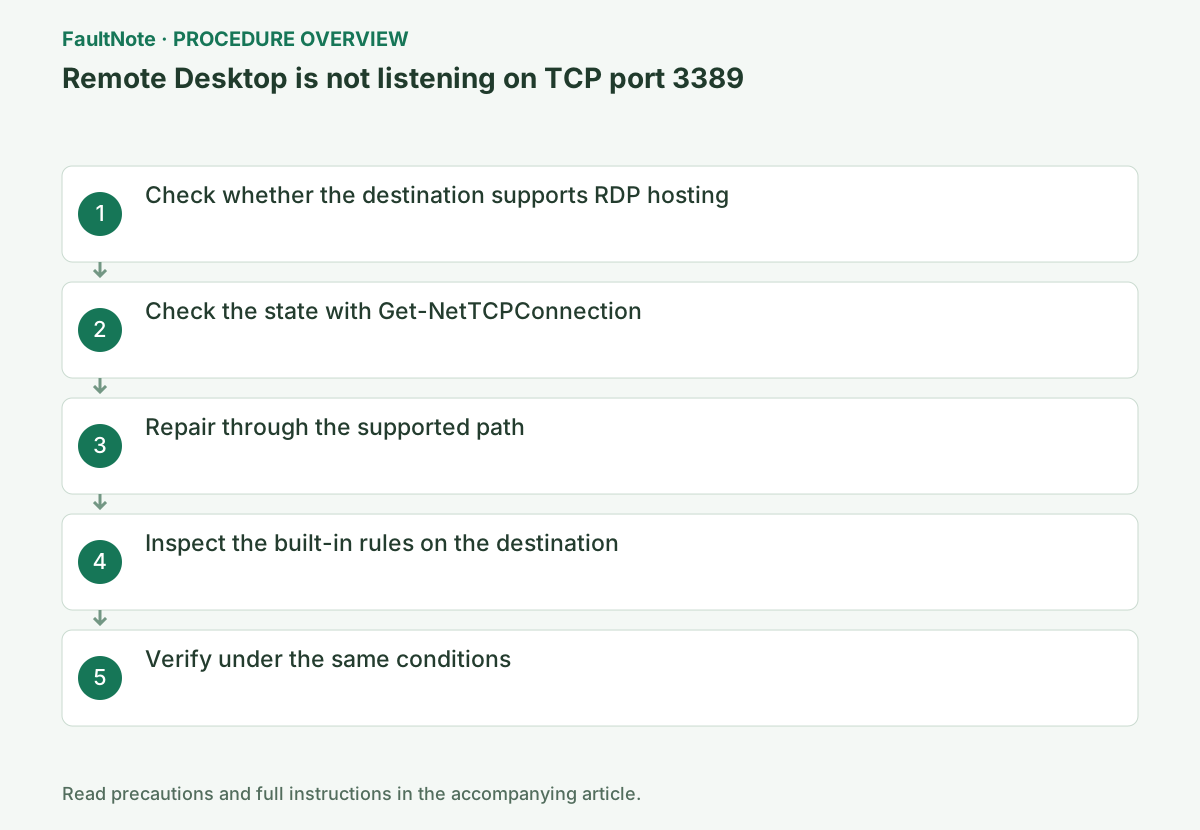
Step-by-step instructions
Keep the client and destination separate during these checks. Windows Home cannot act as a standard Remote Desktop host. First confirm that the destination is awake, the required VPN is connected, and the administrator has not configured a port other than 3389.
Separate client and host. Run listener inspection on the host; a missing listener on the client says nothing about the remote host. Run Test-NetConnection from the client to the intended destination and record name, port and result. Use the administrator-confirmed custom port when applicable.
3389 is the default port. If the organization changes it, confirm the actual port with the host administrator. Check that tests do not target another PC or an obsolete IP address, and record client connectivity separately from host listener state.
On the destination PC, check whether TCP 3389 is listening; do not run the listener check only on the client.
Run Get-NetTCPConnection in elevated PowerShell on the remote RDP host. Running it on the client only checks the client listener. No row points to host service/RDP enablement; a Listen row shifts investigation to the client-to-host path.
If the host has no listener, the administrator checks RDP enablement, supported edition and service state. Sleep or required VPN routing may also cause timeouts. Check other connected users before service changes, preserving active remote work. Do not claim a host diagnosis from client-only evidence.
Get-NetTCPConnection -LocalPort 3389 -State ListenOn a supported Windows edition, open Settings > System > Remote Desktop and enable Remote Desktop. Confirm the built-in Remote Desktop firewall rule group is enabled for the active network profile.
If a listener exists but the client cannot reach it, check firewall applicability and routing. Confirm the active profile and permitted source range before broadening access. Use the intended VPN or internal route. Direct internet exposure through router forwarding is a different design decision, not the internal recovery procedure.
Official links for this step
- General Remote Desktop connection troubleshooting
Check the official requirements, interface names, and limitations for this step.
- General Remote Desktop connection troubleshooting
On the destination, open Windows Defender Firewall with Advanced Security and inspect the Remote Desktop inbound rules. Display names vary with the Windows language, so a missing English DisplayGroup match does not prove the rule is absent. Keep the firewall enabled and have the administrator check the active profile and allowed sources.
Opening a firewall cannot replace a missing RDP listener. If the listener exists but the client cannot connect, check the route and the rule for the relevant network profile. Internet-facing router port forwarding is not a prerequisite for this diagnosis.
Replace HOST_NAME with the actual value for your system before using this example.
Run Test-NetConnection <host> -Port 3389 and repeat the original operation once under the same conditions. If it succeeds, verify again after a restart and record the setting that changed.
TcpTestSucceeded=True confirms port reachability. If False, check the host name, VPN, destination listener, and firewall before changing credentials.
After connectivity succeeds, test RDP and record whether authentication begins. Hand credential rejection off as authentication failure, and verify the session is the intended PC. Provide client/host roles, commands, real port, time and VPN state; distinguish missing listener, failed route and failed authentication.
Test-NetConnection HOST_NAME -Port 3389
Check the result
- The intended host and port reach RDP authentication
- The verification command reports the expected enabled, healthy, or connected state.
- The result remains correct after a Windows restart and no new matching critical event appears.
If the problem continues
- If the host is inaccessible, ask the administrator to confirm the listener result and time
- If hardware requirements, organization policy, or server settings are responsible, ask the owner to make the change instead of bypassing it on the client.
Scope of this guide
Troubleshooting guide — Restore the feature so it starts, connects, or completes normally and passes the same verification after a Windows restart.
Frequently asked questions
Does a closed port 3389 prove the firewall is blocking it?
No. The service or listener may be absent. Check Remote Desktop, TermService, the listener, then built-in firewall rules on the destination.
Should I expose TCP 3389 directly to the internet?
Use a managed VPN or RD Gateway and coordinate the design with the network administrator.
Does no listener on the client mean remote RDP is stopped?
No. Inspect the listener on the receiving host. Client connection tests and host-local listener results are separate; ask the administrator when the host cannot be inspected.
Official sources and dates
Source publication or resolution date: Not specified. Sources checked: 2026-10-13. The check date is not the date the problem first occurred. Interface labels can vary between versions and display languages.