Large copies to an NVMe SSD slow down partway: tell thermal throttling from write cache limits and check cooling
What to do first
Samsung explains that under heavy workloads such as transferring several hundred gigabytes, performance may be suppressed to protect the SSD, and that nearby heat sources such as CPUs or high-power graphics cards can reduce performance. Kingston also says thermal throttling slows a hot drive and speeds return once it cools. Separately, the Samsung 990 PRO datasheet notes that write performance was measured with a cache feature that operates only within a specific transfer size. Record temperature and transfer size to separate the causes before acting.
This is a general troubleshooting guide, not an announcement of a current outage.
Affected products and symptoms
- Product
- M.2 NVMe SSD
- Versions and conditions
- M.2 NVMe SSDs installed in Windows 11 / Windows 10 desktop or laptop PCs where copying or exporting files of tens of gigabytes or more, such as games or video, starts fast and then drops sharply partway through
Symptoms
- A large copy to an NVMe SSD starts fast, then the transfer speed drops sharply partway and either stays low or keeps rising and falling
- The SSD temperature keeps climbing during long writes or gaming, and the manufacturer's tool shows a high-temperature indication
Causes and conditions
There are two main reasons. One is the SSD's protection feature, which lowers speed when the drive gets hot so it can cool down. The other is the write cache: if a product reaches its maximum write speed only within a certain transfer size, speed drops once that amount is exceeded. Neither means the drive is faulty. The source drive, or a slower destination such as another drive, a USB device or a network location, can also be the limit.
Before you start
- The SSD's exact model and datasheet (operating temperature range and notes on write performance), the M.2 slot number it is installed in and the motherboard manual
- A large test file you can copy repeatedly under the same conditions (note the source and destination drives), and the SSD maker's management tool, such as Samsung Magician or Kingston SSD Manager
Precautions
- Thermal throttling is a feature that protects the SSD, and Kingston explains that speeds return once the drive cools. Temperature limits differ between SSD products, so do not apply figures from another model.
- This article did not reproduce the symptom on real hardware. Check the speed after the cache is exceeded and temperature limits in the product datasheet and the manufacturer's guidance.
Tools and official pages used in this guide
Step-by-step instructions
Copy the same large file from the same source to the affected SSD, and open "More details" in the File Explorer copy window to watch the speed. Note how many gigabytes had been transferred when the speed started to drop, whether it then stays low or keeps rising and falling, and whether pausing the copy for a few minutes brings the speed back.
If the source drive is slow, or the destination is an external USB drive or a network location, that device may be the limit. The steps in this article cover slowdowns when writing to an NVMe SSD or copying between NVMe SSDs.
Official links for this step
Kingston advises reading the built-in S.M.A.R.T. temperature sensor that most drives have with vendor software or monitoring tools, and tracking temperatures for 10–15 minutes while running a workload that reflects real use, such as copying a large file. Check whether the temperature levels off or keeps climbing.
In Windows, Microsoft Learn's Get-StorageReliabilityCounter returns reliability counters such as device temperature, errors and wear. Run the command below in PowerShell to show "Temperature" for each disk. Match each DeviceId to its model in the Get-PhysicalDisk list. If no value is shown, check the temperature in the SSD maker's tool.
Get-PhysicalDisk | Get-StorageReliabilityCounter | Select-Object DeviceId, Temperature, TemperatureMaxOfficial links for this step
Kingston explains that repeated dips in read or write speed at the same temperature are usually a sign that the SSD is hitting its thermal limit, and that speeds return once the drive cools. If the speed drops as the temperature rises and recovers after pausing to cool, go on to the cooling checks in the next step. Compare the temperature with the operating range in the SSD's datasheet; for example, the Samsung 990 PRO datasheet lists 0°C to 70°C, measured by S.M.A.R.T. temperature, with proper airflow recommended.
If the speed drops at roughly the same transfer size every time while the temperature has not risen, a write cache limit is more likely. The Samsung 990 PRO datasheet notes that write performance was measured with Intelligent TurboWrite activated, and that this feature operates only within a specific data transfer size. The datasheet does not list the speed after the cache is exceeded and refers readers to their local service center for details. In this case, better cooling may not change the speed.
Official links for this step
Samsung's FAQ says external heat sources such as CPUs or high-power graphics cards close to an NVMe SSD can affect the airflow around it and reduce performance, and asks users to ensure proper airflow around the SSD. Kingston also notes that a large graphics card can create a hot pocket near the top PCIe slot, and recommends choosing the M.2 slot with the best airflow gap from the GPU when the board offers several positions.
Kingston lists fitting the motherboard's M.2 heatsink with the supplied thermal pad so it makes full, even contact, tightening screws evenly, checking clearance with the graphics card and side panel when using an aftermarket heatsink, and cleaning dust from case filters and vents. Back up the data and unplug the PC's power cable before moving the SSD or fitting a heatsink. If you move the SSD to another M.2 slot, also check the manual for lane sharing with other slots.
Official links for this step
After changing the cooling, copy the same file from the same source as in step 1, and compare the temperature and the transfer size at which the speed drops with the previous run. If the temperature levels off and the slowdown disappears or starts later, the cooling change is working.
If the speed still drops at the same transfer size every time and the temperature has headroom, this is likely the SSD's write cache behaviour. If you often write large amounts of data, look for reviews that test speed after long sustained writes at the same capacity when choosing a replacement SSD. If the SSD disappears from Windows or the copy stops with errors, that is beyond this article: contact the SSD maker's support with the model and symptoms.
Official links for this step
Check the result
- When the same file is copied again from the same source, the SSD temperature levels off instead of climbing, and the speed drop starts later than before or no longer occurs
- If the speed still drops, the temperature and transfer-size records explain whether heat or the write cache is the cause
If the problem continues
- If the temperature keeps rising and speed drops even after improving cooling, or the SSD maker's tool keeps showing high-temperature warnings, contact the SSD maker with the model, the temperature records and the slot used
- If the SSD stops being detected during a copy or the copy stops with read or write errors, avoid further writes, back up important data to another location and contact the SSD maker's support
Scope of this guide
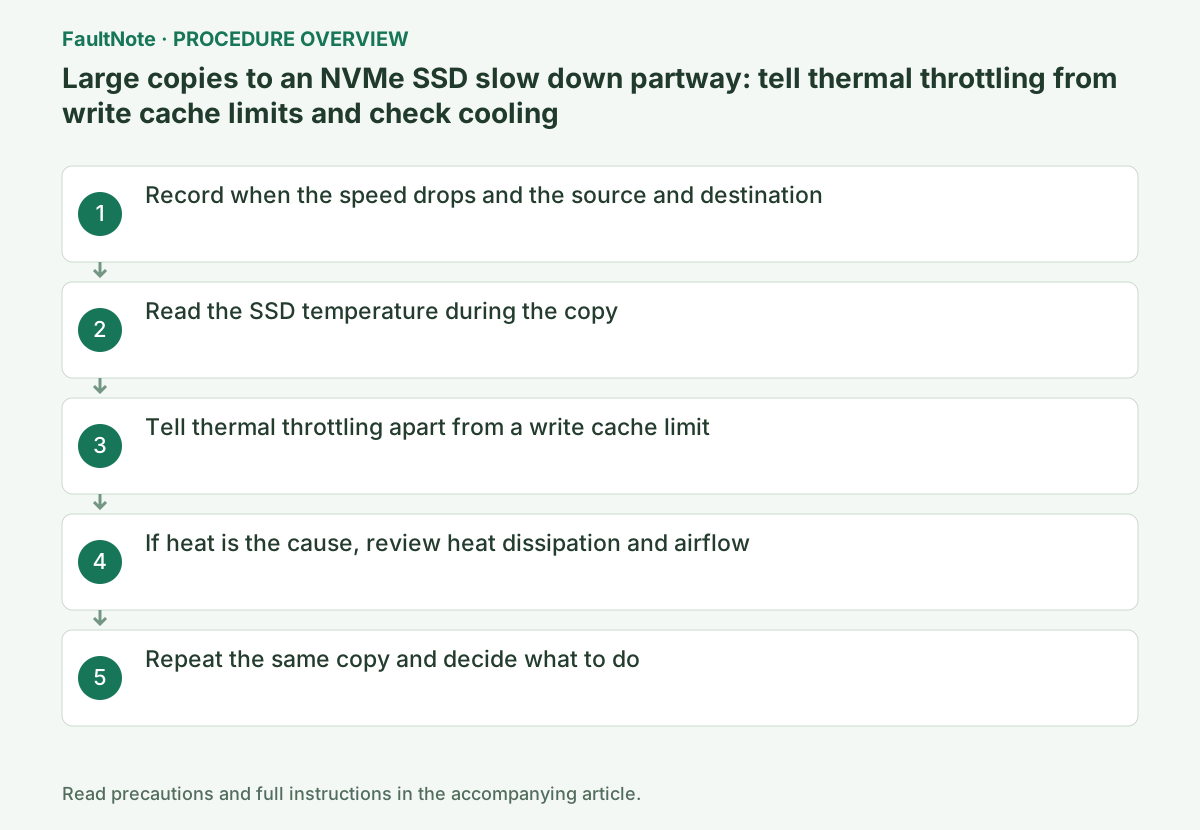
Troubleshooting guide — Record the SSD temperature during the copy and the transfer size at which speed drops. A drop as the temperature rises points to thermal throttling; a drop at the same transfer size with temperature headroom points to a write cache limit. If heat is the cause, fit an M.2 heatsink, move the SSD to a slot away from the graphics card or improve case airflow, then repeat the same copy.
Frequently asked questions
Does every NVMe SSD need a heatsink?
Not necessarily. Samsung's FAQ says its NVMe SSDs don't necessarily require a heatsink, but that performance may be suppressed to protect the drive under heavy workloads such as transferring several hundred gigabytes. Kingston also says it depends on the SSD, the workload and the setup. If the temperature keeps climbing during large writes, consider a heatsink or better airflow.
Does a copy that slows down partway mean the SSD is failing?
Not necessarily. Thermal throttling ends once the drive cools, and exceeding the write cache lowers speed as a product characteristic. Record the temperature and the transfer size at which speed drops to tell them apart. If the SSD disappears or the copy stops with errors during a copy, it may be a different problem, so back up the data and contact the manufacturer.
Official sources and dates
- Internal SSD Product Information ↗
- Samsung: 990 PRO datasheet Rev.2.0 (operating temperature, Intelligent TurboWrite note) ↗
- Kingston: SSD Cooling: Do M.2 NVMe SSDs Need a Heatsink? (published October 30, 2025) ↗
- Microsoft Learn: Get-StorageReliabilityCounter ↗
Source publication or resolution date: Not specified. Sources checked: 2026-09-13. The check date is not the date the problem first occurred. Interface labels can vary between versions and display languages.
Related troubleshooting guides
Windows errors and troubleshooting →
Related how-to guides and comparisons
- PCIe 4.0 or 5.0 SSD for gaming? Check load times, capacity and slot sharing
- M.2, NVMe and SATA SSDs: check compatibility before upgrading
- Choosing Case Fans: 120 mm vs. 140 mm and PWM (4-pin) vs. DC (3-pin) Compared from Official Specifications
- SSD Endurance (TBW) and Warranty: Compare Write Limits of Popular NVMe SSDs by Capacity and Check Wear in Windows