Verify missing or damaged game files in Epic Games Launcher
What to do first
In Epic Library, open the three-dot menu → Manage → Verify. If an external-launcher game has no button, use its native launcher instead.
This is a general troubleshooting guide, not an announcement of a current outage.
Affected products and symptoms
- Product
- Epic Games Launcher
- Versions and conditions
- Epic Games Launcher for Windows / macOS (no specific release)
- Error codes and identifiers
- LS-0014IS-FC02-1392
Symptoms
- The game cannot find required files or directories and will not launch
- A damaged-game-file error appears
- Crashes or missing content occur after an update
Causes and conditions
Local game files are missing, damaged or differ from distributed files. Some games using an additional launcher cannot be verified through Epic.
Before you start
- Close the game and check save-sync status
- Record the error code and game name
- Allow time, free disk space and network access for verification and replacement downloads
Precautions
- Do not exit the launcher or shut down during verification
- Restore manually moved or modified game files to their proper layout
- Reinstallation uses more bandwidth and time than verification
Step-by-step instructions
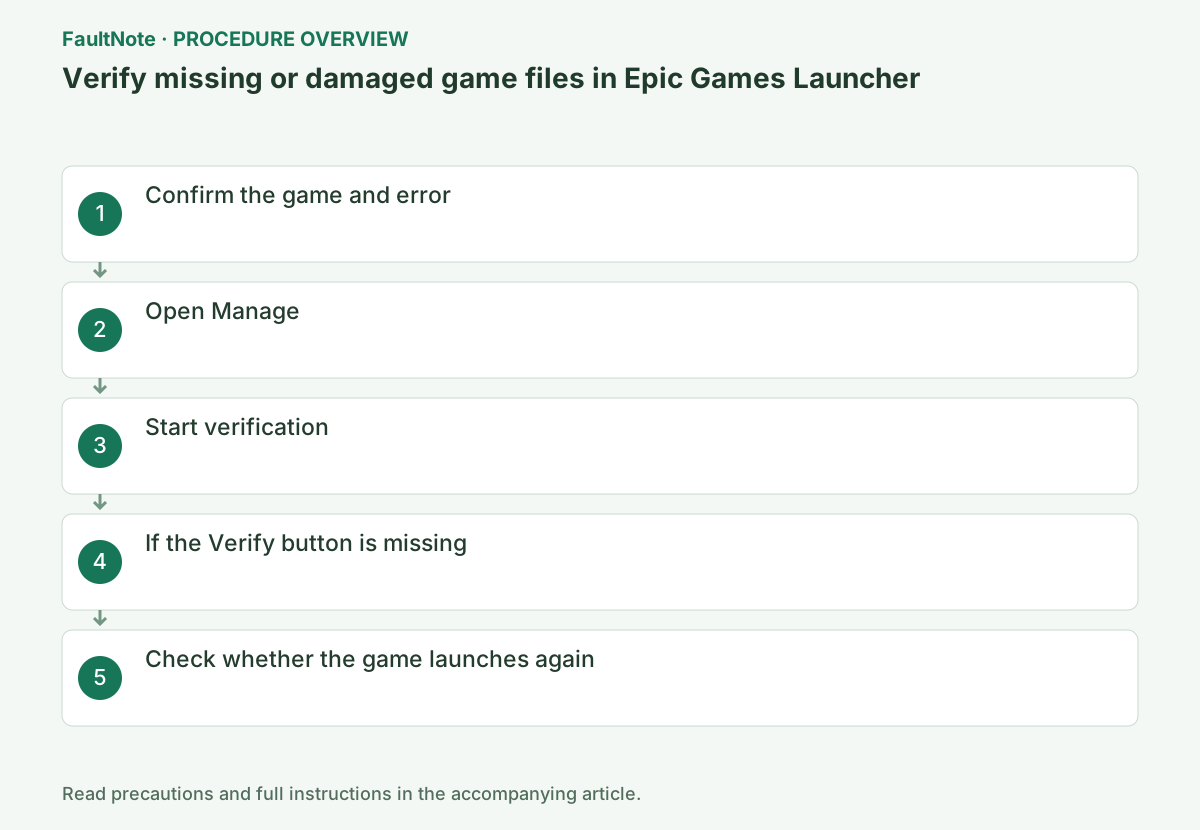
Record game, complete code and recent update/mod changes. Epic says verification does not affect saved data, but modified distributed files may be replaced. Preserve edits and game-specific saves separately. Cloud conflict or damaged saves are not automatically resolved by distribution verification; define the original symptom.
Check whether the game requires another launcher such as Ubisoft Connect. If Verify is absent in Epic, inspect the native launcher verification route. Absence alone is not a reason to reinstall Epic. Save login or update errors from the additional launcher separately from Epic file problems.
Close the game and mod manager and use Library > game three-dot menu > Manage > Verify. Do not start overlapping work while updating or verifying. Let the check complete with the launcher open. Do not manually delete folders or manifests to force it. Confirm the game title.
Distinguish checking, reacquisition, completion and error. Wait for replacement downloads before launch. If space or connectivity errors appear, record code and destination. Starting verification, completing it and repairing the game are separate outcomes. Investigate the failing stage rather than permanently elevating permissions.
Before restoring edits, test the original save or scene. If it improves, reintroduce required mods individually. If it still crashes unmodified, retain settings, saves and runtime dependencies as candidates. Average FPS alone does not establish repaired launch or missing content.
For recurring loss, compare quarantine time, mod writes and storage errors. Official distribution is not sufficient reason for unconditional security allowance. Ask the vendor or developer using evidence. Repeated identical verification results call for preserving stage and outcome, not more repetitions. Deleting game files is a separate decision after save/settings backup.
Record verification completion, download completion and original reproduction result. Note which launcher verified an external-launcher game. Give support version, error, result and mod state if unresolved. A new Cloud conflict is a separate save-selection problem even after launch succeeds. Keep backups until correct behavior is confirmed.
Check the result
- The target operation completes without the original error
- The original game launch or update completes with normal privileges and connectivity
- Saved data and required functions show no new faults
If the problem continues
- For external-launcher games, use that launcher's official verification instructions
- If LS-0014 persists, continue to the next stage in Epic's official article and check save syncing before reinstalling
Scope of this guide
Troubleshooting guide — Complete file verification in Epic Games Launcher or the game's native launcher and download any required replacement files.
Frequently asked questions
Should I reinstall when Verify is absent?
First check whether another launcher owns the game verification. Button absence alone does not prove Epic corruption.
Can verification overwrite mods?
Mods editing distributed files may be replaced. Preserve changes and compare the unmodified state after verification.
Should I repeat Verify for an older save?
Save synchronization and conflict are separate. Preserve local/cloud candidates and inspect progress; Verify is not save restoration.
What if it still crashes after files are reacquired?
Retain completed verification and crash time, then inspect unmodified reproduction, settings, saves and runtime logs.
Official sources and dates
- How do I verify game files in the Epic Games Launcher? ↗
- LS-0014: Launch Failed error ↗
- Why can't I enable auto update or verify game files for my game? ↗
Source publication or resolution date: Not specified. Sources checked: 2026-10-13. The check date is not the date the problem first occurred. Interface labels can vary between versions and display languages.
Related troubleshooting guides
Epic Games Launcher errors and troubleshooting →
- Rocket League unable to verify files in Epic Games: what to do
- Troubleshoot IS-0005 in Epic Games Launcher
- Troubleshoot LS-0013 in Epic Games Launcher
- Troubleshoot MD-0011-1037 in Epic Games Launcher