PC crashes after enabling XMP or EXPO: isolate the memory profile in ASUS BIOS
What to do first
Use this when BIOS remains accessible and instability followed only a profile change. Compare operation without the profile before considering manual tuning or replacement parts.
This is a general troubleshooting guide, not an announcement of a current outage.
Affected products and symptoms
- Product
- ASUS Motherboard
- Versions and conditions
- ASUS desktop motherboards with accessible BIOS; the only recent tuning change was enabling XMP, EXPO or DOCP
Symptoms
- Restarts or application crashes began after enabling a memory profile
- You need to compare stability without the selected profile
Causes and conditions
The selected memory profile may not be stable with the CPU, motherboard and module population. An advertised memory speed alone cannot identify the failing component.
Before you start
- Record the CPU, motherboard, memory-kit part numbers and BIOS revision
- Save your work and photograph the current BIOS settings
Precautions
- Changing this selector to Auto does not erase every manual voltage or timing adjustment
- Do not use voltage increases or an unconditional CMOS reset as the next step
Tools and official pages used in this guide
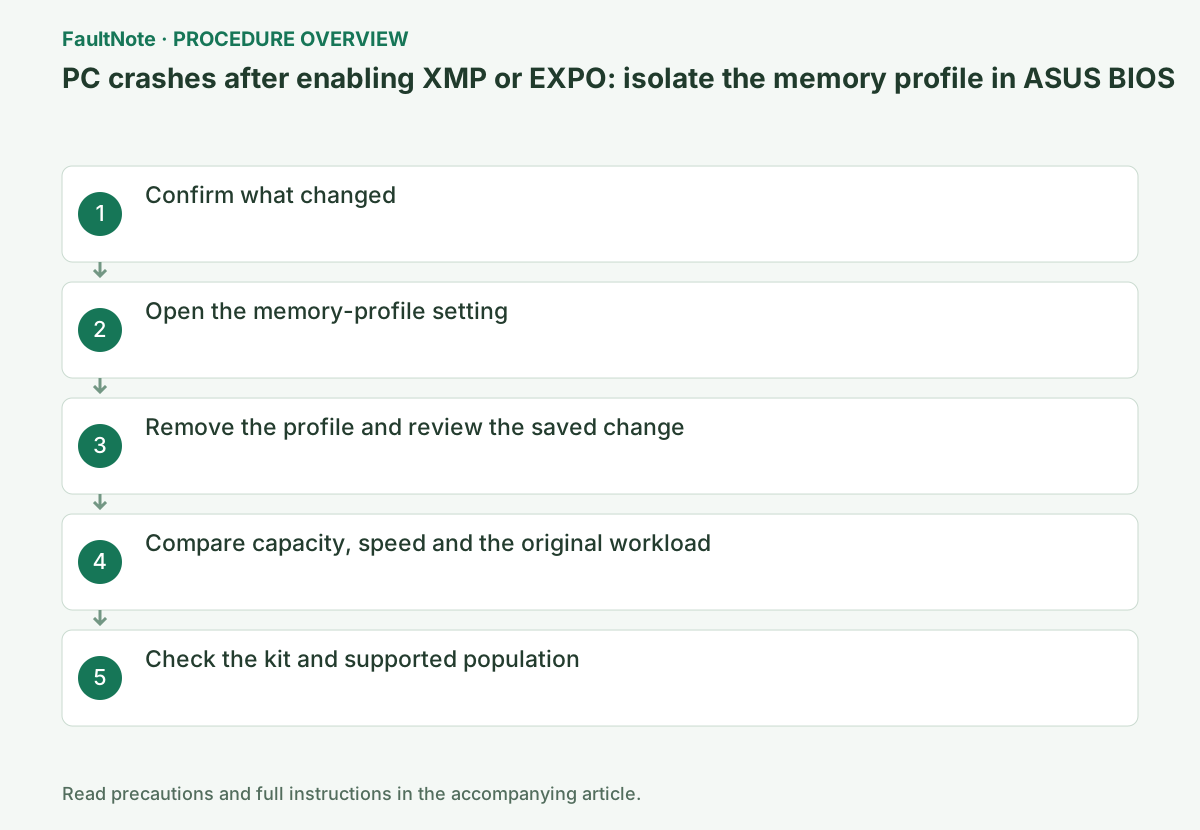
Step-by-step instructions
Record the selected profile, when failures began and the operation that reproduces them. Confirm whether BIOS opens even if Windows does not.
If you also changed manual voltage, timings or CPU tuning, this procedure may not restore a standard baseline. Use the earlier record and model-specific restoration guidance.
Enter BIOS with Delete and use F7 for Advanced Mode if needed. ASUS examples place memory tuning under Ai Tweaker or Extreme Tweaker.
Photograph the current Ai Overclock Tuner value. If the names differ, locate the profile control in your board BIOS manual.
Official links for this step
The ROG X870E manual defines Auto for Ai Overclock Tuner. On a matching implementation, replace the profile selection with Auto; otherwise use the value documented for your model.
Review the F10 save confirmation. Do not assume other manual settings were reset, and cancel if unrelated boot or storage changes appear.
Official links for this step
After restarting, inspect BIOS memory information. In Windows, press Ctrl+Shift+Esc and record capacity and speed under Performance > Memory.
Use copies of important work while comparing the operation that previously failed. Record repeated operation and a restart; a brief successful run is not complete stability proof.
When comparing profile on and off, keep CPU power, GPU tuning and updates separate. Record the game version, scene and graphics settings and repeat the same operation. Improvement does not by itself establish a defective module.
Use saved copies or expendable tasks because crashes can lose work. Avoid repeatedly overwriting important data while failures continue; use a workable configuration before seeking further diagnosis.
Changing only Ai Overclock Tuner to Auto can leave earlier manual settings elsewhere. Compare the save confirmation with your previous record and describe precisely what changed. Auto is not proof that every setting is now default.
Treat a full reset as a separate planned operation with boot, storage and recovery-key implications. If BIOS is accessible, begin with the scoped comparison rather than using CMOS clearing as a shortcut.
Capacity, appearance and family names can match while part numbers or kit composition differ. Read labels and do not treat separately purchased modules as one validated kit. Check count and CPU conditions in any QVL entry.
Absence from a list is not proof of incompatibility, but also cannot establish validation by that list. Give the maker your baseline result and avoid copying unexplained voltage or timing values from another configuration.
If BIOS is inaccessible after the change, avoid blind key sequences and repeated rapid power cycles. Record indicators and settings and check model training guidance. Seek model-specific recovery assistance if display does not return.
If crashes persist without the profile, record time and task instead of declaring the profile the sole cause. Summarize what changed and what remains before investigating other components or applications.
In CPU / Memory Support > Memory, compare the full part number and module count. Distinguish a tested kit from separately purchased modules combined later.
Report whether removing the profile helped. If the symptom persists, the cause remains unresolved; request further diagnosis rather than increasing voltage.
Official links for this step
Check the result
- The selected profile is removed and detected capacity and speed are recorded
- The original operation has been compared before and after the change
If the problem continues
- If BIOS no longer appears, use the diagnostic indicator and model-specific recovery procedure
- Before considering a BIOS update, check the exact model, release notes and prerequisite revisions
Scope of this guide
Troubleshooting guide — Separate connection, compatibility and configuration causes using observed results, then verify detection and operation after restarting.
Frequently asked questions
Does failure at the advertised speed prove a bad module?
The CPU, board and population also matter. Compare operation without the profile and check the supported configuration.
Why did the reported speed fall after selecting Auto?
Removing a profile may remove its selected speed. The purpose of this comparison is to isolate the failure trigger.
Should I raise voltage if Auto still crashes?
The cause remains unknown. Check remaining manual settings and reproduction conditions before seeking support.
Does a QVL entry validate every configuration?
Read CPU, count and kit conditions; a listed kit does not establish every different configuration.
Official sources and dates
- Memory profiles: XMP, EXPO and DOCP in ASUS BIOS ↗
- ROG X870E Series BIOS Manual, E25062 ↗
- How to query CPU and memory QVL lists ↗
Source publication or resolution date: 2026-02-23. Sources checked: 2026-10-13. The check date is not the date the problem first occurred. Interface labels can vary between versions and display languages.
Related troubleshooting guides
Windows errors and troubleshooting →