CPU FAN Error on an ASUS PC: check the CPU_FAN connection and RPM
What to do first
Verify cooling before changing a CPU fan warning. Check an air cooler's connection, then adjust low-speed warning conditions only when a healthy RPM reading is available.
This is a general troubleshooting guide, not an announcement of a current outage.
Affected products and symptoms
- Product
- ASUS Motherboard
- Versions and conditions
- ASUS desktop motherboards with an air CPU cooler and a startup CPU FAN Error
- Error codes and identifiers
- CPU FAN Error
Symptoms
- Startup stops with a CPU fan warning and requests BIOS attention
- A warning appears despite a spinning fan, or the reported speed is N/A
Causes and conditions
The monitored CPU header may lack a speed signal, or a healthy low-speed fan may fall below the warning threshold. Separate those cases from a stopped fan or failed cooling.
Before you start
- Have the motherboard and cooler manuals and fan model available
- Photograph the warning and current fan settings
Precautions
- Do not reconnect headers while powered or touch a spinning fan
- Do not hide overheating or missing speed detection by disabling monitoring
Tools and official pages used in this guide
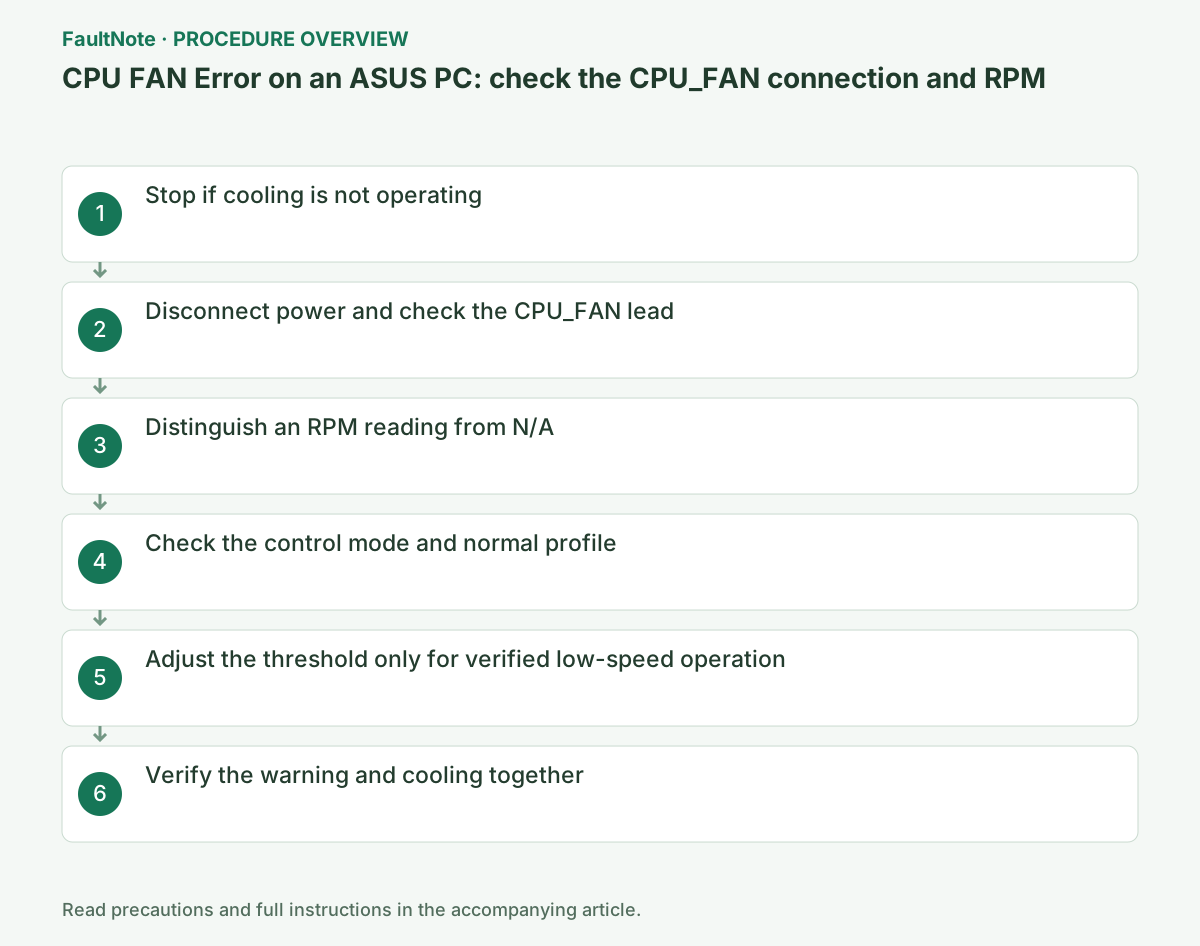
Step-by-step instructions
Record the warning and power down if the cooler fan is stopped, an over-temperature error appears, or heat is abnormal. Do not launch a game or stress test to investigate.
Liquid coolers have model-specific pump power and monitoring arrangements. Use the cooler maker's wiring and monitoring instructions instead of applying this air-cooler procedure.
Official links for this step
Turn off the PC and PSU, unplug AC and follow the manual preparation steps. Check that the air cooler's speed-reporting lead reaches the specified CPU_FAN header.
Do not confuse this with a chassis-fan or RGB connector. With a splitter, use its documented speed-reporting branch rather than guessing from connector shape.
Reassemble and open the BIOS CPU fan readout documented for your board. ROG X870E provides Monitor > Fan Speed Monitor > CPU Fan Speed.
Record a numeric RPM reading versus N/A or zero. Power down if the signal remains missing or the fan stops; do not proceed to lower the warning threshold.
Official links for this step
With a valid RPM reading, match the documented DC or PWM control mode to the fan and header. A four-pin connector alone does not prove the header uses PWM.
On supported ASUS boards, inspect Monitor > Q-Fan Configuration. If using an unusually slow profile, record it and compare the documented normal setting, such as Standard.
Official links for this step
Only when the fan runs reliably, cooling is normal and healthy RPM is below the warning threshold, inspect the documented CPU Fan Speed Low Limit.
Choose a supported limit consistent with the cooler's operating range. Do not use Ignore to hide N/A or disable all F1 warnings; ask support when the correct limit is unclear.
Record actual CPU-cooler rotation, CPU_FAN RPM and temperature behavior separately. A moving case fan is not evidence of CPU-cooler rotation. Lowering an alarm cannot establish the condition of an unreadable signal.
Power off for stopped cooling, rapidly rising temperature or persistent unusual noise. Do not stop blades with a finger or object. Record the fan model and monitor screen to distinguish telemetry from physical failure.
A splitter need not return both fans’ RPM to one header. Identify the reporting branch using its documentation. Check any required hub power separately from decorative lighting power.
Check header and fan electrical requirements in their specifications. Do not keep adding fans to a header to solve missing RPM. Plan a splitter-bypass comparison only with a documented connection that preserves cooling.
First establish stable rotation and acceptable cooling under a normal profile. Compare documented minimum speed with actual startup RPM, distinguishing a temporary startup value from persistently low rotation.
Do not adopt a setting that conceals stopped cooling. If available limits do not suit the documented fan, ask the manufacturer rather than selecting Ignore. Preserve and restore the prior value when a change does not help.
Verify readable RPM, no rapid temperature increase and normal restarting, not merely absence of the warning. Use model-specific guidance rather than copying a fan curve. A high-load test is unnecessary for this initial check.
For recurrence, record settings, RPM, temperature, time and splitters or hubs. Report pump and fan signals separately on liquid coolers. Use the difference from the known working arrangement to guide inspection.
Review and save the change, then recheck CPU fan RPM and temperature after restarting. Use the CPU and cooler guidance for temperature limits.
Verify continued fan operation as well as disappearance of the warning. If N/A or stopping returns, request connection or fan diagnosis rather than relaxing warnings further.
Check the result
- CPU_FAN reports numeric RPM and the fan operates normally
- Restart completes without overheating or fan stopping, and the warning condition is understood
If the problem continues
- If N/A persists at the proper header, request diagnosis of the fan, splitter and board
- If cooling or mounting is uncertain, stop using the system and have the cooler installation inspected
Scope of this guide
Troubleshooting guide — Separate connection, compatibility and configuration causes using observed results, then verify detection and operation after restarting.
Frequently asked questions
Can a spinning fan still trigger CPU FAN Error?
Yes. A healthy low-speed fan may fall below the threshold. First verify CPU_FAN RPM and cooling.
Does setting CPU Fan Speed to Ignore fix it?
Hiding monitoring does not repair a bad connection or stopped fan. Diagnose the missing speed signal first.
Will a splitter report both fans independently?
It depends on its telemetry path. Match the reporting branch to the BIOS reading using the manual.
Should I move a liquid-cooler pump to CPU_FAN?
Power and telemetry differ by cooler; follow its requirements rather than applying air-cooler wiring universally.
Official sources and dates
- My fan is not working as intended, is it faulty? ↗
- ROG X870E Series BIOS Manual, E25062 ↗
- CPU Over Temperature Error after bootup ↗
Source publication or resolution date: Not specified. Sources checked: 2026-10-13. The check date is not the date the problem first occurred. Interface labels can vary between versions and display languages.
Related troubleshooting guides
Windows errors and troubleshooting →