Repair Microsoft Edge when it does not open or closes immediately
What to do first
Close Edge for all users, then recover it in order through restart, update, and Change > Repair in Windows.
This is a general troubleshooting guide, not an announcement of a current outage.
Affected products and symptoms
- Product
- Microsoft Edge
- Versions and conditions
- Microsoft Edge for Windows 11 / Windows 10
Symptoms
- No window opens when Edge is selected
- Edge closes immediately after startup
Causes and conditions
Possible causes include a remaining process, outdated version, extension, or damaged app configuration.
Before you start
- Check synchronization and preserve important tabs
- Prepare administrator access and an internet connection
Precautions
- Do not interrupt power or networking during repair
- Before deleting browsing data, check synchronization and the selected time range
Tools and official pages used in this guide
Check the official page for exact setting names, limitations, and updated decision paths.
Official Microsoft Edge page and download source if Windows Repair needs to retrieve files.
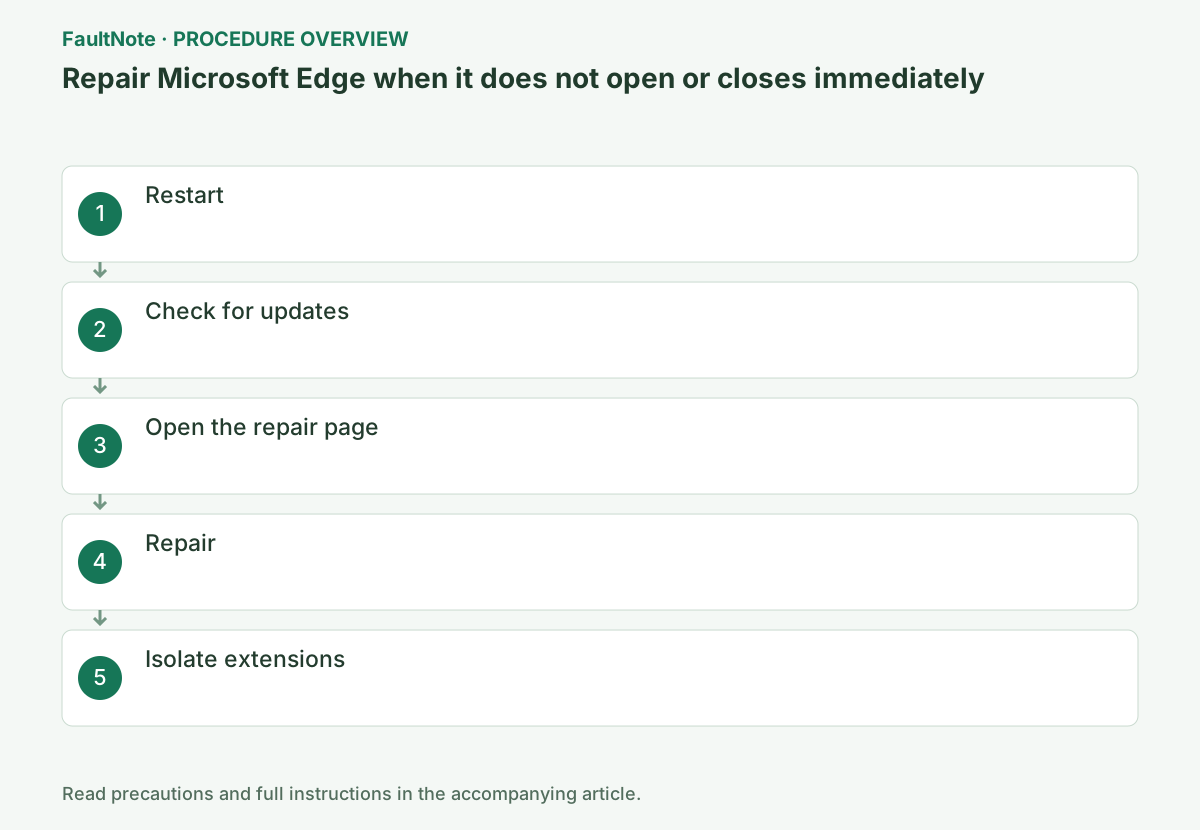
Step-by-step instructions
Check whether no Edge window appears or whether Edge opens but one site fails. For a site-specific failure, compare another site and browser before deciding to repair the application.
If Edge exits immediately, record the last screen, time, and preceding updates. On a work device, check its policy and update path instead of replacing an administrator-distributed installation.
Record extension names and original states before disabling. If a group test helps, restore items individually and check the original action and restart. Note unavailable login or signing features. Check vendor updates rather than substituting a similar extension. Finish by launching the affected profile normally, not merely one immediate post-repair launch.
Check before continuingIf Edge exits immediately, record the last screen, time, and preceding updates. On a work device, check its policy and update path instead of replacing an administrator-distributed installation.
Save your work, restart Windows, and launch only Edge immediately afterward.
Choose Start > Power > Restart. Record whether Edge crashes immediately after launch or only when a particular page opens. Copy any unsaved form input elsewhere first.
If Edge opens even briefly, first enter edge://settings/help in the address bar and record the version and update status. If it does not open at all, skip this check and repair it from Windows Settings.
Save documents, forms, and downloads before restarting. Use the same shortcut and profile afterward. An open Edge with one failing page is not a launch failure; compare sites and browsers first. For a briefly appearing window, record the time and do not treat one chance success after repeated launches as confirmed recovery.
If Edge opens at all, choose … > Help and feedback > About Microsoft Edge to update it.
Wait for the download and installation to finish, then select Restart if shown. If Edge cannot start at all, do not repeat this operation; proceed to the Windows repair page.
If Edge opens, check Help and feedback > About Microsoft Edge and complete any requested restart after saving work. If it cannot open, this page is unavailable; use Windows repair instead. Do not record another PC's version as this installation. On a managed device, ask about held updates rather than independently replacing its deployment.
Official links for this step
- Official Microsoft Edge troubleshooting
Check the official page for exact setting names, limitations, and updated decision paths.
- Official Microsoft Edge troubleshooting
Select Microsoft Edge in Windows Settings > Apps and use Modify, when available, to reach Repair. The official procedure requires administrator rights and an internet connection; request help if either is unavailable.
Do not confuse Edge with another entry such as WebView2 Runtime. Repair is intended to retain browser data and settings, but save important work first. A failed download is not a completed repair; record the message.
Check before continuingDo not confuse Edge with another entry such as WebView2 Runtime. Repair is intended to retain browser data and settings, but save important work first. A failed download is not a completed repair; record the message.
Open Settings > Apps > Installed apps, select … for Microsoft Edge, and choose Modify.
On Windows 10, open Settings > Apps > Apps & features, select Microsoft Edge, and choose Modify. If the button is disabled or absent on a managed device, ask the organization's administrator to perform the repair.
Confirm the app is Microsoft Edge before choosing Modify and use legitimate administrator access. Record unavailable or policy-disabled controls and consult the administrator instead of altering the registry to reveal them. Repair needs a download, so confirm connectivity and investigate any protection-product block.
Official links for this step
- Official Microsoft Edge download
Official Microsoft Edge page and download source if Windows Repair needs to retrieve files.
- Official Microsoft Edge download
Select Yes at the administrator prompt, then Repair, and start Edge normally when it finishes.
Repair requires an internet connection. Microsoft states that it does not affect browser data or settings. After completion, first open a new tab and then test the affected page.
Wait for a completion or error result. A download or permission failure is not completion; retain the message, time, and network state before retrying. Repair retention does not save active forms, so protect them first. Afterward, check the profile and important bookmarks. If an empty new profile opens, select the original profile for comparison.
If Edge opens but crashes, disable every extension under Manage extensions and restore them one at a time.
Capture the original enabled and disabled states. Disable with the switches rather than deleting everything, and repeat the same operation after enabling each extension to identify the cause. Restore items that do not help.
Separate successful application repair from an extension-triggered recurrence. Disable the candidate and test the URL; ask its vendor or administrator if the feature is essential. Immediate exits across profiles are not a reason to clear one site's cookies. Provide Windows and available Edge versions, repair results, and times before repeated profile deletion or installation.
After repair, open the affected profile and check bookmarks, required site sign-ins, and downloads. Even if launching now works, repeat the original failing action.
If enabling one extension triggers the exit, disable it and contact its vendor. If every profile still fails, provide the Windows version and repair result to the administrator rather than repeatedly deleting profiles.
Check before continuingIf enabling one extension triggers the exit, disable it and contact its vendor. If every profile still fails, provide the Windows version and repair result to the administrator rather than repeatedly deleting profiles.
Check the result
- Edge starts normally on repeated attempts
- Multiple HTTPS sites open
If the problem continues
- On a managed device without Modify, ask the administrator
- If Edge still fails after repair, run a scan with Windows Security
Scope of this guide
Troubleshooting guide — A general diagnostic and recovery procedure based on official support; it does not indicate a current specific incident.
Frequently asked questions
Will Repair delete my favorites?
Microsoft states that browser data and settings are not affected.
Why is Modify missing?
The device may be organization-managed; ask the administrator.
What if Modify is unavailable?
Verify the selected app and provide the screen to the administrator on a managed device. Check official repair requirements; do not force the control through registry edits.
Official sources and dates
Source publication or resolution date: Not specified. Sources checked: 2026-10-13. The check date is not the date the problem first occurred. Interface labels can vary between versions and display languages.