CPU Over Temperature Error at startup: check cooling and cooler installation
What to do first
A CPU over-temperature warning requires a cooling check. Separate a new build from a previously working system, inspect cooling and airflow, and verify the result after restarting.
This is a general troubleshooting guide, not an announcement of a current outage.
Affected products and symptoms
- Product
- ASUS Motherboard
- Versions and conditions
- ASUS desktop motherboards reporting CPU Over Temperature Error during startup
- Error codes and identifiers
- CPU Over Temperature Error
Symptoms
- Startup shows a CPU over-temperature warning and asks for F1
- A temperature warning or rapid shutdown follows a CPU or cooler change
Causes and conditions
Check cooler operation, mounting, thermal contact and airflow. Verify cooling before dismissing the warning, using the processor model and measurement conditions for temperature context.
Before you start
- Have the CPU and cooler models and installation instructions
- Record whether this is a new build or follows a component or setting change
Precautions
- Do not disable thermal protection or startup warnings to continue using the PC
- Do not change wiring while powered, touch spinning fans or dismantle a liquid-cooling unit
Tools and official pages used in this guide
Step-by-step instructions
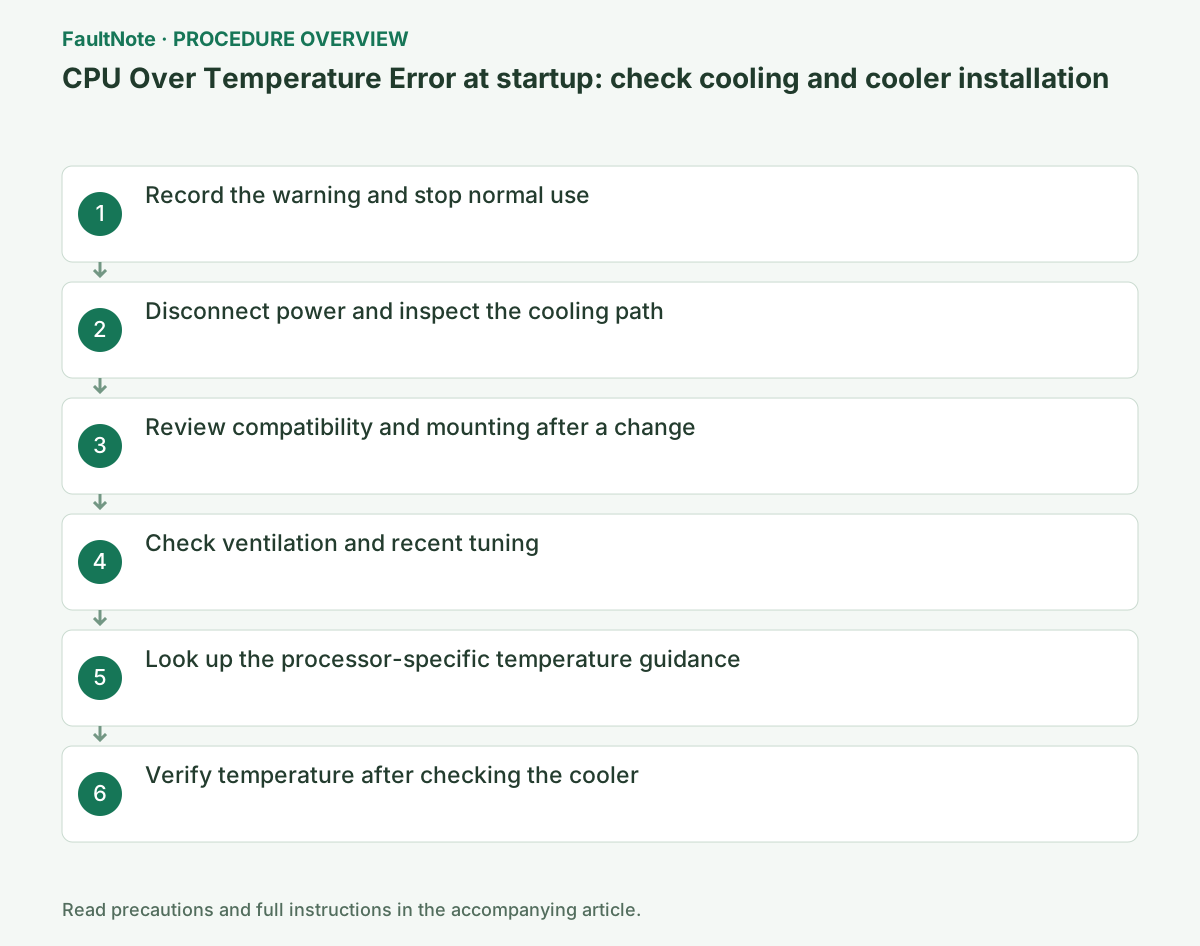
Record the warning and recent changes. Power down for a stopped fan, abnormal heat or leakage; avoid normal workloads and stress tests until cooling is established.
Distinguish CPU FAN Error from CPU Over Temperature Error. A fan-speed threshold adjustment does not resolve an overheating warning.
Official links for this step
Turn off the PC and PSU, unplug AC and allow cooling. Inspect air-cooler wiring and obstructions, or the documented pump and radiator-fan connections for liquid cooling.
Do not power on with leaks or damage. Pump power and monitoring leads can be separate; do not assume moving one lead to CPU_FAN is sufficient.
Official links for this step
After a CPU or cooler replacement, verify socket, mounting-kit and cooling compatibility. Compare retention and clearance with the cooler instructions.
If checking protective film or thermal material requires cooler removal, follow its procedure or request installation service. Do not automatically add paste over pre-applied material.
On a previously working PC, inspect vents, filters and cable obstructions. Clean only with power disconnected and according to component instructions.
Record any recent CPU tuning or power-limit change. After inspecting cooling, determine how to restore the known previous values without assuming a full BIOS reset is required.
Use another device to check the processor specification. For Intel, search the processor number and inspect the applicable thermal fields under Package Specifications.
Do not directly equate different sensors or workload conditions. A single apparently acceptable reading does not dismiss a persistent startup warning.
Official links for this step
For a new build or cooler change, inspect mounting parts, sequence, contact and wiring. For an unchanged previously working system, record stopped fans, obstructed airflow and pump behavior. Keep paste changes separate from BIOS changes.
Power down and allow cooling before inspection; do not repower visible leakage or damage. Do not dismantle a liquid-cooler pump. Report its model and condition and avoid load tests while cooling is unverified.
Before removal, read retention release, remounting and thermal-material instructions, including whether paste is pre-applied. Suitable brackets and a spinning fan do not by themselves prove adequate CPU contact.
Do not compensate for incompatible hardware, unreachable screws or interference by overtightening. Verify model compatibility and seek inspection if the required mounting parts remain unclear.
During a short BIOS check, record CPU temperature and fan or available pump telemetry together. Do not directly compare different sensor fields between BIOS and OS tools. Shut down for rapid rise or stopped cooling rather than declaring stability.
A specified maximum is not a target for tolerating poor cooling. A below-limit number does not negate a startup warning. Record room conditions and changes and compare equivalent observations before and after inspection.
Completion requires working cooling and stable short startup and restart checks as well as no overtemperature warning. A remaining fan-speed warning needs separate diagnosis. Do not suppress warning controls to resume games with unresolved overheating.
Report component models, mounting date, warnings, temperature, RPM and inspected wiring, including whether nothing changed since normal operation. Preserve the repair record and investigate recurrence instead of repeatedly provoking the same load.
After confirming installation and connections, reassemble and briefly inspect BIOS CPU temperature and fan or pump readings. Power down for rapid rise, stopped cooling or another overheating warning.
Resume ordinary startup only after cooling is stable and the warning is absent. Record a restart result; reaching the thermal limit is not a validation goal.
Check the result
- Startup no longer reports overheating and cooling operation is verified
- Temperature is observed under consistent conditions without abnormal rise or cooling failure
If the problem continues
- Stop using the system and request support if installation is uncertain or the warning persists
- Provide CPU and cooler models, the temperature screen, cold-start versus restart behavior and recent changes
Scope of this guide
Troubleshooting guide — Check connections and compatibility for the actual components, then choose further diagnosis based on the observed result.
Frequently asked questions
What temperature always means a faulty CPU?
There is no universal value. Consider model specifications, sensor and workload together with startup warnings and cooling operation.
Does a spinning fan prove adequate cooling?
Rotation does not verify mounting or thermal contact. Check cooler compatibility, retention, thermal material and airflow too.
Will adding paste always resolve it?
Contact, brackets, wiring and cooling operation also matter. Follow the thermal-material instructions.
Can I ignore the warning below a specification maximum?
Do not mix sensors or conditions; investigate the warning and cooling instead of disabling monitoring.
Official sources and dates
- CPU Over Temperature Error after bootup ↗
- Troubleshooting Wizard for Overheating Issues in Intel Boxed Processors ↗
- Information about Temperature for Intel Processors ↗
Source publication or resolution date: 2025-11-25. Sources checked: 2026-10-13. The check date is not the date the problem first occurred. Interface labels can vary between versions and display languages.
Related troubleshooting guides
Windows errors and troubleshooting →