Default apps do not change or files open in another app in Windows 11
What to do first
Set default apps separately for extensions and link types. Identify and change the actual failing association, such as .pdf or MAILTO.
This is a general troubleshooting guide, not an announcement of a current outage.
Affected products and symptoms
- Product
- Windows 11 Default Apps
- Versions and conditions
- Windows 11
Symptoms
- Double-clicking a file opens an unintended app
- Only email or web links switch to another app
- Associations remain unchanged for some extensions
Causes and conditions
Defaults are stored not only by app but also by file type, such as .txt or .pdf, and link type, such as HTTP or MAILTO, so some may remain unchanged.
Before you start
- Check the affected file's extension in Properties
- For a link, identify its type, such as HTTP, HTTPS, or MAILTO
- Confirm that the app you want to use is installed
Precautions
- Reset all restores many associations to Microsoft-recommended defaults, so try individual changes first
- Do not force an unfamiliar extension to open in another app
Tools and official pages used in this guide
Check the official requirements, screen names, and limitations for this procedure.
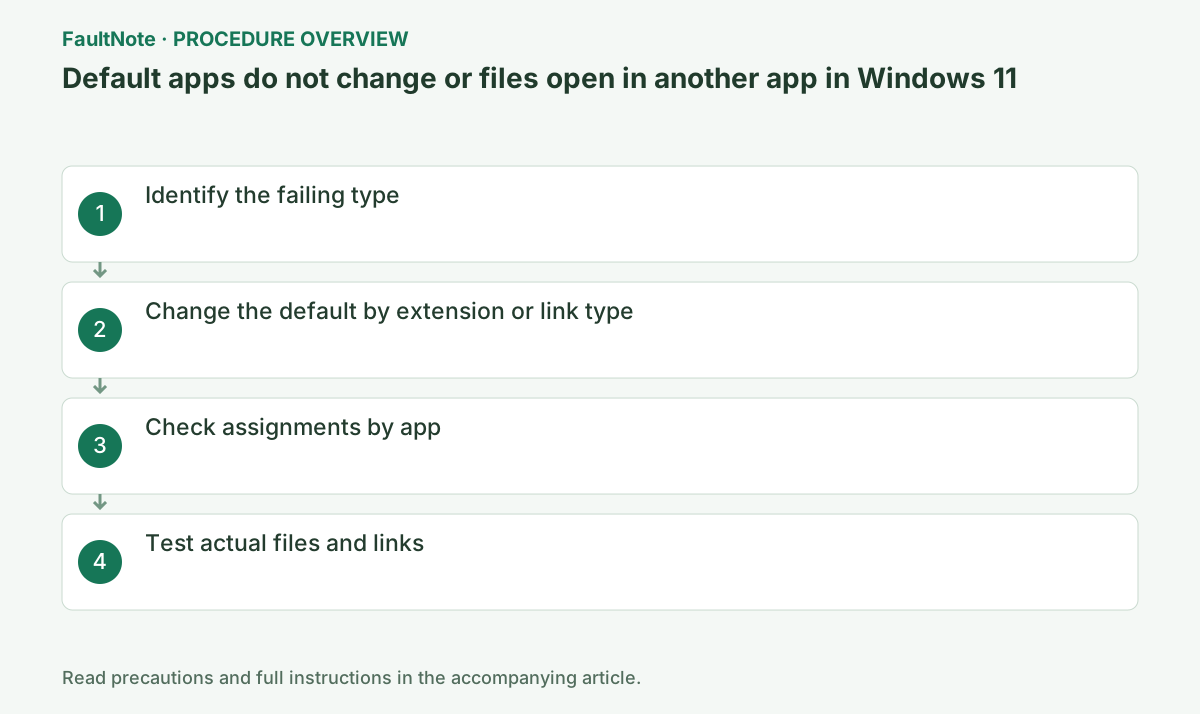
Step-by-step instructions
Decide whether to change the app for a file or the browser for a web link. PDF, images and web protocols use separate associations even if one app is preferred. Prepare one sample file or trusted link and note the current default and format.
An app opening but failing to read content differs from wrong association. Choosing an unsupported app does not convert the file, and renaming an extension is not format conversion. Confirm support and retain the original during testing.
Right-click the affected file > Properties and check Type of file. Web pages use HTTP/HTTPS associations, and email addresses use MAILTO. Do not assume similar extensions are all the same.
You can check the type in Properties even when the filename extension is hidden. This is not a procedure for renaming the file to change its extension. Similar types such as .jpg and .jpeg exist, so check using one actual affected file.
Open Settings > Apps > Default apps. In the search box at the top, enter an extension including its dot, such as ".pdf," or a protocol such as MAILTO. Select the current app and change it to the desired app.
Click the current app name in the Settings search results, choose the app you want from the candidates, and press the confirmation button, such as Set default. If it is not listed, first confirm that it is installed and can open the format.
In Settings > Apps > Default apps, search the extension or link type. Use per-type selection or select an app to review its supported types as appropriate. Confirm the intended association after each change and reopen the page if needed.
If absent from candidates, confirm installation and type registration. An existing executable alone does not guarantee a listed candidate. Consult the administrator for managed defaults. An app using its own internal viewer may have a separate setting from Windows defaults.
To assign multiple types to the same app, select its name under Set defaults for applications. Review the displayed file and link types individually and change only those needed.
Official links for this step
- Change Default Apps in Windows
Check the official requirements, screen names, and limitations for this procedure.
- Change Default Apps in Windows
Close Settings and double-click the affected file. For browsers and email, also try actual HTTPS and MAILTO links and confirm that the changed types open in the intended app.
Test by opening the original file without editing it. If the wrong app opens, return to the same extension's settings and reselect the app you noted before starting. Check HTTP/HTTPS and MAILTO separately; one successful test does not mean all settings changed.
Open the sample from Explorer and test a trusted link separately. Opening from inside an existing app does not prove Windows association changed. Success with PDF does not establish that images or links changed; test required types individually.
If rendering/printing is unsuitable, select the previous app for that same type in Default apps. Restore other diagnostic changes. If defaults revert after sign-in/restart, record the type, timing and managed status. Avoid random registry edits or extension renaming to fix association alone.
Check the result
- Files with the affected extension open in the desired app
- Settings shows the desired app name for that type
- Related types you need, such as HTTP and HTTPS, can also be checked individually
If the problem continues
- If the desired app is not listed, update it or repair it using its official installer
- If changes revert on an organization-managed PC, ask the administrator about default-association policies
Scope of this guide
Troubleshooting guide — Ensure that the affected file and link types consistently open in the selected installed app.
Frequently asked questions
I changed the default browser, but some links still open elsewhere.
Check the target browser's list of associations to see whether HTTP, HTTPS, and related file types have separate assignments.
How does this differ from selecting an app once in Open with?
A one-time selection affects just that file. Setting Default apps changes how the same file type opens in future.
Does changing the default convert a file?
It changes which app opens the file, not its format. Choose a compatible app and keep the original. Investigate compatibility rather than merely rewriting an extension.
Why is an app link viewer unchanged after changing browsers?
An internal app viewer may not change with Windows link defaults. Distinguish opening in an external browser from internal display and inspect the app settings. Confirm the protocol changed too.
Official sources and dates
Source publication or resolution date: Not specified. Sources checked: 2026-09-05. The check date is not the date the problem first occurred. Interface labels can vary between versions and display languages.
Related troubleshooting guides
Windows errors and troubleshooting →