False “Microsoft Defender Antivirus Is Disabled” Notification
What to do first
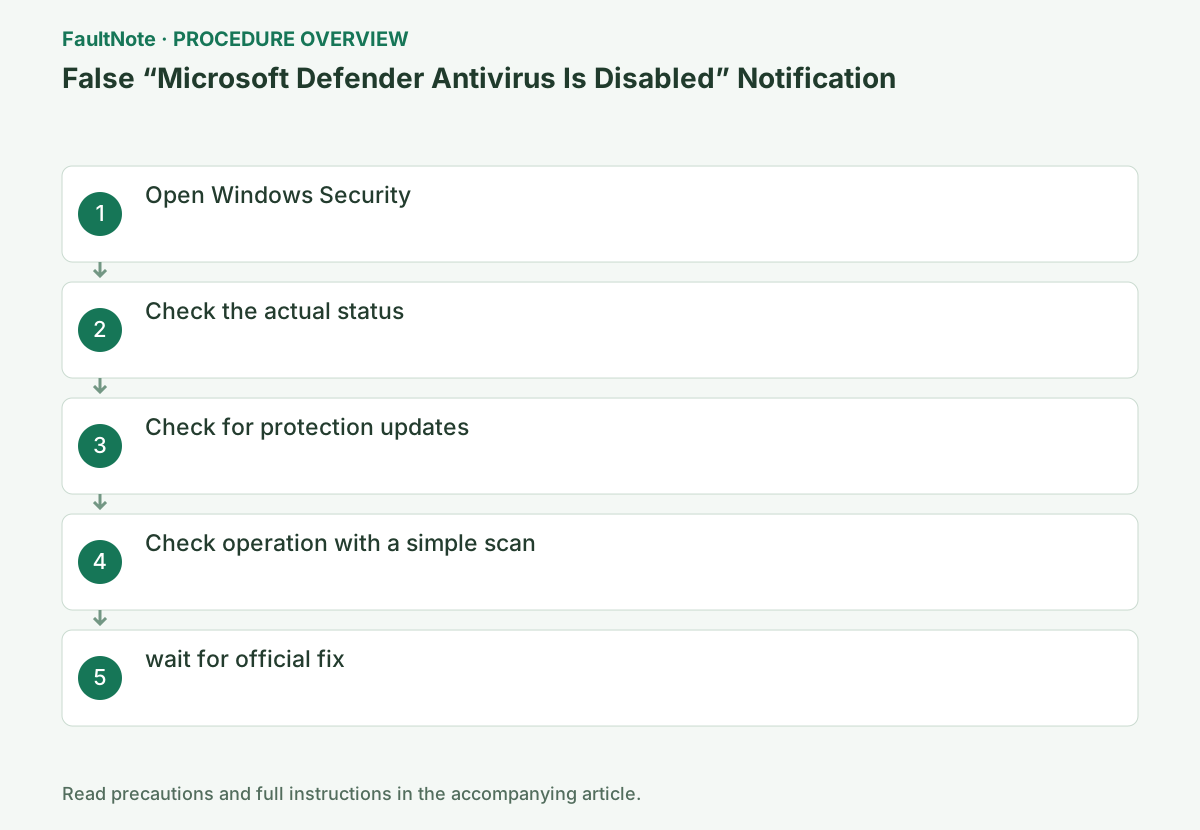
A known issue where only notifications incorrectly display "Defender is disabled." Check the actual protection status and definition updates in Windows Security, and if the protection is enabled, wait for an official fix.
Affected products and symptoms
- Product
- Microsoft Defender Antivirus on Windows
- Versions and conditions
- Windows 11 26H1/25H2/24H2/23H2, Windows 10 22H2/21H2/LTSC 2019/LTSC 2016, and Windows Server 2025/2022/2019/2016/2012 R2/2012 with the latest Defender updates
Symptoms
- "Microsoft Defender Antivirus is turned off" notification appears when starting or using Windows
- False notifications keep happening even after turning off notification settings
- Unlike notifications, Defender Antivirus itself and each setting are enabled and working properly.
Causes and conditions
Notification status is displayed incorrectly after the latest Microsoft Defender Antivirus update. Microsoft has confirmed the issue as of 2026-08-28, but has not disclosed the technical cause.
Before you start
- Record the text and time of the notification
- Check if your organization uses a different antivirus product
- Do not modify services or policies without administrator privileges
Precautions
- Do not manually change the Defender service startup type or registry
- Do not disable protection to remove notifications
Tools and official pages used in this guide
Review the official requirements, screen names, and limitations for this procedure.
Checks you can make now
These steps collect diagnostic information. They do not constitute a confirmed fix.
Open [Settings] > [Privacy & Security] > [Windows Security] > [Virus & Threat Protection].
Save a screenshot of the notification and record the time, and check if the protection status is green in Windows Security Home and if a third-party countermeasure product is enabled.
Check before continuingVerdict: Open Settings > Privacy & Security > Windows Security > Virus & threat protection. Save a screenshot of the notification and record the time, and check if the protection status is green in Windows Security Home and if a third-party countermeasure product is enabled.
Check the visibility of real-time protection in [Virus & threat protection settings] > [Manage settings]. If there is an message that settings are managed by your organization or a different product name, check with the administrator.
Verify real-time protection, cloud-delivered protection, and tamper protection. Do not override organization-managed or disabled controls.
Check before continuingVerdict: Verify that real-time protection appears in [Virus & threat protection settings] > [Manage settings]. If there is an message that settings are managed by your organization or a different product name, check with the administrator. Verify real-time protection, cloud-delivered protection, and tamper protection. Do not override organization-managed or disabled controls.
Open [Protection updates] under [Virus and threat protection], record the Security Intelligence version and update date, and select [Check for updates].
After Check for Updates, check the Security Intelligence version and date and time. Failure codes are recorded separately from false notifications.
Official links for this step
- Windows 11, version 25H2 known issues and notifications
Review the official requirements, screen names, and limitations for this procedure.
Check before continuingVerdict: Open Virus & Threat Protection > Protection Updates, record the Security Intelligence version and update date, and select Check for updates. After Check for Updates, check the Security Intelligence version and date and time. Record failure codes separately from false notifications.
- Windows 11, version 25H2 known issues and notifications
Run [Current threats] > [Quick scan]. If the process completes normally, this confirms that the engine is running independently of the notification.
Check the quick scan start/completion time and number of detections. If the service cannot be started or there is a service error, do not assume that it is just a false notification and contact the administrator.
Check before continuingVerdict: Run [Current threats] > [Quick scan]. If the process completes normally, this confirms that the engine is running independently of the notification. Check the quick scan start/completion time and number of detections. If the service cannot be started or there is a service error, do not assume that it is just a false notification and contact the administrator.
If only the notification persists while settings and scans are normal, continue installing regular Defender updates without changing notification settings or the registry.
If protection, updates, and scans are successful, do not modify the Defender service or registry to remove notifications. Continue regular updates.
The response will differ depending on whether the event is just the same notification or involves an actual stoppage of the protection function. Save each Windows security status and scan result in the same time period so that you can compare them later.
Check before continuingVerdict: If only notifications continue and settings and scans are normal, continue installing regular Defender updates without changing notification settings or the registry. If protection, updates, and scans are successful, do not modify the Defender service or registry to remove notifications. Continue regular updates.
Check the result
- Real-time protection is shown as enabled or managed by your organization
- Security intelligence update and quick scan complete successfully
If the problem continues
- If real-time protection is disabled and updates/scans fail, contact the administrator immediately as it is not just a false notification.
- If you are installing another product, check the status of that product and the [Security Provider] of Windows Security.
Fix status
Investigating — unresolved. Microsoft says it is working on providing a fix in a future Microsoft Defender Antivirus update (Updated 2026-08-28 16:02 PT).
Frequently asked questions
Will it stop if I turn off notifications?
Microsoft says it will continue even if you turn off notification settings. Check your actual protection status.
Are you really protected?
Check if settings, definition updates, and quick scans are normal. If even one of them fails, Report it to the administrator as a separate issue.
Official sources and dates
- Windows 11, version 25H2 known issues and notifications ↗
- Windows release health ↗
- Recovery options in Windows ↗
Source publication or resolution date: 2026-08-28. Sources checked: 2026-09-05. The check date is not the date the problem first occurred. Interface labels can vary between versions and display languages.
Related troubleshooting guides
Windows errors and troubleshooting →