Find a BitLocker Recovery Key and Unlock the Drive
What to do first
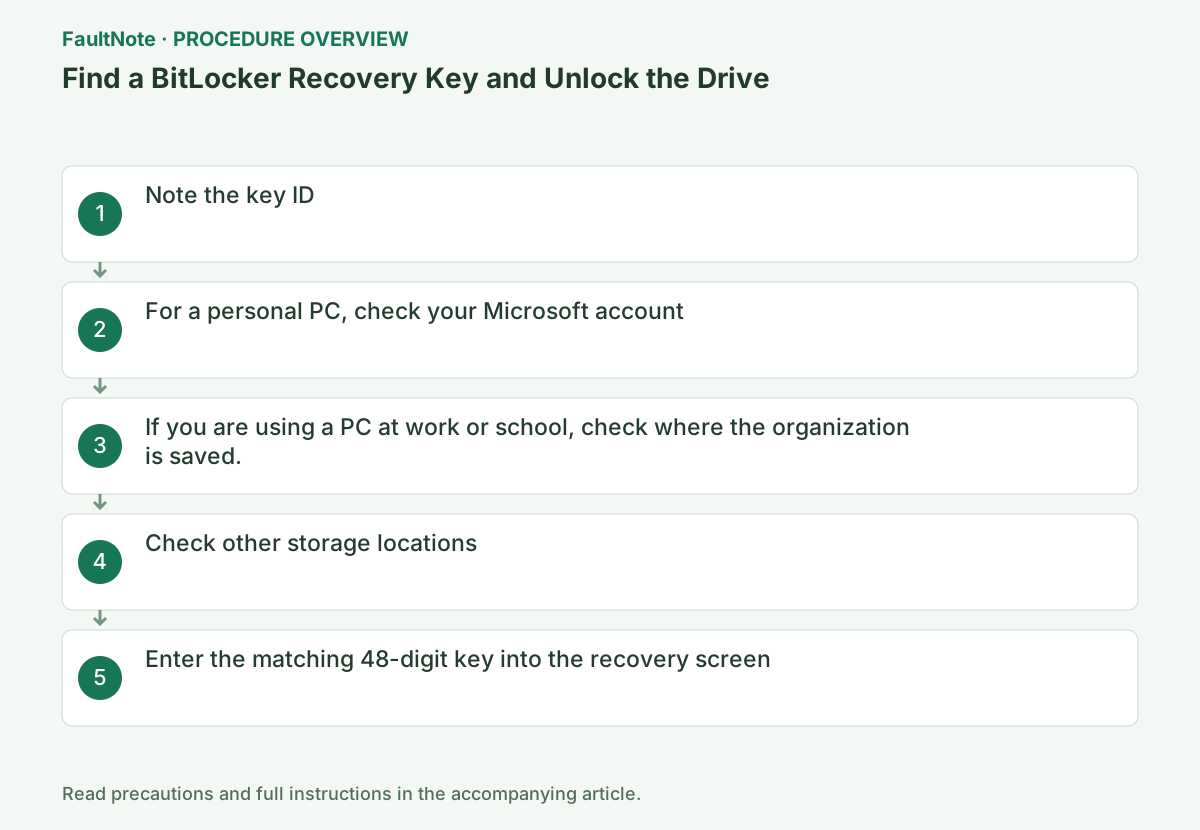
Make a note of the first 8 digits of the key ID and compare it with the 48-digit key saved on another device.
This is a general troubleshooting guide, not an announcement of a current outage.
Affected products and symptoms
- Product
- Windows
- Versions and conditions
- Windows 11 / Windows 10
- Error codes and identifiers
- BitLocker48-digit recovery key
Symptoms
- You will be asked for a 48-digit recovery key upon startup.
- Can't open encrypted drive
Causes and conditions
Automatic unlocking can fail because of security risks or hardware changes.
Before you start
- Note the first 8 digits of the recovery key ID
- Prepare another secure device
Precautions
- Do not post the recovery key in chat or in public places
- Microsoft Support cannot recreate lost key and initialization will result in data loss
Tools and official pages used in this guide
Sign in with the personal Microsoft account used on the locked device and verify the key ID.
Check the device list of your organization account, and if you cannot display it, ask your IT administrator.
Step-by-step instructions
The 48-digit recovery key differs from an account password or Windows PIN. Record the key ID on the locked PC, use another trusted device to locate the saved key, and then enter the matching key on the locked PC. Failure to sign in on the other device is separate from unlocking the PC.
A family member who enabled encryption during setup may have saved the key to their account. For a work or school PC, provide the administrator with the asset number and key ID. Device names can change, so match the ID rather than relying only on a name.
Record the key ID shown on the blue screen in a photo or on paper. Do not guess the 48-digit recovery key or enter the key ID in the input field.
Check before continuingVerdict: Record the first 8 digits of the key ID on the recovery screen. Do not confuse this with the recovery key itself. Record the key ID shown on the blue screen in a photo or on paper. Do not guess the 48-digit recovery key or enter the key ID in the input field.
On another trusted device, enter the same personal Microsoft account as the locked PC and look for the line where the device name and the first 8 digits of the key ID match.
Official links for this step
- List of recovery keys for personal Microsoft accounts
Sign in with the personal Microsoft account used on the locked device and verify the key ID.
Check before continuingVerdict: Sign in to aka.ms/myrecoverykey on another device and look for a key with a matching ID. On another trusted device, enter the same personal Microsoft account as the locked PC and look for the line where the device name and the first 8 digits of the key ID match.
- List of recovery keys for personal Microsoft accounts
Display the target PC's key under [Devices] in your work/school account. If you do not have permission, tell IT the key ID and asset number.
Official links for this step
- List of recovery keys for work or school accounts
Check the device list of your organization account, and if you cannot display it, ask your IT administrator.
Check before continuingVerification: Check [Devices] at aka.ms/aadrecoverykey or ask your IT administrator. Display the target PC's key under [Devices] in your work/school account. If you do not have permission, tell IT the key ID and asset number.
- List of recovery keys for work or school accounts
Check the printed materials and USB at the time of activation. If the PC was encrypted by another user, check that user's Microsoft account as well.
Check before continuingVerdict: Check the printed materials at the time of activation, the USB memory, and the account of another user who enabled encryption. Check the printed materials and USB at the time of activation. If the PC was encrypted by another user, check that user's Microsoft account as well.
If you can sign in but the key list is empty, check the account of whoever configured encryption, the organization account, printouts and USB storage. If sign-in itself fails, use the official account recovery route first. An unrelated recovery key cannot substitute for the matching key.
If no ID matches, recheck the note or photo from the locked PC. Do not choose solely by a repeated device name. When no storage location has a matching key, confirm that with the owner. A manufacturer or Microsoft cannot be assumed to regenerate a lost key or guarantee data-preserving reset.
Enter the 48-digit recovery key displayed in the item with the matching key ID into the input field of the locked PC, and proceed by clicking [Continue] or Enter on the screen. The key ID itself is not a number for unlocking.
If rejected, check the ID and number you entered. Don't try to guess and enter another key; if you have multiple keys saved, reselect the matching ID.
Check and enter the 48 digits, 6 digits at a time, and select [Continue]. After unlocking, back up and check the cause of the recovery request, such as UEFI/TPM changes.
Neither Microsoft Support nor PC manufacturers can regenerate lost recovery keys. If there is no matching key in any of the storage locations, do not keep trying random keys. The device owner must decide whether to initialize the PC, which can cause data loss.
Check before continuingVerification: Enter the 48-digit recovery key displayed in the item with the matching key ID into the input field of the locked PC, and proceed by clicking [Continue] or Enter on the screen. The key ID itself is not a number for unlocking. If rejected, check the ID and number you entered. Don't try to guess and enter another key; if you have multiple keys saved, reselect the matching ID.
After Windows starts, back up needed files and verify that another device can access the key storage. Saving the only key photo inside the locked PC makes it unavailable during the next lockout. Treat the full key as a credential; do not post it publicly. Provide the key ID and symptom when seeking help.
If the next normal restart requests the key again, record the time and preceding firmware, startup-setting or peripheral changes. Successful entry does not resolve the trigger. Tell the administrator for a managed PC; do not randomly clear the TPM or disable encryption. Review the actual changes against manufacturer guidance.
Check the result
- The key ID on the recovery screen and the key ID at the save destination match.
- After entering 48 digits, you can access Windows or the target data drive.
- After unlocking, you can back up important data to another safe location.
If the problem continues
- Also check the Microsoft account, printed materials, and USB memory of the person who set up the device.
- For work/school devices, tell the IT administrator the key ID and device name.
- If the key is missing and the changes cannot be undone, it is not possible to decrypt the encrypted data while preserving it. Initialization should be a last resort in case of data loss
Scope of this guide
Troubleshooting guide — General diagnostic procedures. It does not describe a specific current incident.
Frequently asked questions
Are the key ID and recovery key the same?
No. ID is an identifier that searches for the corresponding 48-digit recovery key from multiple keys.
Can I call Microsoft and get it reissued?
Microsoft Support cannot retrieve, provide, or recreate lost recovery keys. Find the save destination.
Can I send a photo of the stored key?
A photo containing the full key includes information that unlocks data. Do not post it publicly; use the key ID and error portion for support. Verify the recipient and required information even on a secure administrator channel. Keep storage accessible from another device.
Is repeated prompting resolved if I can enter the key?
Entry confirms access to data, not resolution of the recurring trigger. Check the next normal restart and record recent startup or firmware changes and timing. Back up while access is available and consult the administrator or manufacturer.
What if I cannot sign in on the other device?
Account access and key availability are separate. Use official personal-account recovery or contact the organization administrator. Check whether a family member or administrator enabled encryption. Resetting the locked PC during the search can defeat data preservation; separate key lookup from the erase decision.
Official sources and dates
Source publication or resolution date: Not specified. Sources checked: 2026-09-05. The check date is not the date the problem first occurred. Interface labels can vary between versions and display languages.
Related troubleshooting guides
Windows errors and troubleshooting →