PC power button does nothing: check the PSU switch and PWR_SW wiring
What to do first
For a PC that does not begin startup, follow the power path through external connections and documented board wiring. Compare the case button connection against both manuals.
This is a general troubleshooting guide, not an announcement of a current outage.
Affected products and symptoms
- Product
- ASUS Motherboard
- Versions and conditions
- Desktop builds with an ASUS motherboard; pressing the case power button does not start the system
Symptoms
- Pressing power produces no startup indication or CPU-fan activity
- The problem began after assembly, a case swap or cable rearrangement
Causes and conditions
Check external power, the PSU switch, board power and the case-button connection. An LED or PSU fan observation alone cannot prove a faulty power supply.
Before you start
- Have the exact motherboard, case and PSU models and manuals
- Keep wiring photos and a record of the last working configuration
Precautions
- Do not open the PSU, bridge pins or reconnect internal cables while powered
- Disconnect power and stop using components with burning smells, damage or liquid contamination
Tools and official pages used in this guide
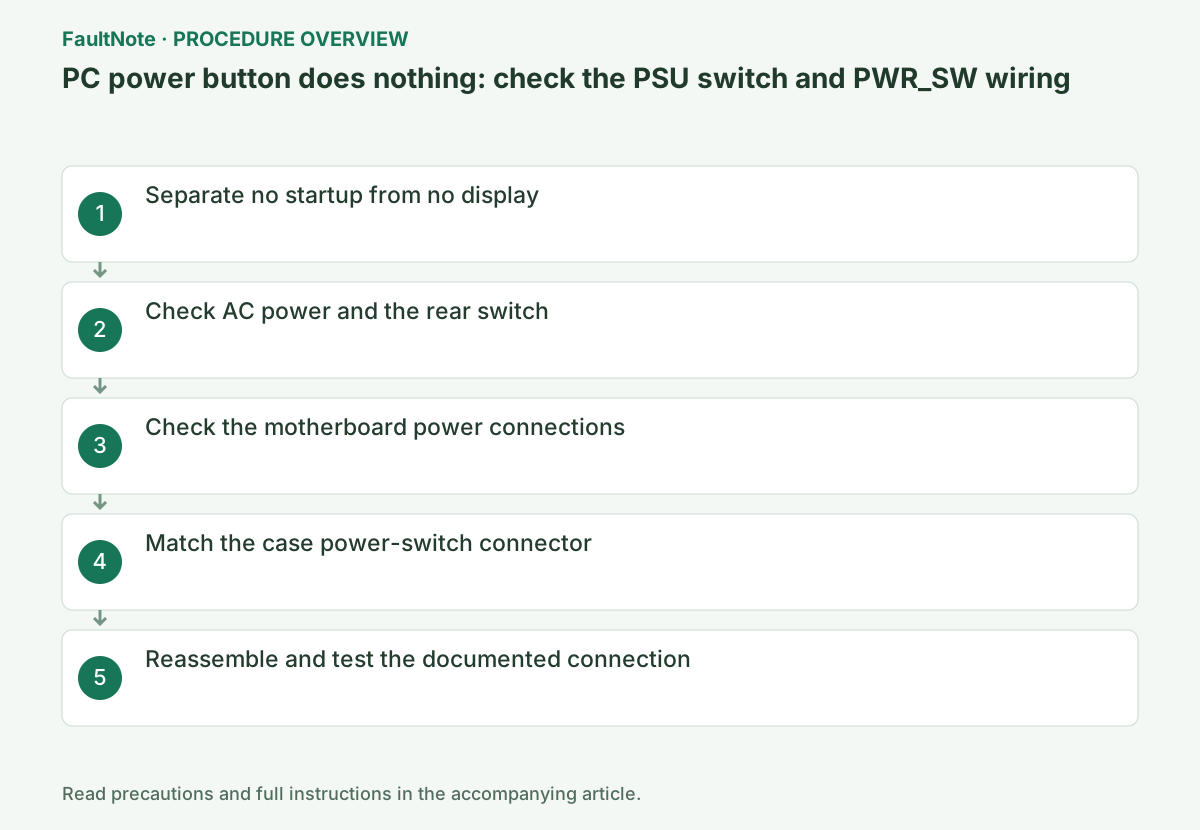
Step-by-step instructions
Press the power button once and observe case power, CPU fan and diagnostic indications. If startup activity begins but the screen stays blank, investigate the display or POST stage.
Do not judge the PSU solely by a stationary fan. Some models intentionally stop it at low load; check that model's fan behavior.
Official links for this step
Check the AC connection at the PSU and outlet and the power-strip switch. Do not use a damaged cord; use an appropriate known-working cord if comparison is needed.
If the PSU has a rear switch, set it to the documented ON position before trying the case button. If unsuccessful, switch it off and unplug AC before internal inspection.
Official links for this step
With AC disconnected, identify the required main ATX and CPU power connections in the board manual. Check connector seating and latches.
Do not interchange CPU/EPS and PCIe cables based on appearance. Follow the modular PSU port labels and use cables with documented compatibility for that model.
Official links for this step
Keep AC unplugged and locate the case cable labeled POWER SW or PWR SW. Match it to the power-button pins in the board's System Panel or F_PANEL diagram.
Distinguish it from POWER LED and RESET SW. For a unified F_PANEL plug, verify both manuals; do not offset an incompatible connector or bridge pins for testing.
Official links for this step
Record case indicators, CPU fan, board diagnostics and display separately after one brief press. A case without an indicator is not evidence of no power. Distinguish a brief start followed by shutdown from no observed response.
Stop retries for burnt odor, liquid, damage or unusual noise. Disconnect power and seek inspection. A stopped PSU fan is not a reason to open its enclosure or insert tools.
Read the case switch label and the exact board’s F_PANEL diagram. Note neighboring LED and reset positions to detect an offset. Do not copy another board’s pin map.
Do not force an unclear combined connector. Use photos and exact models to ask the maker. This procedure does not include shorting pins with a screwdriver for a test.
Read required board and CPU power connections in the manual. Trace CPU/EPS/PCIe labels to the PSU-side requirements. Similar shapes do not validate wiring, so do not use spare modular cables from another PSU.
For a tight plug, verify orientation and latching rather than forcing it. Restore routing clear of fans after inspection. Keep AC disconnected for cable work and record changes.
Prioritize the changed scope, such as front-panel wiring after a case change or approved cables after a PSU change. Restoration still needs proper installation checks. Document the last working and current arrangements before buying successive replacements.
For continued failure, report models, AC path, switch wiring and observations. Seek diagnosis without opening the PSU. If it starts, verify normal shutdown and restarting and report remaining display problems separately.
Check for loose tools or screws, close the case and restore power. Test the case button; if startup succeeds, also verify after a normal OS shutdown.
Record no response, momentary startup or a persistent diagnostic light separately. If there is still no response, request case-button, PSU and board diagnosis without opening the PSU.
Official links for this step
Check the result
- The case button starts the system, including after normal shutdown
- If it still fails, external power, board power and PWR_SW checks are documented
If the problem continues
- If documented wiring still gives no response, provide models and connection photos to support
- If power immediately cuts out, avoid repeated attempts and report that behavior for diagnosis
Scope of this guide
Troubleshooting guide — Check connections and compatibility for the actual components, then choose further diagnosis based on the observed result.
Frequently asked questions
Does a stationary PSU fan mean the PSU is dead?
Not by itself. Check model-specific Zero RPM behavior and the system's startup response.
Does connecting POWER LED connect the power button?
The indicator and switch have different roles. Use the documented POWER SW or PWR_SW connection.
Does a board LED prove the PSU is healthy?
A standby indicator does not validate the whole startup power path. Check the response and required wiring.
Can I keep old modular cables after a PSU replacement?
Only use manufacturer-confirmed model compatibility; identical shape is insufficient.
Official sources and dates
- Troubleshooting: No Power, No Boot, No Display ↗
- PSU cable compatibility ↗
- Why is my power button flickering? Front-panel connection reference ↗
- Can I open up my power supply? ↗
- When does my ZERO-RPM PSU fan turn on? ↗
Source publication or resolution date: 2026-03-05. Sources checked: 2026-10-13. The check date is not the date the problem first occurred. Interface labels can vary between versions and display languages.
Related troubleshooting guides
Windows errors and troubleshooting →