A saved file does not come up in search: check what the index covers, and how deeply
What to do first
When a file will not come up in search, the cause is usually the scope of the index rather than search itself. The default Classic mode covers Documents, Pictures and Music plus the desktop, and anything kept elsewhere is not included until it is added. On top of that, the depth of indexing is a per-file-type choice, which produces the state where a file is found by name but never by its contents. This guide was written on 2026-09-21 from Microsoft's support page and covers checking and extending the scope, what the two modes cost, choosing the depth, how long the first index takes, and what a Copilot+ PC adds — including how languages are handled. Nothing here was reproduced on hardware by this site.
This is a general troubleshooting guide, not an announcement of a current outage.
Affected products and symptoms
- Product
- A Windows 11 or Windows 10 PC. The settings concerned are under Settings > Privacy & security > Search. On a Copilot+ PC, semantic indexing is additionally on by default
- Versions and conditions
- Microsoft's support page covers the two indexing modes, Classic and Enhanced, the locations each covers by default, the per-file-type choice between indexing properties only and properties with content, a rule of thumb for index size, how long the first run takes, and semantic indexing and language handling on Copilot+ PCs. No build-specific differences are given. The page was read on 2026-09-21.
Symptoms
- A file does not appear in the results even when its name is typed exactly
- The file is found by name but never by a phrase inside it
- Only files kept on a data drive or a second drive fail to appear
- Search is unreliable just after a new PC or a large copy, and settles later
- Search works, but something seems to be using the disk or CPU constantly
Causes and conditions
In most cases search is not broken; the file is simply outside what is indexed. Microsoft's support page states the default scope: Classic : This mode indexes your Documents, Pictures, and Music folders plus the desktop by default. Files kept on another drive or in an arbitrary folder are not included unless they are added explicitly. The other common cause is how deeply files are indexed. The depth can be chosen per file type, and Microsoft states what the shallower option does: For properties only, indexing will not look at the contents of the file or make the contents searchable. That is precisely the symptom of a file that can be found by name but never by the words inside it.
Before you start
- Note the exact location of the missing file (drive and folder)
- Be clear whether the search is by file name or by a phrase inside the file
- Confirm that Settings > Privacy & security > Search opens
- Recall whether a large copy happened recently (if so, the index may not have caught up)
Precautions
- Classic mode covers Documents, Pictures and Music plus the desktop by default. Another drive or an arbitrary folder is not included until it is added.
- Enhanced mode covers the whole PC, and the source states it may use more system resources. Adding only the folders that matter is a middle option.
- With properties-only indexing, file contents are not searchable at all. The file is still found by name, which is what makes it look like a defect.
- The stated rule of thumb for index size is under 10 percent of the indexed files, but the page says this grows sharply with large numbers of files under 4 KB, or with source code.
- Semantic indexing data is stated to be stored locally, but the same page warns that installed apps may be able to read data in the index.
- Everything here comes from the Microsoft support page as read on 2026-09-21. Nothing was reproduced on hardware by this site.
Tools and official pages used in this guide
Step-by-step instructions
Microsoft states the purpose: Search Indexing in Windows improves the speed and efficiency of searches by creating an index of files and their properties on your device. Rather than reading the disk on every search, Windows consults an index built in advance.
What goes into it is stated too: By default, all the properties of your files are indexed, including file names and full file paths. For files with text, their contents are indexed to allow you to search for words within the files.
So a file outside the index is a file that is hard to surface. Before suspecting a fault, check the scope. Settings > Privacy & security > Search is the way in.
Official links for this step
Microsoft describes two modes under Find my files. Classic is Classic : This mode indexes your Documents, Pictures, and Music folders plus the desktop by default. — four locations. On a machine where data lives on a separate drive, that is usually the whole explanation.
Enhanced is Enhanced : This mode indexes your entire PC, including all user folders and files., and Microsoft says who it suits: It is ideal for users who store files in various locations across their device.
The cost is stated in the same place: Enhanced mode provides more comprehensive search results but may use more system resources. Where battery run time or fan noise matters, that sentence is the deciding one.
Staying on Classic and adding locations is the third option: To add another location for indexing, select Customize search locations , then choose Modify to see Indexed locations and select the folder(s) you want to add. Adding only the folders that matter is lighter than indexing everything.
This is depth, not scope. Microsoft names the two options: There are two options for how much of a file to index: either properties only, or properties and content.
What the shallower option does is spelled out: For properties only, indexing will not look at the contents of the file or make the contents searchable. You'll still be able to search by file name—just not file contents.
The setting is per file type. From Settings > Privacy & security > Search, open Customize search locations, select Advanced in the Indexing Options dialog, choose the File Types tab, select the type and set how it should be indexed.
The trade is stated as well: Choosing not to index the contents of files can reduce the size of the index, but it makes files harder to find in some cases.
Just after a new machine or a large copy, the index may still be building. Microsoft states When you first run indexing, it can take up to a couple hours to complete. and then After that, indexing will run in the background on your PC as you use it, only re-indexing updated data.
The reason something appears to run constantly is given too: Your Windows PC is constantly tracking changes to files and updating the index with the latest information. That is the design, not a fault.
For the size of the index there is a stated rule of thumb: A rule of thumb is that the index will be less than 10 percent of the size of the indexed files.
And an exception: The index can take up a larger percentage if you have lots of very small files (<4 KB) or if you're indexing computer code. Whether to bring a whole source tree into the index can be decided on that sentence.
A Copilot+ PC runs one more mechanism. Microsoft states To improve your search results, Copilot+ PCs perform semantic indexing along with traditional indexing., and that it is enabled by default.
An example of what that buys is given: For instance, if you searched for pasta you might also get results for lasagna , including images that contain pasta or lasagna.
On where the data goes, Microsoft states All data gathered from semantic indexing is stored locally on your PC, and that none of it is stored by Microsoft or used to train AI models. The same passage warns that apps installed on the PC may be able to read the data in the index.
There is also a note about the first run: Microsoft recommends keeping a Copilot+ PC plugged in until the initial search indexing has completed, and says the status can be checked under Settings > Privacy & security > Search.
Language matters too. Microsoft states that traditional indexing and search continue to work for all supported language packs, while the improved search is optimized only for a listed set of languages, which includes Japanese.
Check the result
- After adding the folder that held the missing file, search for the same term again and confirm it appears
- Search for a word inside the file rather than its name (if that still fails, the file type may be set to properties only)
- Wait until Settings > Privacy & security > Search reports indexing as complete, then try again
- After widening the scope, check that free disk space is still where you expect it (the stated rule of thumb is under 10 percent of the indexed files)
If the problem continues
- If neither scope nor depth explains it, check whether the file's type is in the indexable list, under Advanced in the Indexing Options dialog, on the File Types tab
- Network shares and cloud files kept online-only do not have the same premises as local indexing. Establish where the file actually is first
- If the search in question is inside an application, check that application's own indexing as well. Microsoft notes that Outlook adds synced email to the index by default
Scope of this guide
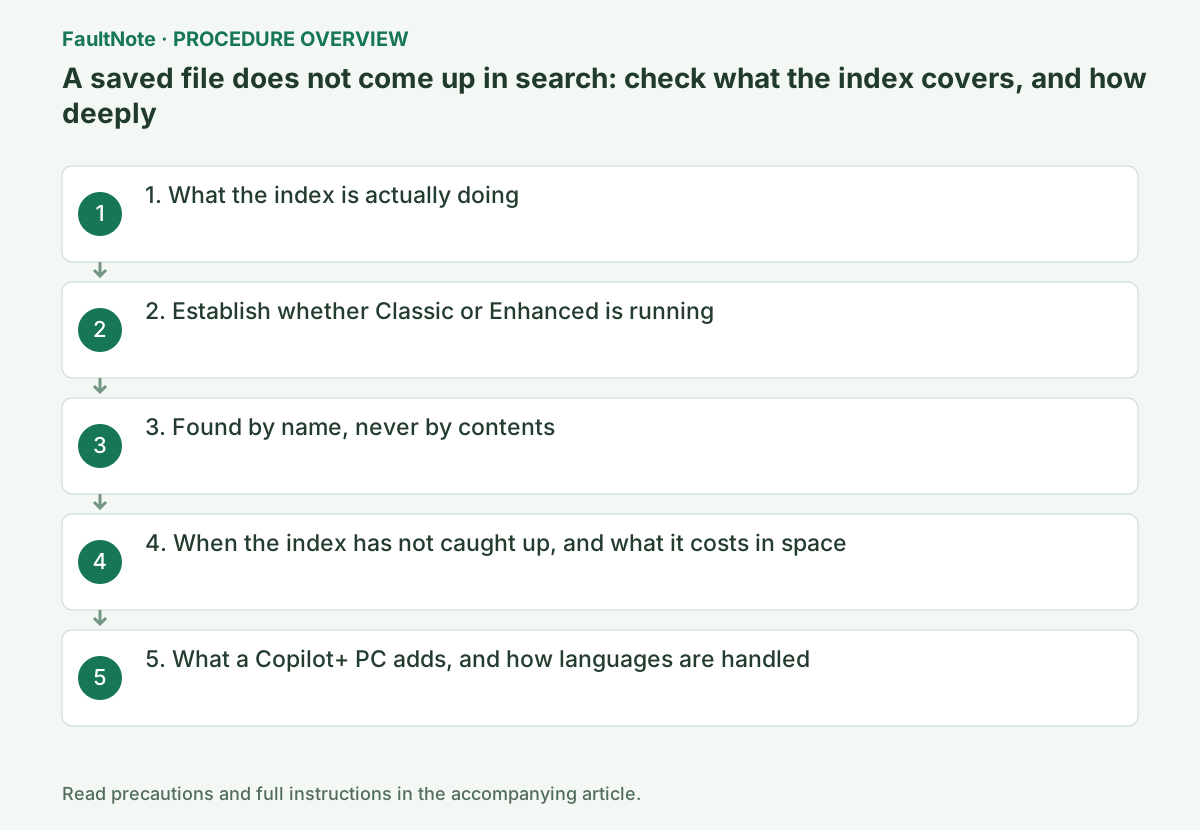
Troubleshooting guide — Check under Settings > Privacy & security > Search whether Classic or Enhanced is running, then either add the location holding the missing file or switch to Enhanced. Where a file is found by name but not by content, change the indexing depth for that file type. After a new machine or a large copy, wait for the first index to finish.
Frequently asked questions
Files I saved on my second drive never show up in search.
Classic mode covers Documents, Pictures and Music plus the desktop by default. Either add that folder through Settings > Privacy & security > Search and Customize search locations, or switch to Enhanced, which covers the whole PC.
I can find the file by name but not by the text inside it.
That file type is probably set to index properties only. Microsoft states For properties only, indexing will not look at the contents of the file or make the contents searchable. It can be changed per type on the File Types tab under Advanced in the Indexing Options dialog.
Is there any downside to switching to Enhanced?
Microsoft states Enhanced mode provides more comprehensive search results but may use more system resources. The results are more complete, and it may cost more resources. Adding just the folders you need to Classic is the alternative.
Something seems to use the disk constantly. Should I stop it?
Not necessarily. Microsoft explains that the PC constantly tracks file changes and keeps the index current. Just after a new machine or a large copy, the first index may also still be running, and that can take up to a couple of hours.
Official sources and dates
Source publication or resolution date: Not specified. Sources checked: 2026-09-21. The check date is not the date the problem first occurred. Interface labels can vary between versions and display languages.
Related troubleshooting guides
Windows errors and troubleshooting →